Tutorial: export for VTube Studio
You will prepare a rig for face tracking, export the runtime package and load it in VTube Studio.
You need a rig with the standard parameters, at least ParamAngleX, ParamAngleY,
ParamEyeLOpen, ParamEyeROpen and ParamMouthOpenY (see the earlier tutorials).
1. Check the parameters
VTube Studio maps its face tracking to Cubism’s standard parameter IDs by default. Open
Parameter settings… (Parameter menu) and check the IDs; Change ID style… (Parameter
menu, Clean-up and IDs) fixes models that still use Cubism 2 style IDs (PARAM_ANGLE_X).
2. Tag blinking and lip sync
In each parameter’s editor (Parameters panel, Edit parameter), turn on Eye blink for the eye-open parameters and Lip sync for the mouth-open parameter. The Export panel shows the tagged parameters under its settings.
3. Add the extras
- Physics for hair and clothes (see Physics).
- Expressions: VTube Studio can bind them to hotkeys (see Expressions).
- Hit areas if you want to react to clicks on the model.
- An idle motion in the Idle group (see Make an idle animation).
4. Test with your face first
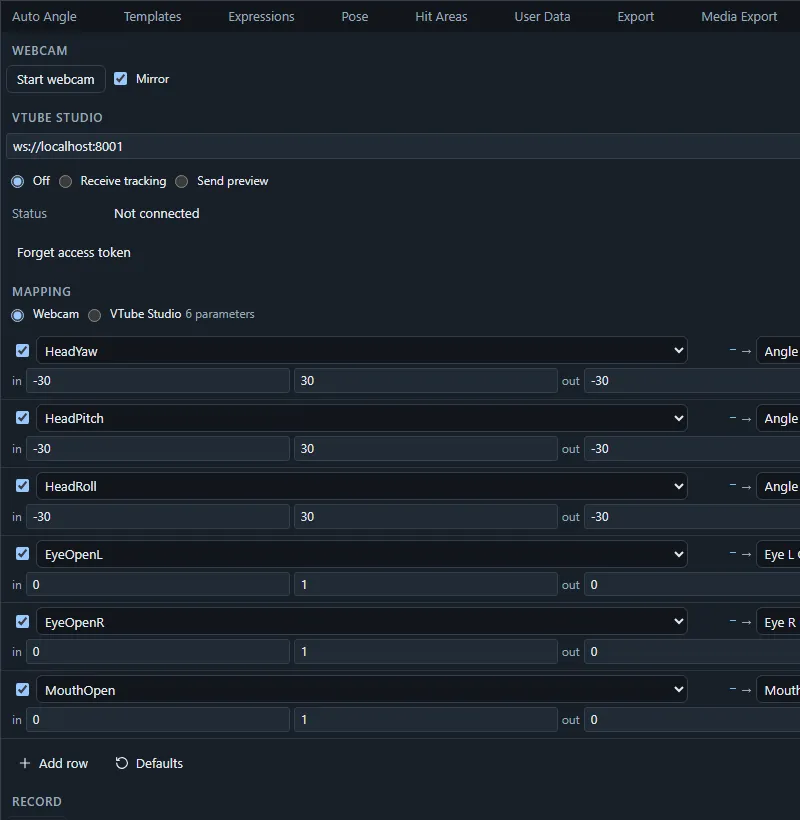
Open the Live panel and press Webcam start (or run Start webcam tracking). Calibrate the neutral pose and check every mapped parameter moves the model as expected. Adjust the mapping rows rather than the rig if a range only needs scaling. Live input never changes the project.
5. Export
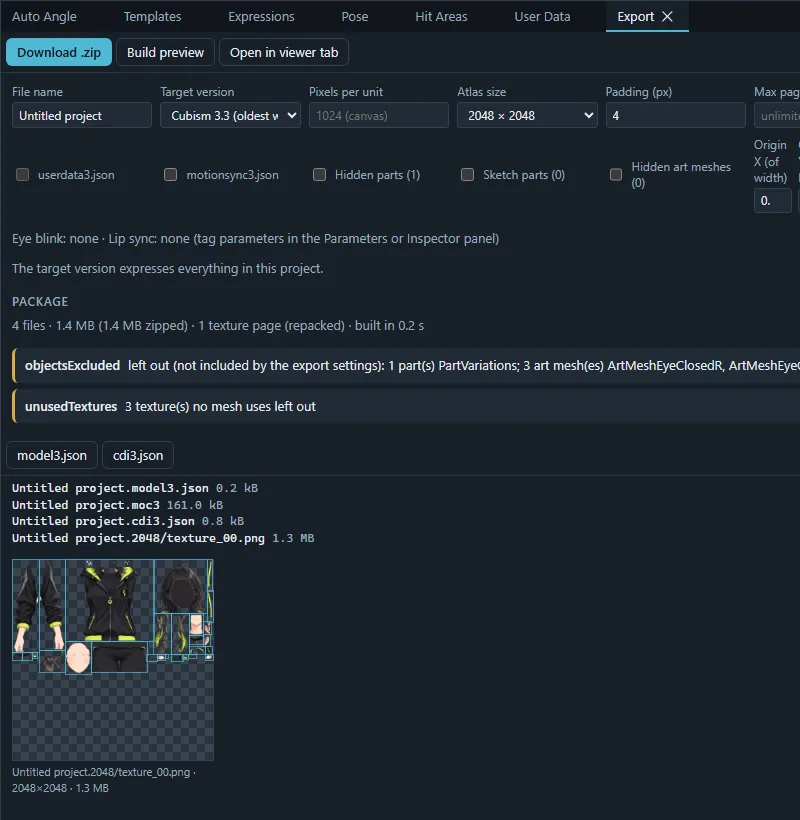
- Open the Export panel (Export runtime package…).
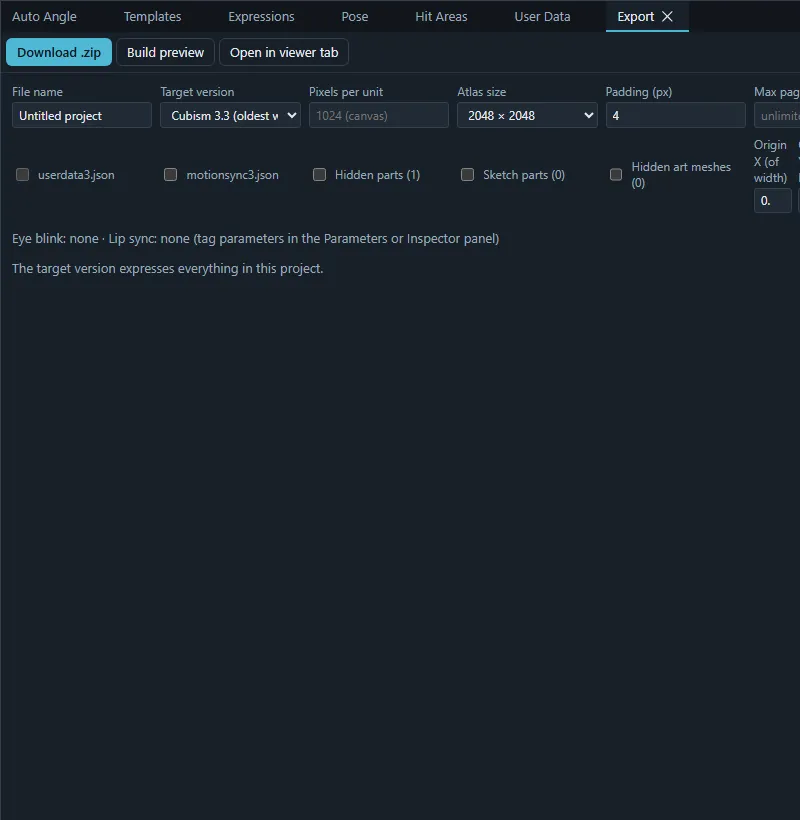
- Keep Export for at Cubism SDK apps and the Target version at the suggested version; if VTube Studio runs an older Cubism SDK, choose that version and read the list of features it cannot express.
- Keep physics3.json and cdi3.json (display names) on.
- Build preview to check the files and atlas pages, then Download .zip.
- Optionally press Open in viewer tab to play the exact package in the runtime preview.
6. Load it in VTube Studio
- Unzip the download. The folder contains
<name>.model3.jsonand its files. - In VTube Studio, open the model selection, use the button that opens its models folder, and copy the unzipped folder there. The model appears in the list.
- Load it and calibrate your face tracking in VTube Studio.
7. Iterate live
The Live panel’s VTube Studio section can also send the editor’s parameter values to the model loaded in VTube Studio, so you see edits in the app while you tune. Browser rules for connecting to a local app are explained in Connecting to local apps.