Getting started
The start page
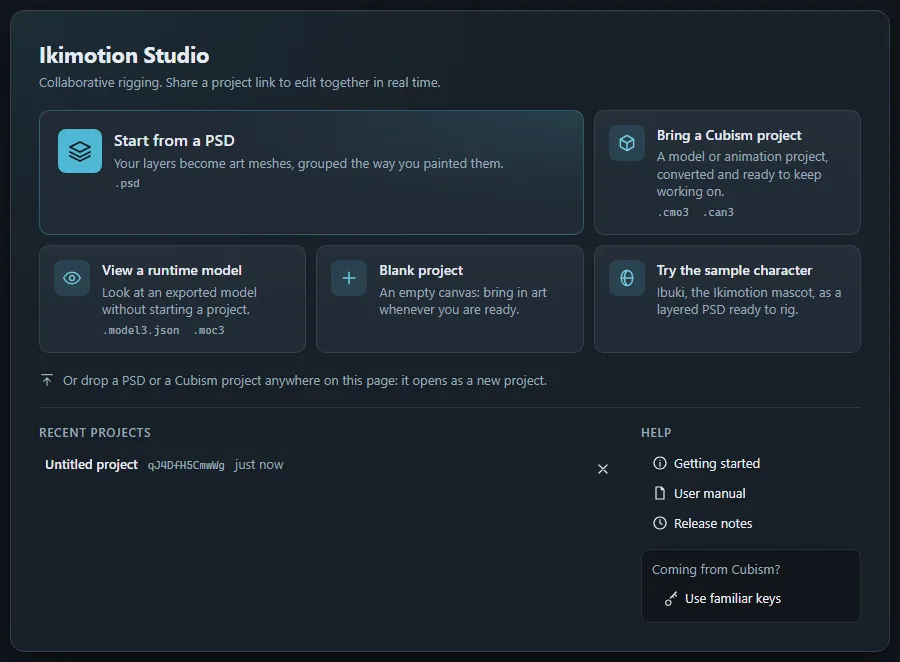
Opening Ikimotion Studio without a project link shows the start page. Its large tiles are the
ways into a project; each new project gets its own address (/p/<project id>): bookmark or
share that address, it is the project.
- Start from a PSD asks for a PSD, creates a project named after it and imports the PSD into it, ready to rig: every layer becomes an art mesh and every group a part. The PSD Import panel shows what was created.
- Bring a Cubism project asks for a Cubism model project (
.cmo3) or animation project (.can3, picked together with the.cmo3it animates and its linked images and sounds), creates a project named after it and imports it straight away (nothing to confirm: the project is new). - View a runtime model opens the editor without a project, to look at a model3.json / .moc3 model you have on disk. Nothing is uploaded and nothing can be edited; use it to inspect a model before importing it.
- Blank project creates an empty project. Its viewport offers the same ways to fill it (see An empty project).
- Try the sample character opens Ibuki, the Ikimotion mascot, in a new project: a layered PSD ready to rig, with her hair, face parts, eyes (irises clipped to the eye whites), brows, arms and jacket on their own layers, and closed eyes and an open mouth waiting in a hidden Variations folder. A quick way to try rigging without artwork of your own.
- Drop a PSD, a
.cmo3or a.can3anywhere on the start page to start a project from it the same way. Dropping a runtime model there views it, like View a runtime model. - Recent projects lists the projects opened in this browser, newest first. The × button removes an entry from the list (the project itself is not deleted).
- Getting started, User manual and Release notes open this help.
- Coming from Cubism? Use familiar keys switches the keyboard shortcuts to the Cubism-compatible set; Use Ikimotion keys switches back. Preferences › Keyboard has the same choice and every single shortcut.
There is no Save command: every change is sent to the project’s room on the server as you make it. The connection badge in the top bar shows Online, Syncing, Connecting or Offline.
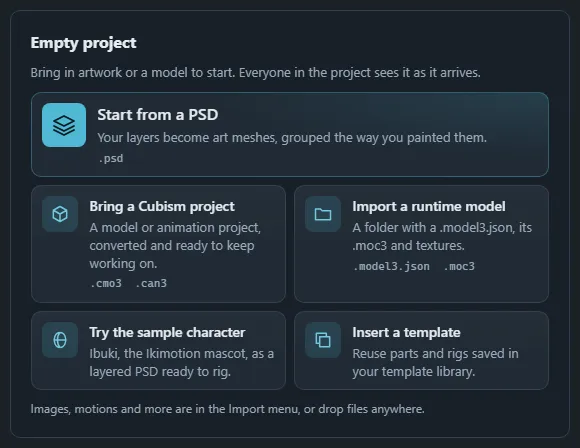
An empty project
A project without art meshes shows the same tiles in its viewport: Start from a PSD,
Bring a Cubism project, Import a runtime model (a folder with a .model3.json, its
.moc3 and textures), Try the sample character and Insert a template (opens the
Templates panel). Here they fill this project instead of starting another one.
Opening and importing files
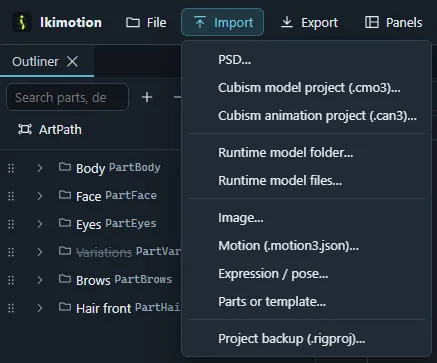
The Import menu in the top bar lists every kind of file the editor takes; each item opens the app’s file dialog with that file type:
| Import item | Takes |
|---|---|
| PSD… | A Photoshop file (see below). |
| Cubism model project (.cmo3)… | A Cubism model project. |
| Cubism animation project (.can3)… | A Cubism animation project with the .cmo3 it animates and its linked images and sounds. |
| Runtime model folder… / Runtime model files… | A runtime model (model3.json, .moc3, textures and sidecar files). |
| Image… | PNG or JPEG pictures, as guide images or textured art meshes. |
| Motion (.motion3.json)… | A motion, as a new scene. |
| Expression / pose… | .exp3.json and .pose3.json files for the project’s model. |
| Parts or template… | A Cubism parts file (.cmp3) to paste, or a template package for the Templates panel. |
| Project file (.iki)… | An Ikimotion project file (or a .rigproj backup from an earlier version), opened as a new project. |
Items that cannot apply yet stay in the menu, dimmed; hovering one says why (for example a motion needs a model to animate). Without a project, PSD… and the Cubism items start a new project like the start page tiles. You can also drop files or folders anywhere on the window. What happens depends on the files:
| Files | Result |
|---|---|
A runtime model: model3.json with its .moc3, textures and sidecar files (physics3, pose3, exp3, cdi3, userdata3, motions), or a bare .moc3 |
Imported into the project. It becomes an editable rig: parts, art meshes, deformers, parameters and keyforms. Motions listed in the model3.json become scenes. |
A Cubism model project (.cmo3) |
Imported into the project (without a project: into a new one). Anything the project cannot represent is listed after the import. Glue becomes one-way attachments. |
A Cubism animation project (.can3), picked together with its .cmo3 and linked images and sounds |
Its scenes are imported; the model is imported first if the project does not have it yet. |
| A PSD | Imported into the project and the PSD Import panel opens to show the result. In a project that already has art meshes it is a re-import: the panel lists what would change and nothing happens until Apply re-import. Provide one PSD at a time; dropped on the start page or with a runtime model on view, it opens a new project. See Importing a PSD. |
| PNG or JPEG pictures only | The Image settings dialog: the picture becomes a guide image or a new textured art mesh. |
Expression (.exp3.json) or pose (.pose3.json) files |
Imported into the project’s model. Unknown parameter or part ids are reported. |
A Cubism parts file (.cmp3) |
Pasted into the project through the template insert dialog (see Templates). |
An Ikimotion project file (.iki) or an older project bundle (.rigproj) |
Opens as a new project after showing who signed it (see Backups and copies). |
When a PSD comes with other files, the PSD is imported on its own and the other files are left
out (a notice names them). If those files hold a model (a runtime model, .cmo3, .can3,
.cmp3, .iki or .rigproj), the model is opened instead and the PSD is left out.
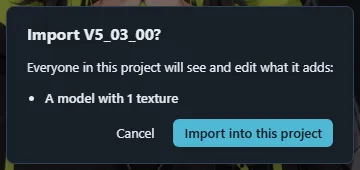
Into an empty project (no drawables, no scenes) a model is imported at once. A project that already has content asks first: Import name? says in one sentence that everyone in the project will see and edit it and lists what it adds (a model and its textures, scenes) and anything to know, and Import into this project goes ahead. An empty project asks too when the files lack something they refer to (a missing motion or linked file). Textures go to the project’s asset store; a progress bar runs while the batches are sent; warnings appear in a report dialog and stay listed in the Session panel.
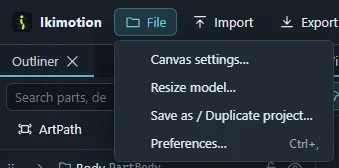
The File menu keeps what concerns the project itself: Save as / Duplicate project…, Canvas settings…, Resize model… and Preferences…. Getting files out is the Export menu (see Export).
Importing a PSD
- Drop the PSD on the window (the quickest way; on the start page this creates the project), or run Import PSD… from the command palette (Ctrl+K): the PSD Import panel opens and asks for the file. A PSD dropped on the PSD Import panel itself is imported the same way.
- Optionally open Mesh and layer options first: alpha threshold, mesh margin, edge and interior spacing and the vertex limit of the automatic meshes, and whether clipping groups become masks, blended groups become offscreen parts and hidden layers are imported. Restore defaults resets them.
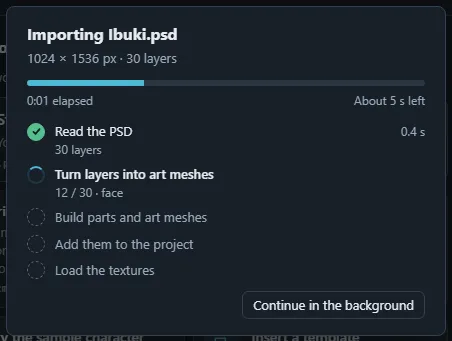
- A popup follows the import step by step: creating the project (when the PSD starts one), reading the PSD, turning its layers into art meshes, building the parts and art meshes, adding them to the project and loading their textures. It shows the time spent and an estimate of the time left, which improves after the first import on a computer, and closes by itself once the model is ready to work with. Continue in the background (or Esc) hides it while the import goes on; the PSD Import panel keeps showing the progress. If the import fails, the popup shows why until you close it.
- The import is applied as one undoable change. Every layer becomes an art mesh with an automatic mesh and every group a part.
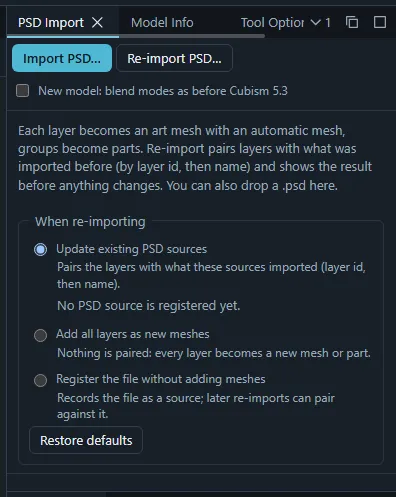
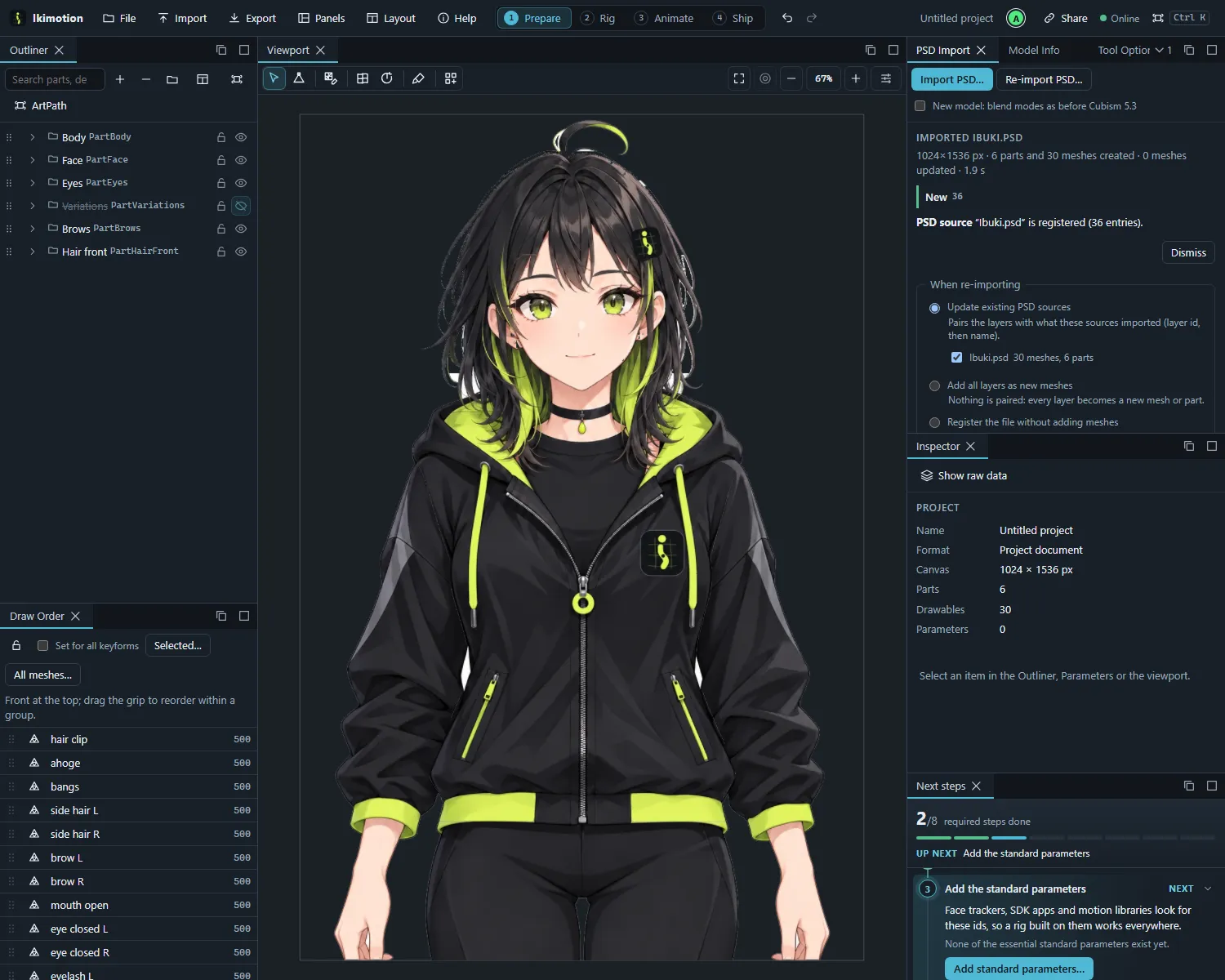
Re-import PSD… updates a project from a changed PSD: layers are paired with existing art meshes by layer id, then by name. The panel lists what the re-import would do, new, updated, repainted and removed layers, and Apply re-import carries it out. Moved layers are translated and repainted layers keep their keyforms. A mesh someone else is editing at that moment keeps its old texture (reported). While you review a re-import the popup steps aside, and it comes back while the changes are added.
The Next steps checklist
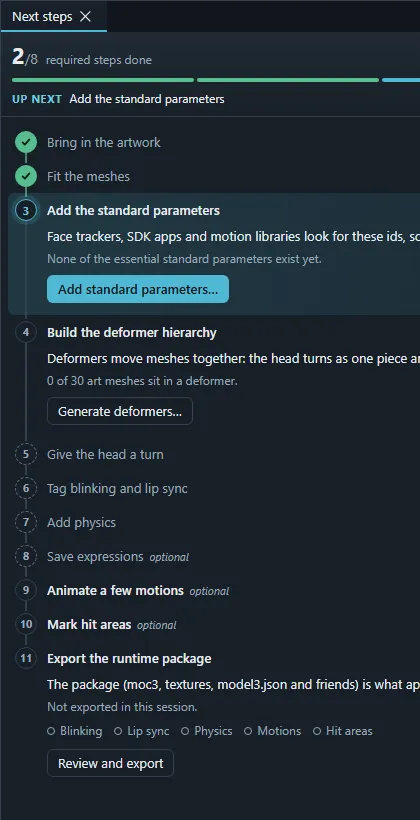
The Next steps panel is a live checklist of the rig, from artwork to export. It sits in the right column of the Prepare and Rig stages; open it anywhere from the Panels menu or the command palette (Show Next steps).
- The top shows how many required steps are done, a bar with one segment per required step and the step to do next.
- Each step ticks itself off from the project: you never mark anything by hand. Done steps fold away to one line (click one to open it again); steps that need an earlier one first are marked with a dashed circle and their button stays off until then.
- An open step says in one sentence why it matters, shows the current state (for example “2 of 12 art meshes are still plain rectangles”) and has one button that does the fix or opens the feature that does it.
| Step | Done when | The button |
|---|---|---|
| Bring in the artwork | the project has art meshes | Choose a PSD… imports one (Choose an updated PSD… re-imports once done) |
| Fit the meshes | no unlocked art mesh is still a four-corner rectangle | Mesh them automatically selects those meshes and meshes them in one undo step; Edit a mesh by hand once done |
| Add the standard parameters | every essential standard parameter exists (head turn, eyes, mouth, body and breathing sets) | Add standard parameters… (see Adding the standard parameters) |
| Build the deformer hierarchy | the project has a deformer | Generate deformers… (automatic generation) |
| Give the head a turn | an Angle X or Angle Y parameter has keyforms | Open Auto Angle (Auto angle) |
| Tag blinking and lip sync | a parameter is tagged for blinking and one for lip sync | Tag standard parameters when the standard eye and mouth parameters exist untagged (one undo step), else Open Parameters |
| Add physics | the project has a physics group | Open Physics |
| Save expressions (optional) | the project has an expression | Open Expressions |
| Animate a few motions (optional) | a scene is set to export as a motion | Open Scenes |
| Mark hit areas (optional) | the project has a hit area | Open Hit Areas |
| Export the runtime package | a package was built in this session and nothing changed since | Review and export opens the Export panel; the step also lists what the package will contain (blinking, lip sync, physics, motions, hit areas) |
Optional steps do not count toward the progress. When every required step is done the panel points to the optional ones that remain.
Projects, sharing and copies
Sharing a project
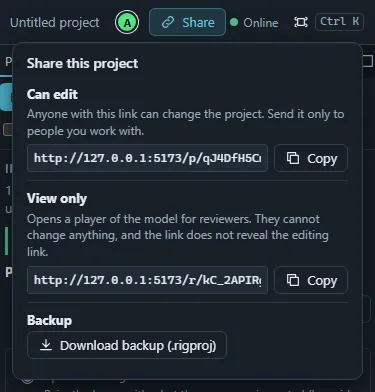
Projects belong to accounts: whoever creates a project owns it, and only its members open it. Share in the top bar opens a small panel with everything needed to bring people in:
| Item | What it does |
|---|---|
| Your role | Owner, Editor (can change the project) or Viewer (sees the project, cannot change anything). |
| Editor invite link / Viewer invite link | Owner only. Whoever opens the link while signed in joins the project with that role (an invite never lowers a role someone already has). Links keep working until Revoke all invite links. Copy puts a link on the clipboard. |
| Members | Owner only. Everyone in the project with their role: change a role or Remove someone. People whose role changes are reconnected at once with the new role; removed people are disconnected and cannot open the project any more. |
| Link editing | Owner only, projects created before accounts existed: anyone signed in who opens the project link becomes an editor (the first one became the owner). Make members-only ends this. |
| Project link | The project’s address (/p/<id>). Members open the project with it; others need an invite link. |
| View only | Owners and editors. A review link (/r/<code>) that opens a player of the project’s runtime package with motions, expressions and hit areas, without an account. Reviewers cannot change anything: the room refuses every edit from that link, and the link does not contain the project’s address. |
| Save project file (.iki)… | Saves the whole project as one signed file (see Backups and copies). |
Someone signed in who is not a member sees “You do not have access to this project”, with Back to projects and Sign in as someone else. See Accounts and sign-in.
The view-only link is created the first time someone asks for it and then stays the same for the project. Copy preview link for reviewers (command palette or the Export menu) copies the same view-only link. See Preview and share link.
Your name
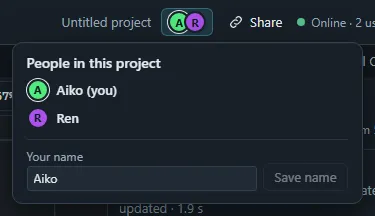
The name collaborators see on the avatars in the top bar, in the Session panel and next to your cursor and selection is your account’s name (see Accounts and sign-in). Change it in Account settings (the account menu at the top right), in the people panel (click the avatars in the top bar) or in the Session panel: each one renames your account, and every open project shows the new name right away. Account names are 1 to 64 characters; projects show at most 64 bytes of a name (about 20 Japanese or Chinese characters).
Working together
Everyone in a project edits the same document live:
- The top bar shows an avatar for each person in the project: the first letter of their name in their colour (yours has a light ring, reviewers on a view-only link a dashed one). Hovering an avatar shows the name and what that person has selected; clicking opens the list of everyone with your own name field.
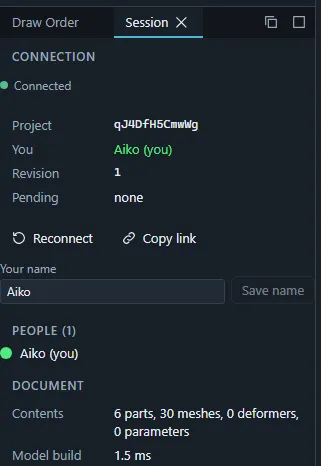
- The Session panel lists the people in the project with their name, colour and what each has selected, the objects currently being edited by someone (for example a mesh in mesh edit is locked for others until it is applied or cancelled), the revision number and how many of your changes are still awaiting the room. Reconnect reopens the connection; Document fingerprint prints a checksum that is equal for everyone once all changes are confirmed.
- Other people’s pointers and selections are drawn in the viewport in their colours, labelled with their names.
- Undo and Redo (top bar, Ctrl+Z and Ctrl+Y or Ctrl+Shift+Z) step through your own changes; other people’s work is left alone.
- While some of your changes have not reached the room yet (shown as pending next to Undo and Redo, for example after working offline), closing or reloading the tab asks first, so nothing is lost by accident.
- Some settings are deliberately personal and stay in your browser: layouts, keyboard shortcuts, preferences, live-input mappings, export settings and random-pose choices.
Backups and copies
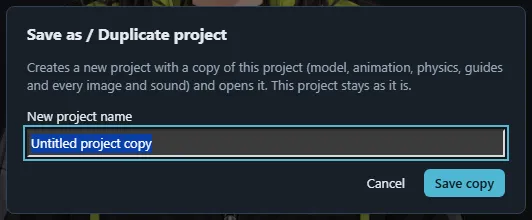
- File › Save as / Duplicate project… copies the document and its textures into a new named project and opens it. Its Save to a file (.iki)… button saves a project file instead.
- Export › Project file (.iki)… (also File › Save project to file (.iki)… and
Share › Save project file (.iki)…) saves the whole project (document and every image and
sound) as one Ikimotion project file, through the save dialog. Choose a
protection: None, Password (encrypted; there is no way to recover a forgotten
password) or My account (encrypted; it opens only for your account, signed in). Every
.ikiis signed: with your account when you are signed in, else with a key that belongs to this browser only (shown as unverified). - Import › Project file (.iki)… (or dropping the file) shows who signed it, whether it was
changed since (Modified after it was signed: open it only if you trust where it came
from), asks for the password of a protected file, and creates a new project from it: use it
for backups or to move a project to another server. Backups from earlier versions
(
.rigproj) still open the same way. The format and what it protects against: The Ikimotion file container and.ikiprojects. - Export › Cubism model (.cmo3)… and Export › Cubism animation (.can3)… write files Cubism Editor opens (see Cubism project files).
The file dialogs
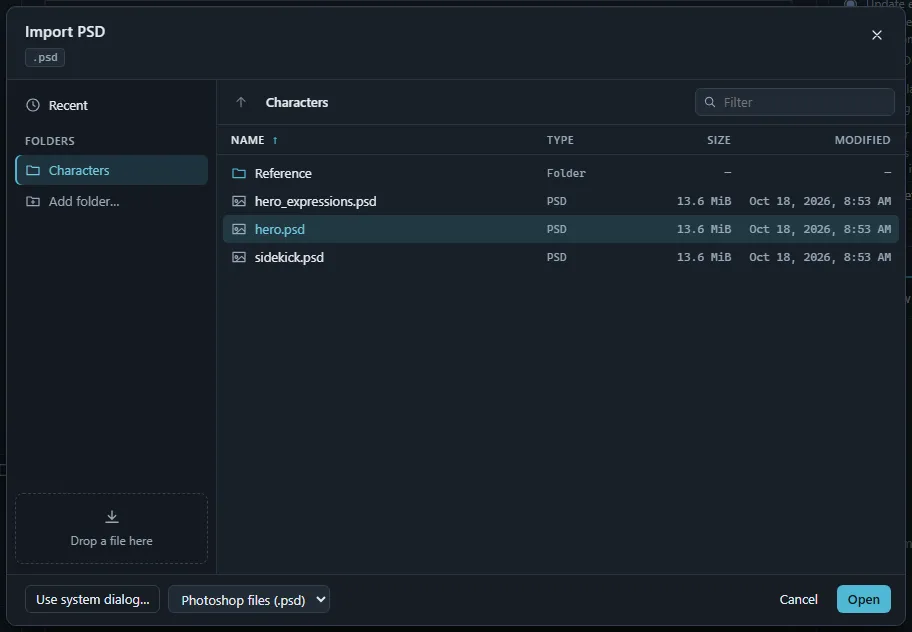
Every command that reads or writes a file on your computer uses the app’s own open and save dialogs.
- Folders: Add folder… asks your browser once for a folder (its own folder picker and permission prompt). The folder then stays in the list on the left of every dialog, in this browser. After a reload the browser asks again for permission the first time you open it. The × next to a folder removes it from the list; the folder itself is untouched.
- Browsing: the breadcrumbs and Up one folder (Backspace) move between folders; the columns sort by name, type, size or modification time; Filter narrows the list. The type list shows the files the command reads, or All files. Ctrl+click and Shift+click pick several files when the command takes several; double-click (or Enter) opens a file or enters a folder. Commands that take a folder (Import › Runtime model folder…) open the folder shown, or the one selected, with everything inside it.
- Recent: files opened from your folders, newest first.
- Dropping: files or folders dropped on the dialog are opened at once.
- Use system dialog… opens the operating system’s file picker instead.
- Saving: the name keeps the file type’s extension. Downloads hands the file to the browser’s downloads; a folder saves straight into it (replacing a file asks first). The dialog starts in the destination you used last.
Chrome and Edge show your folders and recent files inside the dialog. Firefox and Safari cannot give a page access to a folder: there the open dialog takes dropped files or the system dialog, and files are saved to the browser’s downloads.
Next steps
- Learn the screen in The interface.
- Follow Tutorial: from PSD to a first rig.