Tutorial: rig a head turn
You will make the head turn left and right with a parameter, first automatically with Auto angle, then refined by hand on a face deformer.
You need the project from From PSD to a first rig, or any project with the face drawn as separate layers (face, eyes, brows, nose, mouth, ears, front and back hair).
1. Create the angle parameter
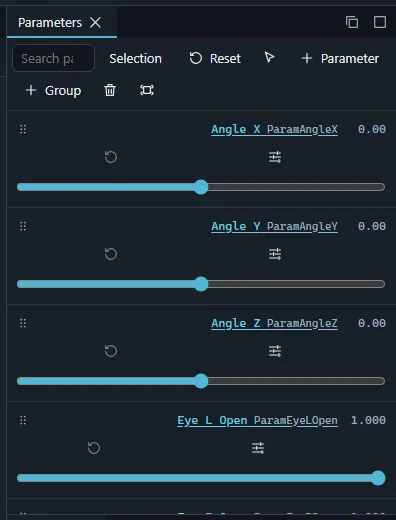
- In the Parameters panel press + Parameter.
- Name Angle X, ID
ParamAngleX, minimum −30, default 0, maximum 30.
2. Generate the turn with Auto angle
Auto angle treats the head as an ellipsoid and turns every face part on it according to how far in front of or behind the face surface it sits.
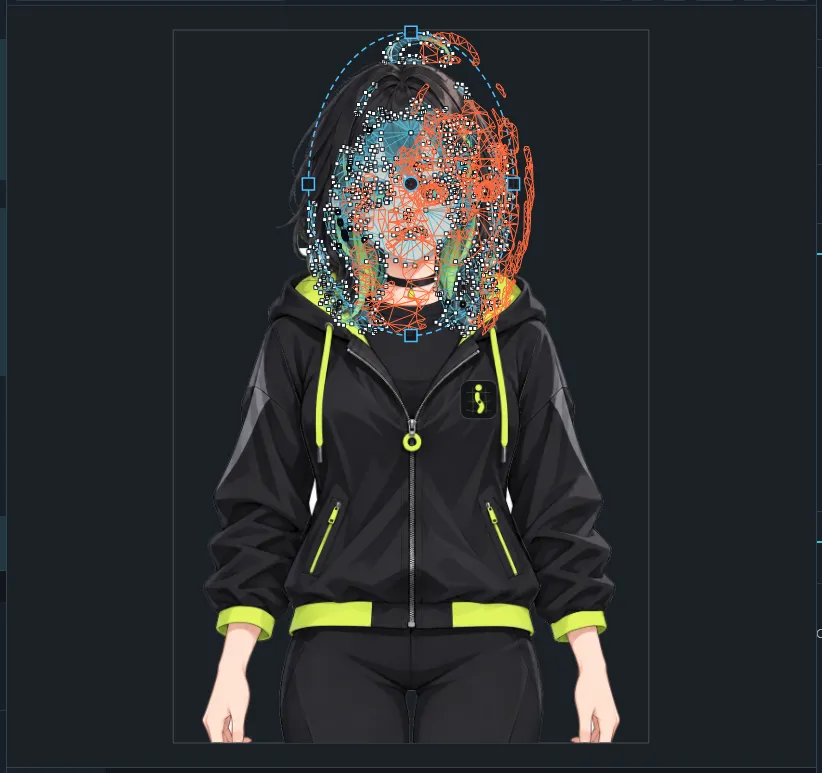
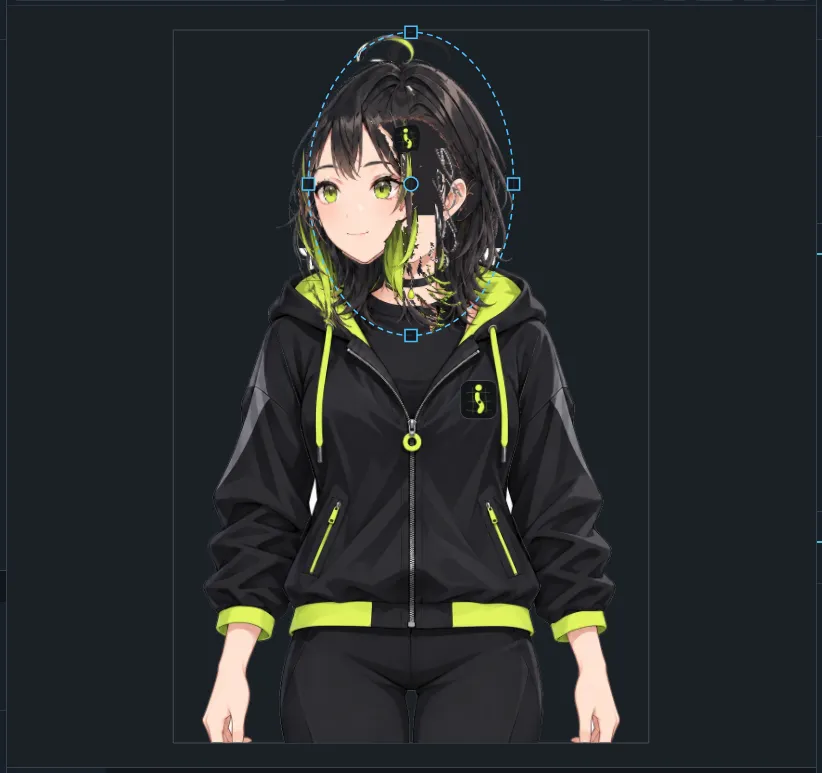
- Select the art meshes of the face (face, eyes, brows, nose, mouth, ears, front hair) in the Outliner; on Ibuki also the irises, eyelashes, bangs, side hair, ahoge and hair clip. Leave the back hair out: it should turn the other way, or be handled by a deformer.
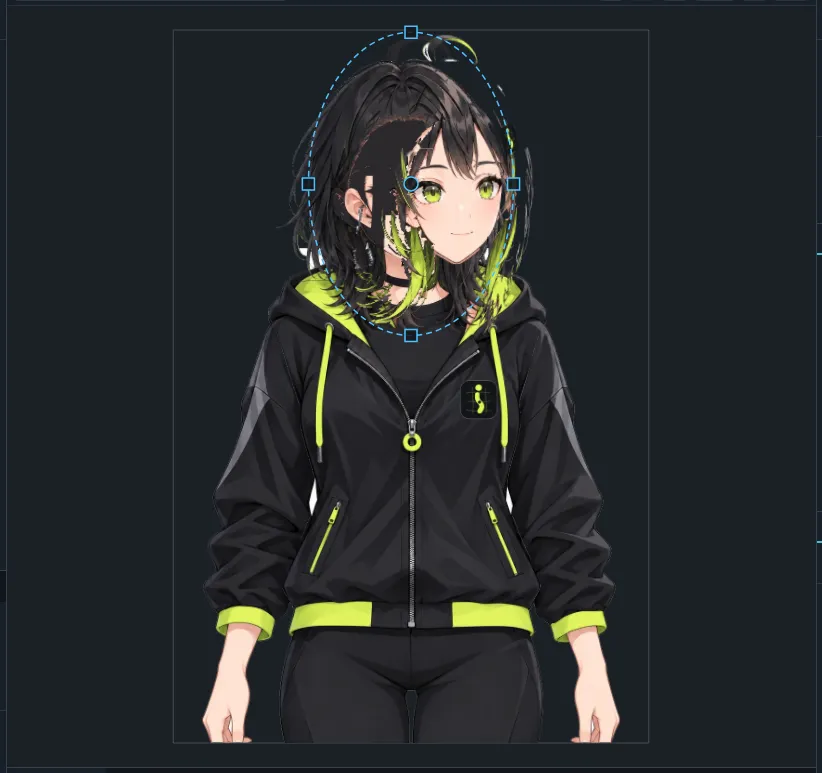
- Open the Auto Angle panel (Panels menu) and press Fit proxy to selection. An ellipse appears over the face.
- Press Proxy handles and drag the ellipse’s centre and edge handles in the viewport until it matches the skull, the sides of the ellipse where the cheeks turn away, not the hair outline.
- Choose Angle X as Parameter, Yaw (left / right) as turn, and an angle (start with 20°).
- For every part, set its depth: the nose sticks out in front, the eyes sit a little inside, the ears behind the cheeks. The preset buttons next to each part give typical values.
- Turn on Preview and drag the preview slider. The status line reports folded triangles and whether the profile had to be flattened; reduce the angle or the depth of the parts listed if it does.
- Press Apply. The parts now have keyforms at −30, 0 and 30 of Angle X; undo reverts it.
Move the Angle X slider to check the turn.
3. Add a face deformer for refinements
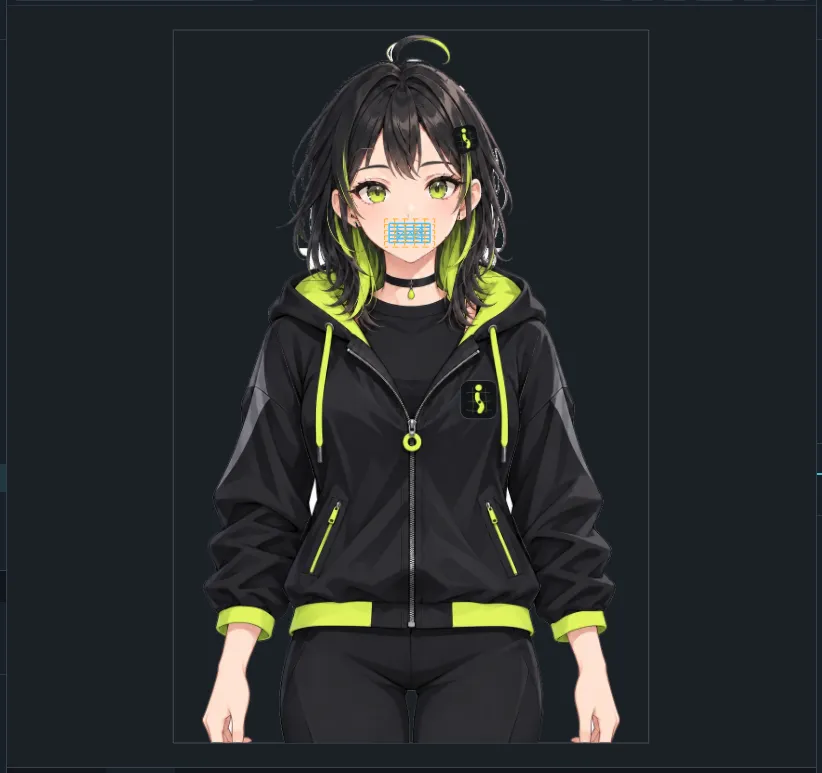
- Select the same face meshes again and choose the Warp deformer tool (W). Set 5 columns × 5 rows in the tool options and press Wrap selection in a warp deformer. The meshes move into the warp without changing.
- Rename it Face warp in the Outliner (F2 or double-click).
- With the warp selected, bind Angle X in the Keyforms panel with 3 keys: min/default/max.
4. Refine the extreme poses
- Set Angle X to 30. Choose the Points tool and switch to edit level 2 (key 2): the warp shows a Bezier net. Drag the handles to push the far cheek in and bulge the near side out.
- Set Angle X to −30 and repeat for the other side, or select the warp and use Flip keyform… in the Keyforms panel, or Mirror motion… in the Parameter menu, to mirror the 30° shape.
- Turn on Smooth interpolation for the warp in the Keyforms panel so features travel on curved paths between the keys; Compare with linear shows the difference.
- Move the slider through the range and fix anything that pops.
5. Up and down, and the diagonals
Create Angle Y (ParamAngleY, −30 … 30) and generate it the same way with Pitch (up /
down). With both angles bound on the same objects, Fill corner keyforms… in the Parameter menu
builds the diagonal keyforms (looking up-left, down-right…) from the edge keyforms, so you only
fine-tune them.
Next: animate the head in Make an idle animation.