Exporting
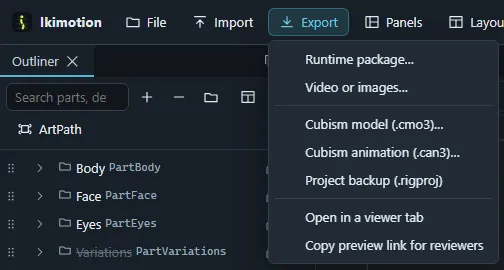
The Export menu in the top bar reaches every export: Runtime package…, Video or
images…, Cubism model (.cmo3)…, Cubism animation (.can3)…, Project file
(.iki)…, Open in a viewer tab and Copy preview link for reviewers. An export that
cannot apply yet stays in the menu, dimmed, and hovering it says why (an empty project has no
art meshes to export; a .can3 needs scenes).
The runtime package
The Export panel (Export › Runtime package…) builds what Cubism SDK apps
load: model3.json, the .moc3, packed texture atlases and the enabled sidecar files
(physics3.json, pose3.json, cdi3.json, userdata3.json, expressions, motions,
motionsync3.json).
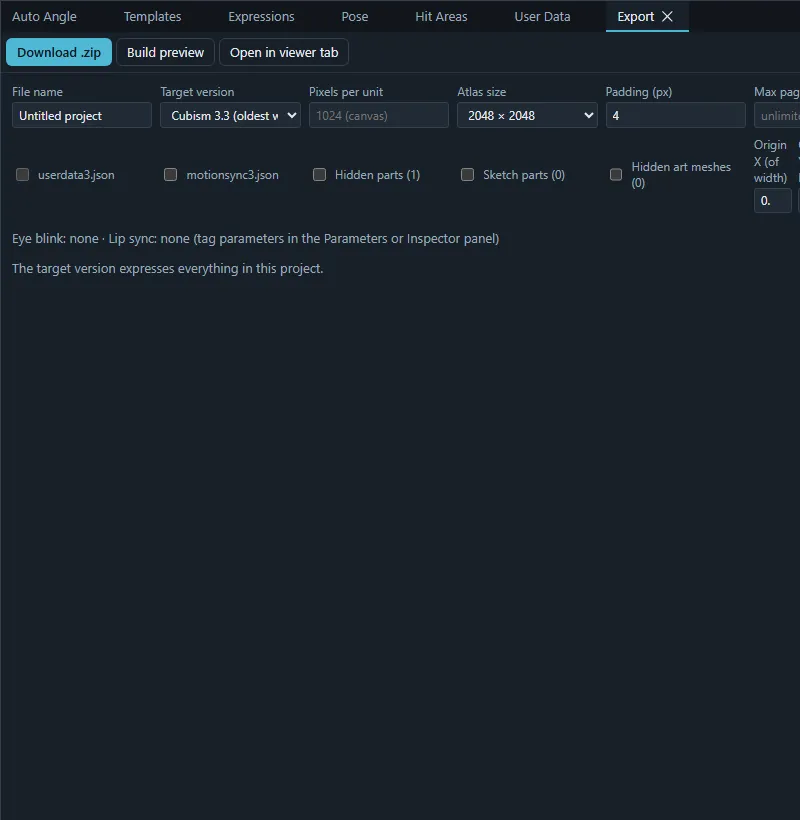
- Download .zip builds the package and saves it through the save dialog: into one of your folders or the browser’s downloads.
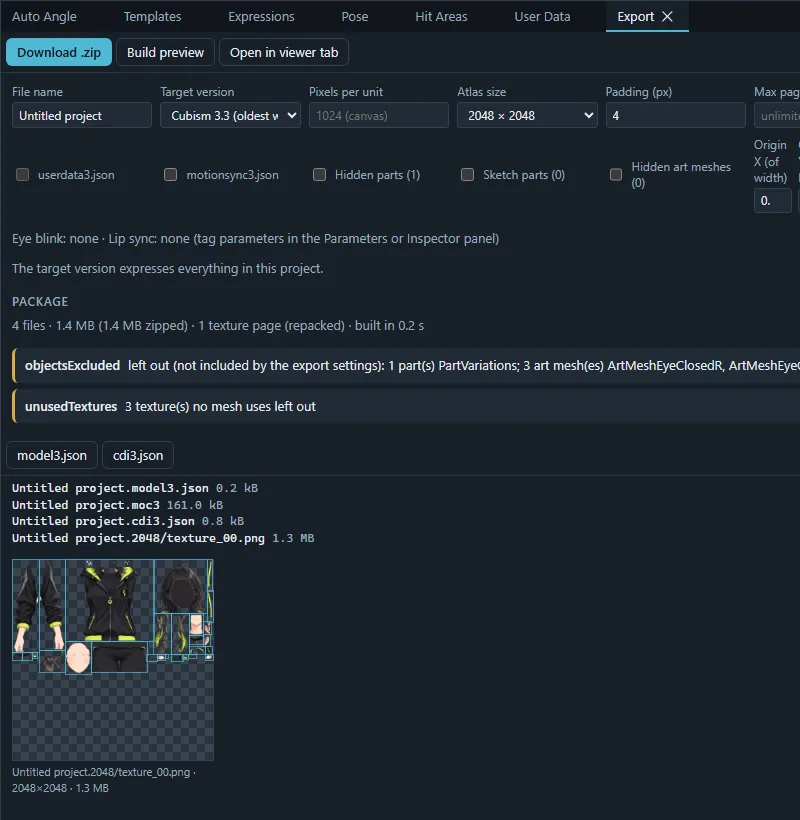
- Build preview builds it without downloading: the panel then lists every file with its size, shows the atlas pages with the place of each mesh, and offers the single files (model3, physics3, pose3, cdi3, userdata3) to save one by one.
- Open in viewer tab opens the package in a new browser tab with the runtime preview.
Settings
| Setting | Meaning |
|---|---|
| File name | Base name of the model files. |
| Target version | The Cubism version the .moc3 is written for (3.0 … 5.3). The oldest version that keeps everything is marked; choosing an older one lists what it cannot express under Not supported by the target version and the export removes or neutralises those features. |
| Pixels per unit | Overrides the canvas’ pixels per unit. |
| Atlas size, Padding, Max pages, Downscale to fit | How textures are packed into atlas pages. |
| Always repack textures | Repacks even when the imported textures could be shipped unchanged. |
| physics3.json, cdi3.json, userdata3.json, motionsync3.json | Which sidecar files are written. |
| Hidden parts, Sketch parts, Hidden art meshes | Include hidden or disabled objects (written invisible) or leave them out. |
| Origin X / Y | The model origin as a fraction of the canvas. |
| Texture scale | Writes smaller textures (1/2, 1/4…) with the same model. |
| Export for | Cubism SDK apps or nizima (the nizima layout with a preview package and the project as .cmo3, plus its own preview texture scale). |
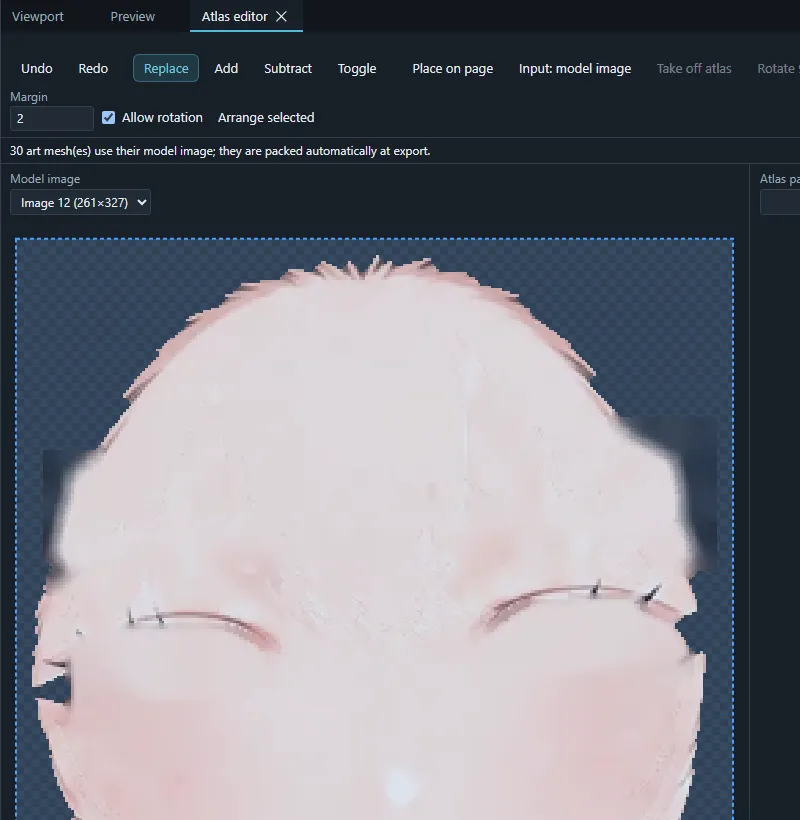
The Atlas editor panel lets you place art mesh images on atlas pages by hand (add pages, place, rotate and arrange pieces, or leave a piece on its model image). Art meshes that are not placed are packed automatically at export.
Below the settings the panel lists the parameters tagged for eye blink and lip sync (the model3.json groups). Export settings are remembered per project in this browser.
Export physics settings (physics3.json) in the command palette downloads only the physics.
Preview and share link
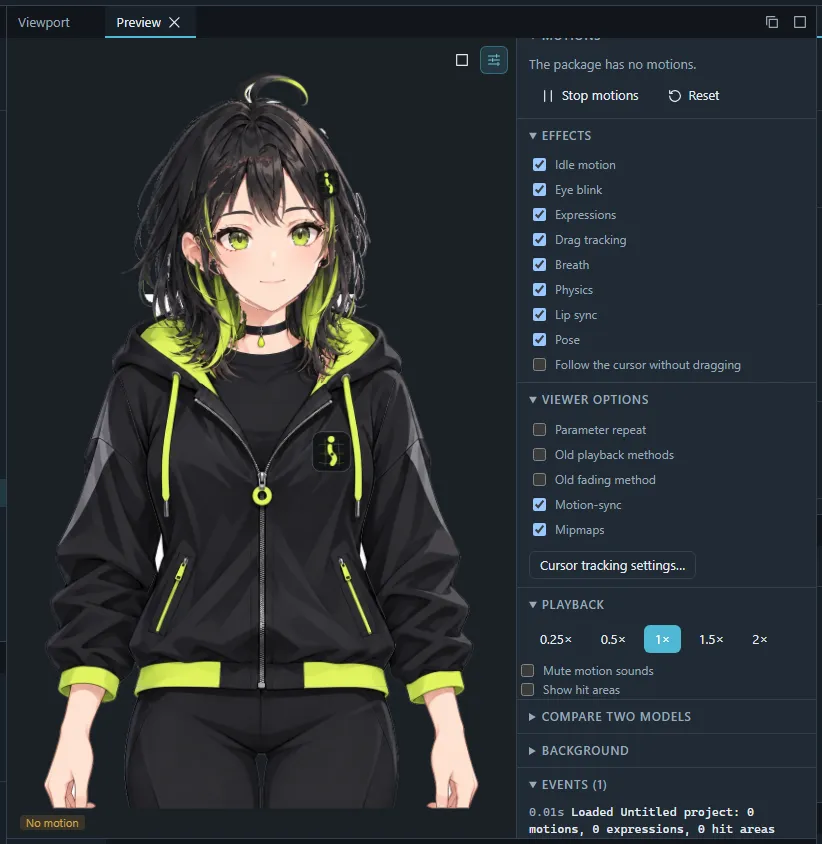
The Preview panel (the centre of the Ship stage) plays the project’s runtime package the way an app would, rebuilt from the project when it changes:
- motions by group, expressions, effects (eye blink, breath, lip sync from the motion’s sound, looking at the pointer), playback speed;
- a background colour, transparency or a background image, and Fullscreen;
- Show hit areas outlines them and the event log lists taps on hit areas and motion events;
- Open package… plays any runtime package from disk (a folder or a
.zip) instead.
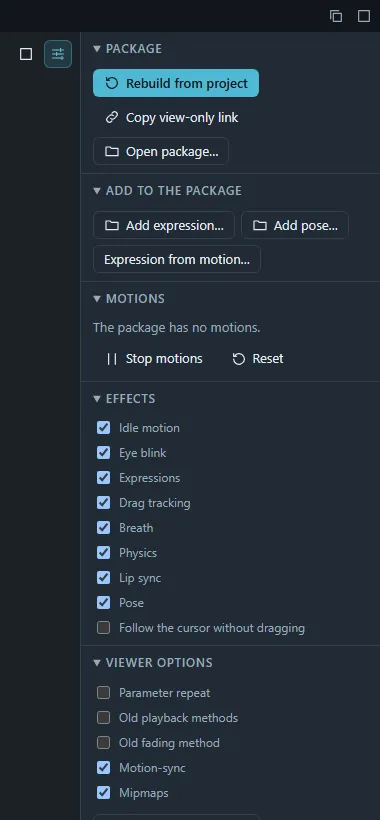
Export › Copy preview link for reviewers (or Copy view-only link in the preview, or
View only in the top bar’s Share panel) copies the project’s view-only link
…/r/<code>. It opens the same player full-page, with no editing tools; send it to people who
should review the model. The link is read-only: the room refuses every change made through it,
and it does not contain the project’s address, so reviewers cannot reach the editing link from
it. People who already have the editing link can also open the player at …/p/<project>/preview.
Cubism project files
- Export › Cubism model (.cmo3)… writes the model as a Cubism Editor model project.
- Export › Cubism animation (.can3)… writes the scenes as a Cubism animation project that refers to that model; linked images and sounds are saved next to it in a zip.
Protected models
Export › Ikimotion protected model (.ikm)… saves the runtime package encrypted for the Ikimotion license service, and Export › Protected model licenses… issues a license to each buyer, who plays it in the Ikimotion viewer. See Protected models.
Images and video
The Media Export panel (Export › Video or images…) renders the model or a scene:
- the current modeling pose as PNG, JPEG or a layered PSD (one layer per art mesh, folders per part, or all source images as imported);
- a scene as a PNG or JPEG sequence (zip), animated GIF, MP4, WebM (with transparency) or MOV video with sound;
- every scene at once into one zip.
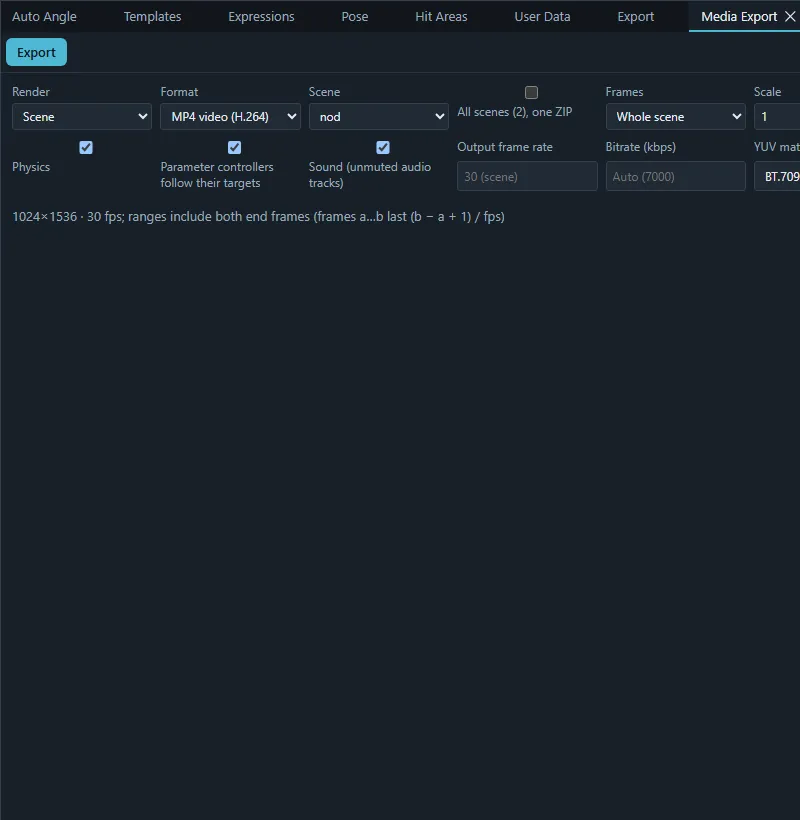
Options include size and scale, background colour or transparency, frame range, frame rate, anti-aliasing, GIF colours and dithering, video bit rate and colour matrix, and audio codec. The complete list is in Media export.
Data files
- Export › Project file (.iki)…: the whole project as one signed, optionally encrypted
.iki(see Backups and copies). - Export objects as CSV / Export parameters as CSV: see Model information and CSV.
- Download motion3.json in the Scenes panel: one motion.
- Export lip-sync setting (motionsync3.json).
- Physics presets: Export presets… in the Physics panel.