Modeling: objects and meshes
A model is made of art meshes (textured triangle meshes cut from your artwork), organised in parts (folders that also control visibility and opacity), deformed by deformers and driven by parameters through keyforms. This page covers the objects themselves; see Deformers and Parameters and keyforms for movement.
The Outliner
The Outliner shows the parts, deformers and art meshes as a tree.
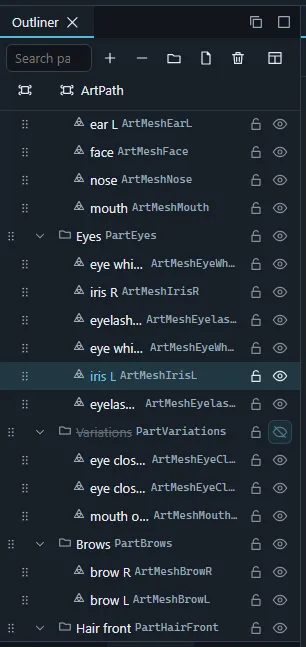
- Click to select, Ctrl+click to add or remove one row, Shift+click to select every shown row from the last clicked one (Ctrl+Shift+click adds that range). The selection is shared with the viewport, the Inspector and every other panel.
- Rename with F2 or a double-click.
- Drag rows to reorder them or move them into another part. Restrict drag and drop (Outliner menu, or Preferences › Panels) prevents accidental moves; Mark selection for moving and Move marked here do the same move without dragging (useful on touch).
- The eye and lock toggles on each row hide an object or protect it from canvas edits. Locked or hidden parts pass that state on to their contents (shown by the row colour).
- Columns and types adds ID, blend mode, deformer, visibility and lock columns and filters the tree by kind (parts, art meshes, warp and rotation deformers). The text field filters by name.
- The Outliner menu holds the bulk actions: new part (name, ID and where it goes), expand / collapse all, show / hide / lock / unlock for everything, the selection, its contents, objects on the same level or everything not selected, Remember visibility / Restore remembered visibility, delete parts keeping their contents, delete empty parts or deformers, and selecting the clipping masks of a mesh or the meshes clipped by it.
Cubism-compatible keys: Ctrl+2 lock / unlock the selection, Ctrl+Shift+2 lock everything else, Ctrl+Alt+2 unlock all, Ctrl+3 show / hide the selection, Ctrl+Alt+3 show all.
Delete (Delete key) asks before it also removes what depends on the deleted objects (for example the contents of a part) and lists them. A deleted deformer goes alone: the art meshes and deformers inside it move up to its parent deformer (or the canvas) and stay where they are drawn at their keyforms.
The Inspector
The Inspector shows what is selected:
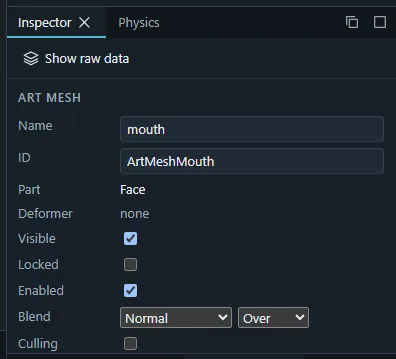
- Art mesh: name, runtime ID, parent part and deformer, visibility, lock, culling, colour and alpha blend modes (the Cubism 5.3 set; older export targets fall back as the Export panel reports), clipping masks, and the current keyform’s opacity, multiply and screen colours and draw order.
- Part: name, ID, visible, locked, enabled (a disabled part is a sketch part, left out of exports by default), draw-order group and the keyform’s opacity and colours.
- Deformer: the warp’s divisions and Bezier settings or the rotation’s angle, scale and origin.
- Parameter: range, default and tags.
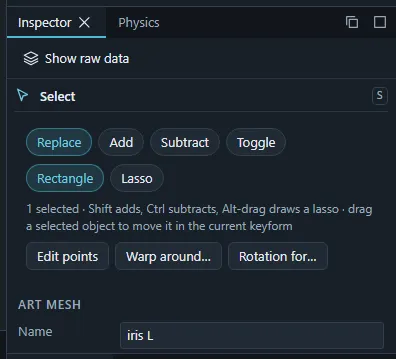
With several art meshes selected, bulk settings change visibility, lock, enabled state, culling, blend mode and the current keyform’s opacity or draw order of all of them in one change.
Show raw data (Inspector toolbar) adds a section with every stored field of the selection, its document entry, its runtime entry and the entries referring to it, each copyable as JSON.
When the parameters sit between keyforms, keyform values are shown interpolated and read-only; Go to nearest keyform snaps the parameters to the closest one.
PSD import and re-import
The PSD Import panel (Prepare stage) imports a .psd as parts and art meshes. Every
imported file is recorded as a PSD source that lists the meshes and parts of its layers.
- New model: blend modes as before Cubism 5.3 (next to Import PSD…) maps blend modes like Cubism’s “create new model, blend mode before 5.3”: Multiply and Linear Dodge become the legacy Multiply and Add, every other mode is Normal (the report names the modes that were dropped), and blended groups are not turned into offscreen parts. Re-imports always use the current modes.
- When re-importing choices decide what Re-import PSD… does with the project: Update existing PSD sources pairs the layers (by layer id, then name) with the meshes of the ticked sources only, untick a source to leave its meshes alone; Earlier imports are meshes imported before sources were recorded. The ticked source whose name matches the file (else the one with most paired layers) takes the new file; layers that left the PSD stay with their source. Add all layers as new meshes pairs nothing and adds every layer next to what exists. Register the file without adding meshes only records the file as a source (no layer is decoded); a later re-import against it adds its layers.
- A re-import shows its pairing first (new, updated, repainted, removed, the source change) and applies as one undoable change that collaborators receive.
Art meshes and mesh editing
Art meshes come from a PSD import, an image import or a model import. To change a mesh’s vertices and triangles, select one art mesh and choose the Edit mesh tool (E, or Ctrl+E with the Cubism-compatible keys). The mesh is locked for other people while you edit it.
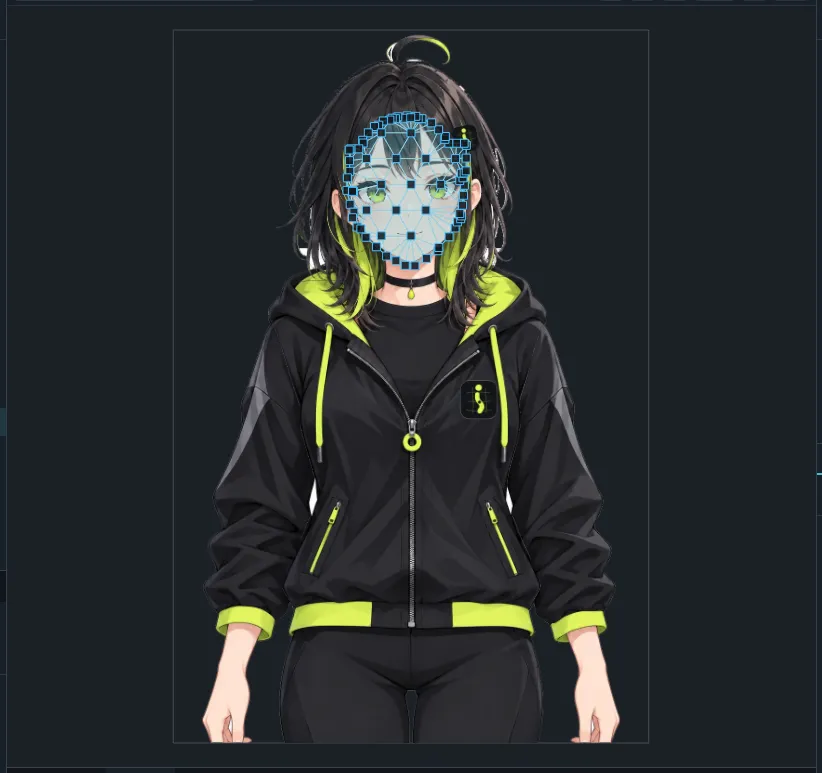
The tool has three subtools:
- Edit: click to add a vertex (outside the outline it extends the outline), drag vertices to move them, drag a rectangle or lasso to select, rotate or scale two or more selected vertices with the bounding box. Connect (edge), Delete, Subdivide, Merge vertices, Retriangulate, Flip horizontally / vertically act on the selection.
- Eraser: a brush that deletes the vertices and edges under it (Alt: edges only).
- Deform brush: vertices under the brush follow the drag with a hardness falloff.
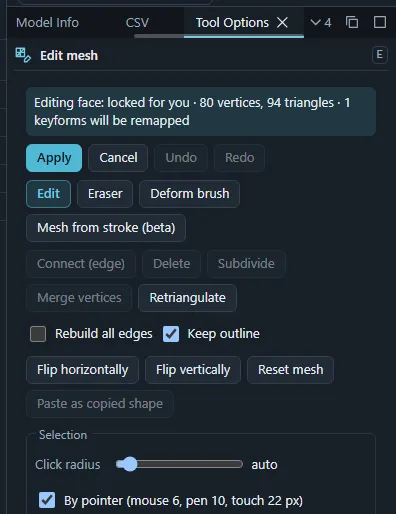
B+drag resizes the brush and V+drag sets its hardness. Mirror edit repeats every edit across a vertical or horizontal axis (canvas, selection or mesh centre). Generate mesh automatically re-meshes from the texture’s alpha with threshold, margin, edge and interior spacing and a vertex limit; settings can be saved as named presets. Reset mesh starts again from a rectangle, Paste as copied shape reuses another mesh’s topology.
The edit has its own undo / redo. Apply commits it as one change, keyforms are remapped to the new vertices and the texture stays where it is, and Cancel discards it.
Automatic mesh for the selected art meshes (Ctrl+Shift+A) re-meshes every selected mesh at once with the current automatic-mesh settings.
ArtPaths
An ArtPath is a vector stroke: control points with a width, opacity and colour each, joined by a smooth curve (LCNS or SNS, corner points break it) and drawn with a brush. ArtPaths sit in the Outliner next to art meshes (the Columns and types menu can hide them), are bound to parameters and deformers like meshes, and appear in image and video exports. Runtime exports leave them out, as Cubism does.
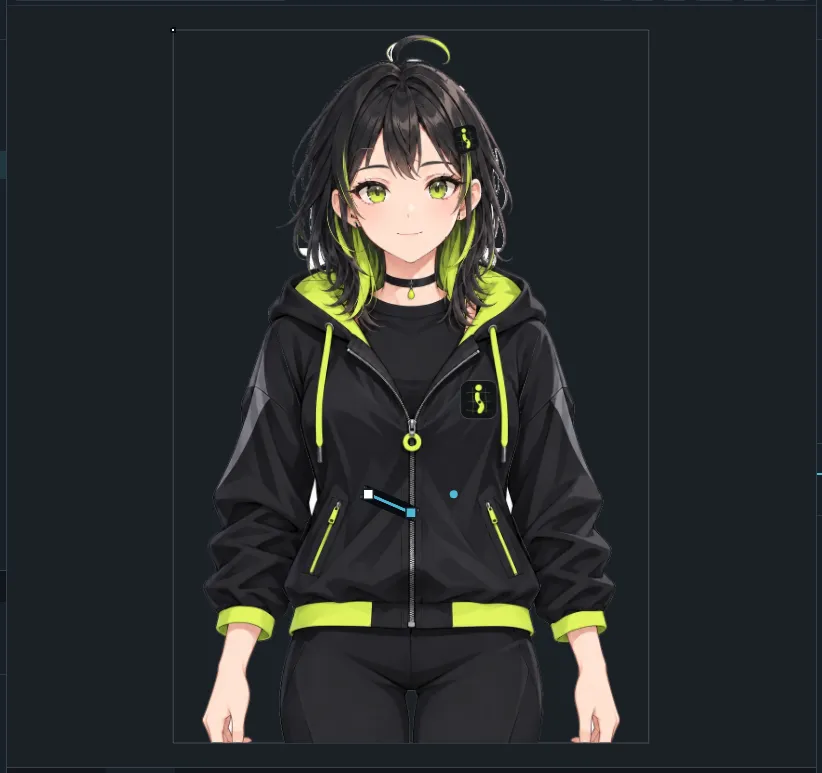
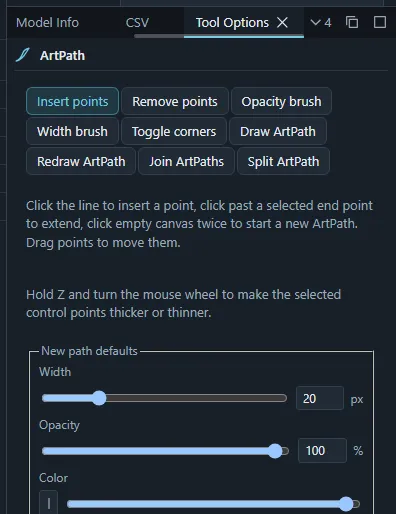
Drawing. The ArtPath tool has nine modes: Insert points (click the line to insert, click past a selected end point to extend, click empty canvas twice for a new path, drag points to move them), Remove points, Opacity brush and Width brush (Alt decreases), Toggle corners, Draw ArtPath (freehand, with pen pressure, interval, corner limit and automatic closing), Redraw ArtPath, Join ArtPaths (Alt merges the joined points) and Split ArtPath. Hold Z and turn the mouse wheel to change the width of the selected points. The tool panel also holds the defaults of new paths and buttons for the Trace ArtPaths panel and the Follow ArtMesh commands.
Inspector. Name, ID, brush, closed, line algorithm, alignment and divisions of the path; the opacity, draw order and multiply / screen colours of the current keyform; and the width, opacity, colour and corner of the selected control points.
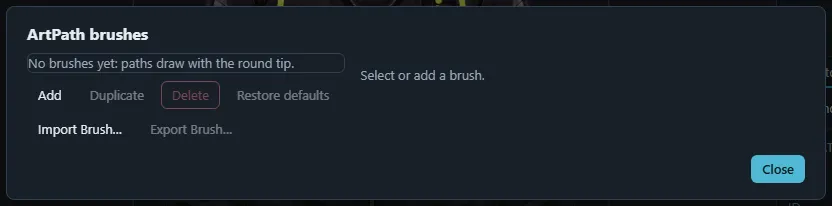
Brushes. ArtPath brushes… (ArtPath menu or the tool panel) adds, duplicates, deletes and
resets brushes, loads tip textures (several PNGs make a sprite atlas) and imports or exports
Cubism .cabr brush files. Stroke styles: stretched mesh (the repeat region of the tip is
stamped along the line), stretched mesh with fixed edges (the upper and lower edge bands of the
texture keep a fixed width on the canvas), stretched mesh with end caps (fixed edges, plus the
start and end caps of the texture at the ends of the stroke) and stamped sprites (the tip
stamped at random angles, with density and magnification). Paths without a brush draw with a
round tip.
Commands (the ArtPath menu of the Outliner, the command palette and remappable keys):
- One path per art mesh (one path for each selected mesh) or One path around all art meshes, traced from the texture’s outline.
- Trace ArtPaths…: a panel with the generation buttons, the fill / line mesh IDs (From selection fills them), the texture preset and detection settings, and the fitting commands: Centre on drawn line (points move to the centre of the drawn line), Snap to fill edge (points snap to the mesh’s outline), Add points along the fill edge (between the selected points), Sample colour / opacity / width / all (read from the texture under each point).
- Make all / selected points follow the mesh binds points to the selected art meshes they lie on; Stop selected points following and Stop all points following remove the binding; Bake followed positions into keyforms… writes the followed positions into keyforms on the chosen parameters.
- Make thicker / thinner (Alt+] / Alt+[), Insert midpoints on every segment / between selected points, Create Deform Path from ArtPath (on the selected art mesh).
Deform paths. The Deform Path tool edits curves stored with an art mesh (add, join, delete edge, delete point, fold line). Ctrl+drag a control point to bend the mesh’s current keyform along the curve. The Points tool shows the deform paths of the selected meshes: Shift+drag a control point to do the same there. With Edit deform path points on (Points tool options; also for touch), tap or drag a rectangle to select control points, drag one to bend, or move, rotate and scale the selection with the bounding box.
Clipping masks
A mesh can be clipped by other meshes: it is drawn only where they are.
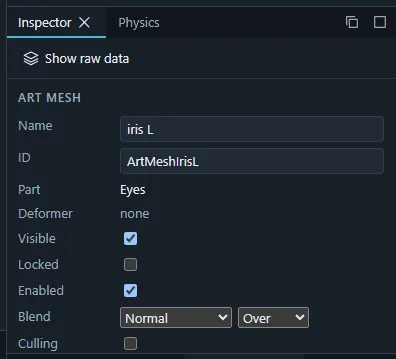
- In the Inspector’s mask section, add or remove masks of the selected meshes and mark a mask as inverted (drawn only outside it).
- The Pick clipping masks tool: with art meshes selected, tap other meshes in the viewport to add or remove them as masks; Alt (or the inverted option on touch) adds an inverted mask, and a long press on a mask toggles its inversion.
- The viewport’s Masks toggle shows the model with or without clipping.
Draw order
The Draw Order panel lists the art meshes front to back. Drag the grip to reorder within a draw-order group (a part with draw-order group turned on sorts its contents as one block). Meshes whose order changes between keyforms are marked animated.
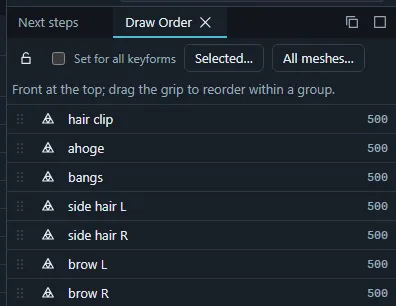
- Selected… sets the order of the selected meshes in every keyform (start value and step); All meshes… renumbers or shifts every mesh.
- Lock draw order protects the order against accidental edits.
- The draw order of the current keyform is also in the Inspector.
Attachments
An attachment makes vertices of one mesh follow a triangle of another mesh, for example the edge of a sleeve following the arm. Choose the Attach tool (Shift+A with the Ikimotion keys):
- Select the mesh whose vertices should follow and pick those vertices (drag a rectangle or tap; Shift adds, Ctrl removes).
- Tap the mesh they should follow.
- Bind (Enter or the button in the tool options). Each vertex is bound to the target triangle it lies in at the current pose.
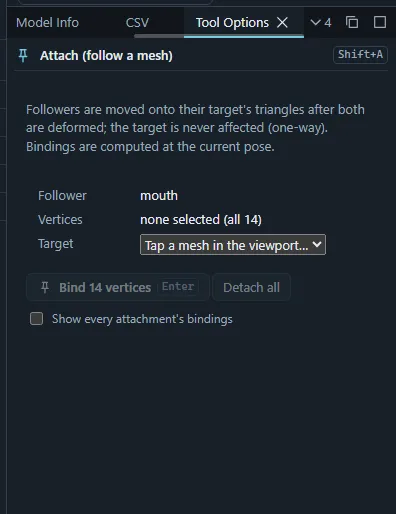
Attachments are one-way and always evaluated. Rebind recomputes them after you change the meshes; Detach removes them for the selected vertices or the whole mesh. Glue in imported Cubism models becomes attachments.
Blend shapes
A blend shape adds a shape on top of the keyforms, weighted by its own parameter, useful for corrections that should combine with any pose.
- Select art meshes or warp deformers and run Add blend shape to selection (Alt+M with the Cubism-compatible keys). It uses an unused parameter or creates one.
- Move that parameter to a key and edit the shape with the points tool or a brush: the edit is stored as an offset from the base shape.
The Inspector’s Blend shapes section lists the shapes of the selection with their keys and weight, and deletes them. Blend-shape weight limits… limits a shape’s weight depending on other parameters. Remove blend shapes of selection (Shift+Alt+M) removes them.
Guide images
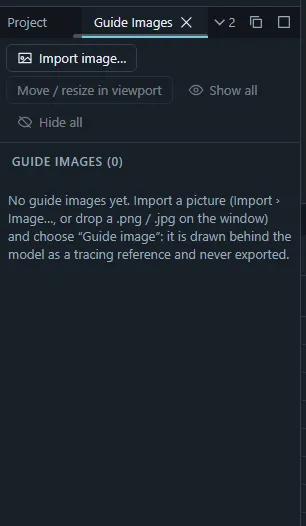
Guide images are reference pictures drawn behind the model in the editor only, sketches, turnarounds, a photo. Import one with Import › Image… (choose Guide image in the Image settings dialog, with size and position) or drop a picture on the window. The Guide Images panel shows, hides, fades, renames, reorders and removes them, and has a viewport tool to move and resize them. Guide images are part of the shared document but are never exported.
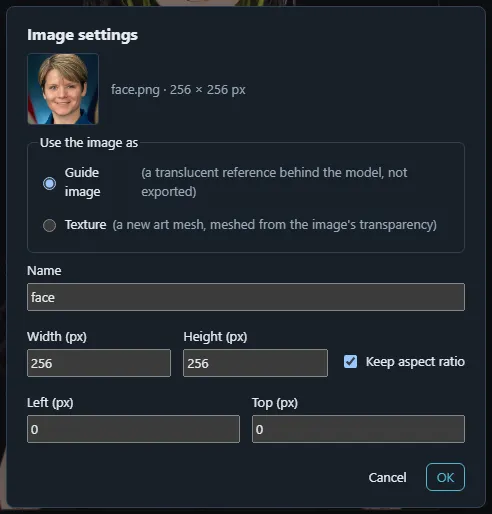
Choosing Texture in the same dialog creates a new art mesh from the picture’s alpha in the part you pick.
Copy, paste, find and replace
- Ctrl+C / Ctrl+X / Ctrl+V copy, cut and paste objects: parts with their contents, deformers with what they deform, ArtPaths (with their brush and its tip image), blend shapes, the parameters they use and their textures. A pasted ArtPath keeps following a mesh only when that mesh was copied too or is still in the project; a brush identical to one the project has is shared. The clipboard survives switching projects in this browser, so you can paste between projects.
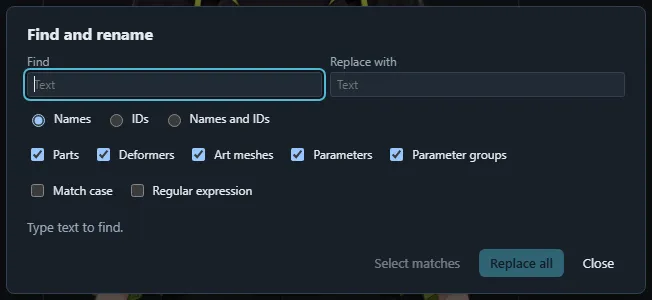
- Find and replace (Ctrl+F) searches names and/or IDs of every kind of object (case, regular expressions), previews the renames with conflicts, and applies them in one change.
Canvas and model size
- File › Canvas settings… changes the canvas width and height (16–30000 px) and where the old canvas lands in the new one (3×3 anchor grid with a preview).
- File › Resize model… scales the whole model while keeping the canvas.
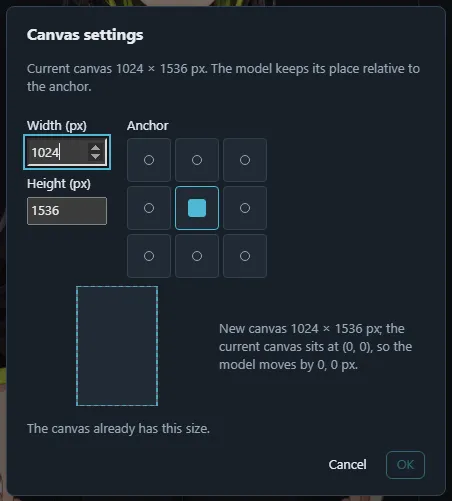
Both are single undoable changes.
Model information and CSV
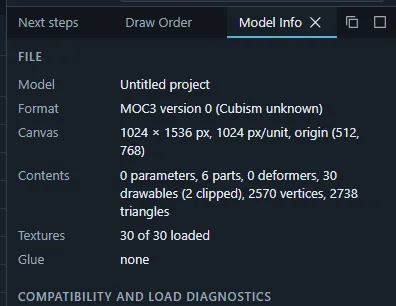
- The Model Info panel shows the file and format, MOC3 version, canvas, counts of parts, deformers, drawables, vertices and triangles, textures, compatibility and load diagnostics, and the frame cost of evaluation and rendering (Measure frame cost in the palette measures it).
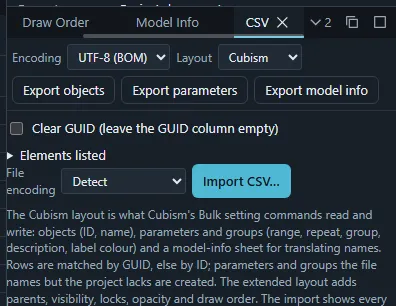
- The CSV panel exports the objects or the parameters as a CSV spreadsheet (choose the text encoding) and imports an edited file: every changed cell is listed with before and after, row errors are shown, and Apply writes the changes as one edit.