Parameters and keyforms
A parameter is a named value with a range, Angle X from −30 to 30, Eye open from 0 to
- Objects are bound to parameters; for chosen keys (parameter values) each object stores a keyform: its shape, opacity, colours and draw order at that value. Between keys the editor interpolates. Runtime apps move the model by setting parameters.
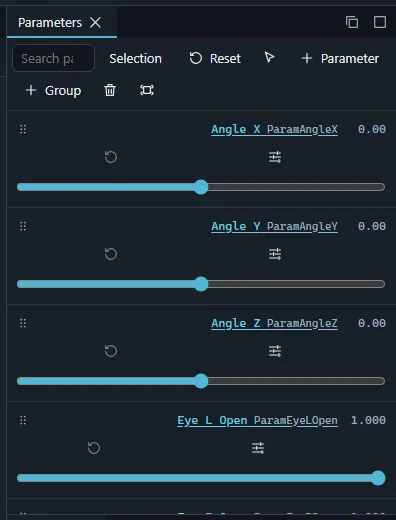
The Parameters panel
- Drag a slider to set a parameter; double-click (double-tap) resets it to its default. The number field takes typed values.
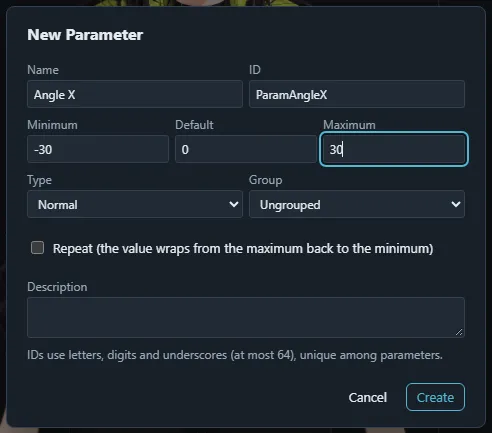
- + Parameter opens the New Parameter dialog: name, ID (checked for valid characters and duplicates), minimum / default / maximum, repeat, type (normal or blend shape), description and group. + Group adds a folder.
- Groups fold and unfold, can be renamed (double-click), reordered by dragging and given a colour.
- Selection shows only the parameters the selected objects (and their deformers) use; the search field filters by name.
- Rows can be multi-selected (Ctrl / Shift-click, or the multi-select toggle on touch) for Delete selected parameters; ↑ / ↓ move through the rows.
- Reset sets every parameter to its default.
Two parameters on one pad
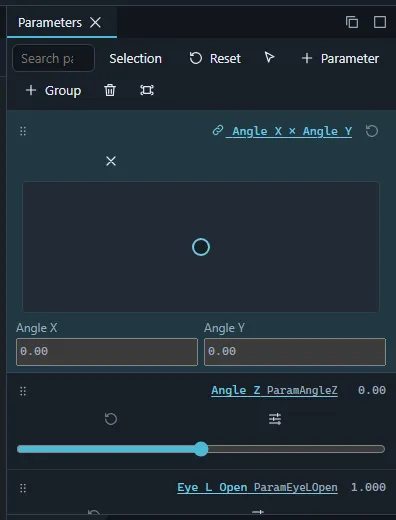
Combine / uncombine parameters turns two selected rows into one row with a 2D pad (the upper parameter is horizontal): drag with mouse, finger or pen, use the arrow keys (Shift: ×10), or type both values. The pad draws the key lines of the selection. The pairing is saved with the model.
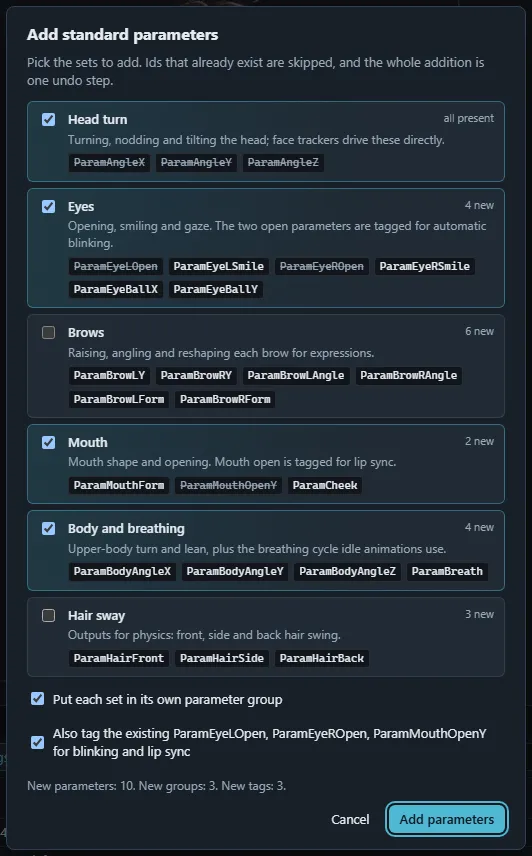
Adding the standard parameters
Face trackers, SDK apps and motion libraries look for a common set of parameter ids
(ParamAngleX, ParamEyeLOpen, ParamMouthOpenY…). Add standard parameters… (command
palette, or the parameter step of the Next steps checklist)
creates them with their usual ranges and defaults:
| Set | Parameters (range, default) |
|---|---|
| Head turn | ParamAngleX, ParamAngleY, ParamAngleZ (−30 to 30, 0) |
| Eyes | ParamEyeLOpen, ParamEyeROpen (0 to 1, 1; tagged for blinking), ParamEyeLSmile, ParamEyeRSmile (0 to 1, 0), ParamEyeBallX, ParamEyeBallY (−1 to 1, 0) |
| Brows | ParamBrowLY, ParamBrowRY, ParamBrowLAngle, ParamBrowRAngle, ParamBrowLForm, ParamBrowRForm (−1 to 1, 0) |
| Mouth | ParamMouthForm (−1 to 1, 0), ParamMouthOpenY (0 to 1, 0; tagged for lip sync), ParamCheek (0 to 1, 0) |
| Body and breathing | ParamBodyAngleX, ParamBodyAngleY, ParamBodyAngleZ (−10 to 10, 0), ParamBreath (0 to 1, 0) |
| Hair sway | ParamHairFront, ParamHairSide, ParamHairBack (−1 to 1, 0) |
Head turn, Eyes, Mouth and Body and breathing are ticked to start with (the Next steps checklist counts these as the essentials). Each set shows its ids; ids already in the project are struck through and skipped. Put each set in its own parameter group adds a group per set (an existing group with the same ID is reused). When the project already has the standard eye or mouth parameters without their tags, a checkbox tags them too. A line under the sets counts the new parameters, groups and tags, and Add parameters applies everything as one undoable change.
The Parameter menu
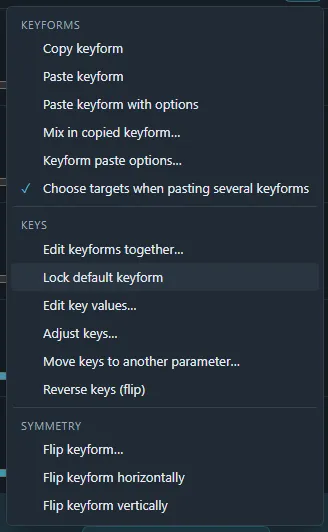
The panel’s menu (also in the command palette) groups its commands by task:
| Section | Commands |
|---|---|
| Keyforms | Copy keyform, Paste keyform, Paste keyform with options, Mix in copied keyform…, Keyform paste options… and the Choose targets when pasting several keyforms switch (see Working with keyforms). |
| Keys | Edit keyforms together… (see below), Lock default keyform (protects the default keyform from edits while you work on the others), Edit key values…, Adjust keys…, Move keys to another parameter…, Reverse keys (flip). |
| Symmetry | Flip keyform… and Flip keyform horizontally / vertically; Mirror keyforms to the other side… (mirrors the keyforms of chosen parameters from one side of the default to the other, for many objects at once); Mirror motion… (the motion at the current key, mirrored to the other side or to the left / right counterpart). |
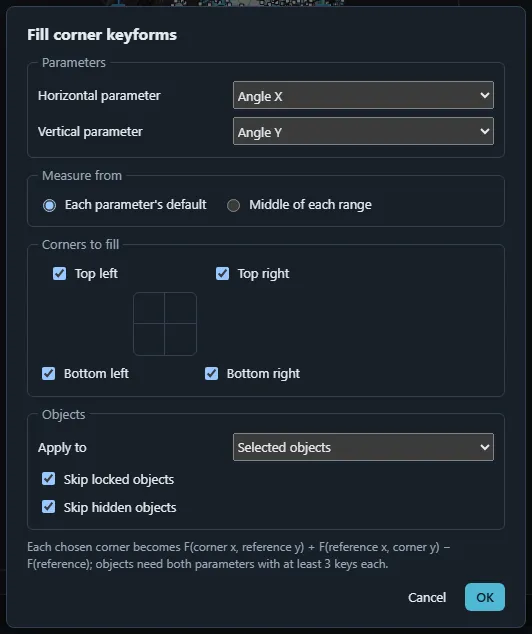
| Automation | Fill corner keyforms… (builds the corner keyforms of a two-parameter grid from its edges, e.g. Angle X × Angle Y); Give selected objects the same parameters (same bound parameters and keys on every selected object); Generate sway keyforms… (see Sway). |
| Parameter | New parameter…, Parameter settings… (one table of every parameter: name, ID, range, default, repeat, blend shape, group, description, checked and applied as one edit), Duplicate parameters (without keyforms), Combine / uncombine parameters, Delete selected parameters, Make current values the defaults, Copy / Paste parameter values (by ID, onto this or another model), Select objects linked to the current key, Blend-shape weight limits…. |
| Groups | Edit parameter groups… (names, IDs and colours; add, delete, reorder), Set group colour…, expand or collapse all groups. |
| Clean-up and IDs | Remove unused parameters… (parameters no keyform or blend shape uses), Remove groups with no parameters…, Count parameters per object… (objects listed by how many parameters drive them; three or more by default), Change ID style… (see below). |
| Panel | Restrict drag and drop, Multi-select rows by tapping. |
Random pose parameters… (command palette) is described in Random pose.
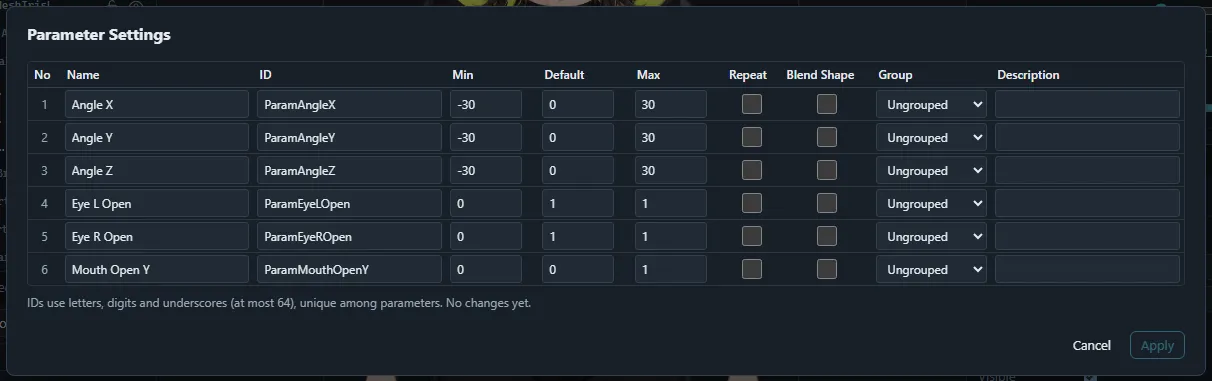
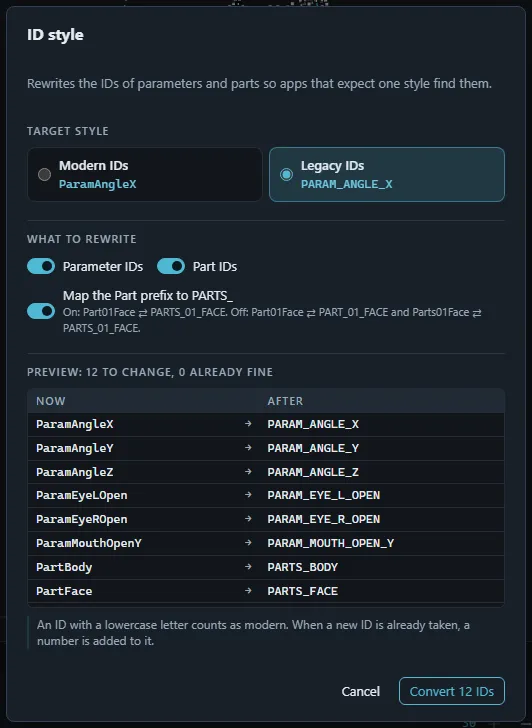
Change ID style… opens ID style: pick modern (ParamAngleX) or legacy (PARAM_ANGLE_X) IDs and whether parameter and part IDs change, check the before / after table, then convert in one undo step.
ID style treats an ID with a lowercase letter as modern; when a converted ID is already taken, a number is added to it. Check the IDs before exporting.
Binding objects: the Keyforms panel
Select an art mesh, deformer or part. The Keyforms panel shows its bound parameters (one row per axis) and the grid of its keyforms.
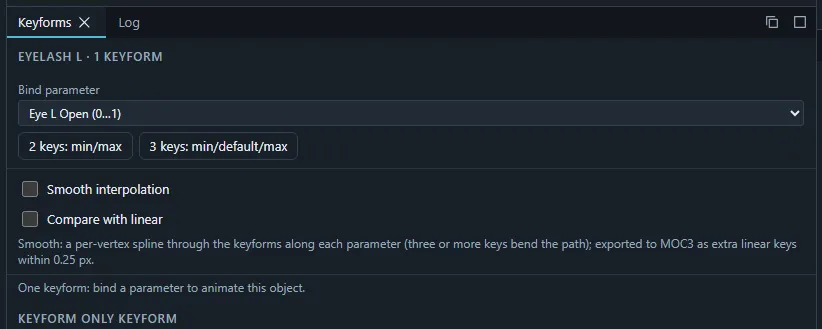
- Bind parameter: pick a parameter and press 2 keys: min/max or 3 keys: min/default/max. With several objects selected, all of them are bound in one edit.
- Move the parameter to a key and edit the object (any tool). Repeat for every key.
- + on an axis adds a key at the current value; the remove button deletes the key there; Unbind deletes the axis with all its keys.
Each axis’ key-tools menu has Edit keys… (type exact key values, add and delete keys, snap to rounded numbers), Adjust keys… (remap keys to another span), Move keys to another parameter…, Reverse keys and Mirror motion….
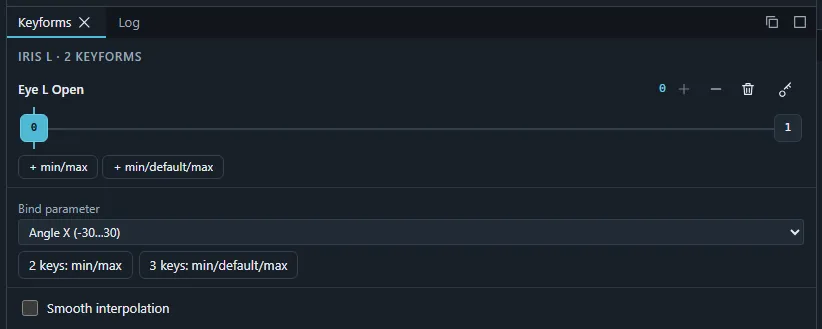
Click a cell of the grid to jump the parameters to that keyform. Keyboard actions jump to the first, last, next or previous key of the selected parameter.
Working with keyforms
At a keyform, the panel offers:
- Copy keyform (Ctrl+Shift+C with the Cubism-compatible keys) and Paste keyform (Ctrl+Shift+V): copy the shape of every selected object and paste it onto other keyforms or objects (paired by object, then by matching topology). When several keyforms of one kind were copied, a dialog asks which goes onto which object (switch it off with Choose targets when pasting several keyforms).
- Paste with options with Paste options… (Keyform paste options): choose which properties (opacity, draw order, colours, vertex positions, angle, …) are pasted, and whether they are mirrored about an axis.
- Mix in copied keyform… (Ctrl+Shift+B): mixes the copied keyform into this one by a percentage, with a live preview.
- Flip keyform…: mirrors the selected objects horizontally or vertically about the object, parent deformer, canvas centre or a custom axis, the whole object or only this keyform.
- Mirror: mirrors this keyform with a chosen direction and axis.
- Reset to rest (or Back to original shape for a deformer with a stored original shape).
Editing keyforms together
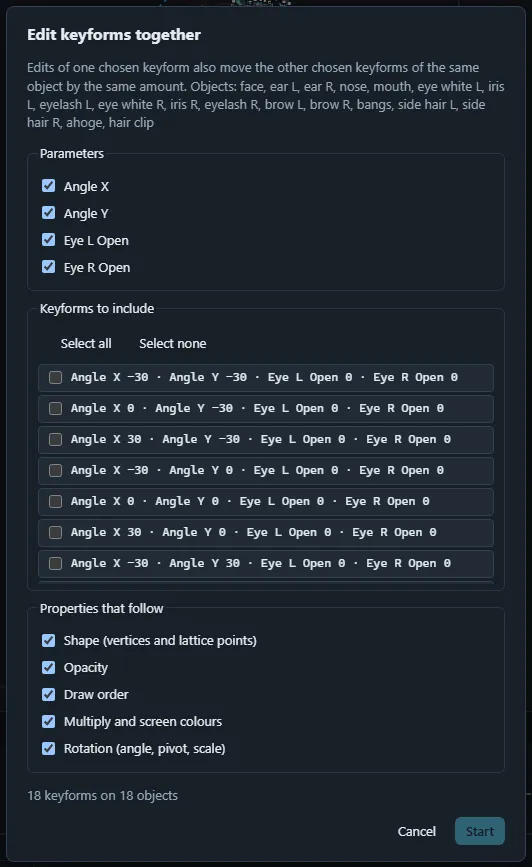
Edit keyforms together… chooses objects, parameters and the key combinations to edit as a checkable grid, and which properties follow (shape, opacity, draw order, colours, rotation). While it is active every edit you make on one of those keyforms moves all chosen keyforms by the same amount; the banner in the viewport stops it.
Smooth interpolation
Between keys, positions are interpolated linearly by default. Turn on Smooth interpolation for a mesh or deformer (Keyforms panel or Inspector) to interpolate along per-vertex splines over the parameter value instead, curved paths instead of straight lines, for example for a turning head. Compare with linear overlays the linear result as an orange wireframe and reports how far apart the two are.
Auto angle
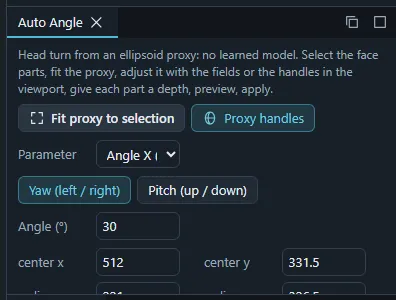
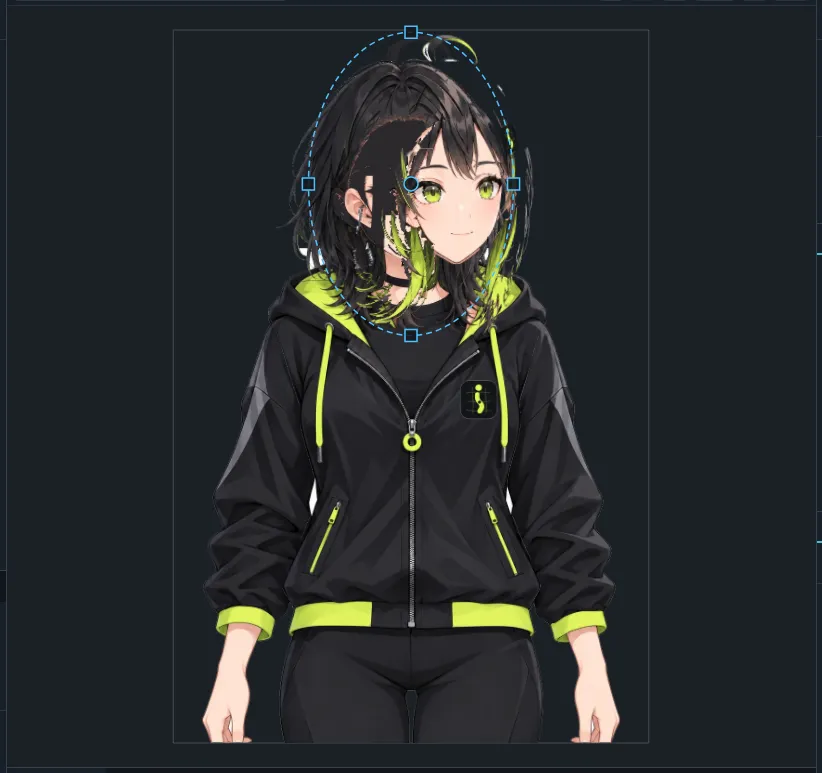
The Auto Angle panel generates head-turn keyforms from a simple 3D stand-in (an ellipsoid) instead of drawing every angle by hand:
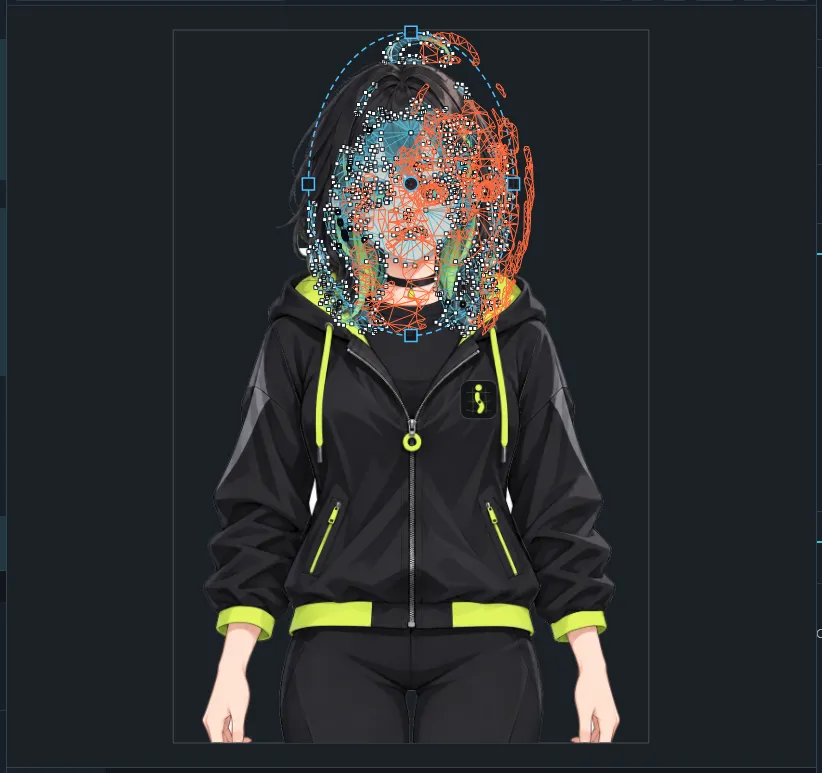
- Select the face parts’ art meshes and press Fit proxy to selection. Adjust the ellipse with the panel fields or with Proxy handles in the viewport.
- Pick the Parameter (e.g. Angle X), the turn (Yaw left / right or Pitch up / down) and the angle.
- Give each part a depth (front of the face, eyes, nose, ears, back hair…) with the slider or a preset.
- Turn on Preview and move the preview slider to check the result: folded triangles and a flattened profile are reported.
- Apply writes the keyforms as one change; undo reverts it.
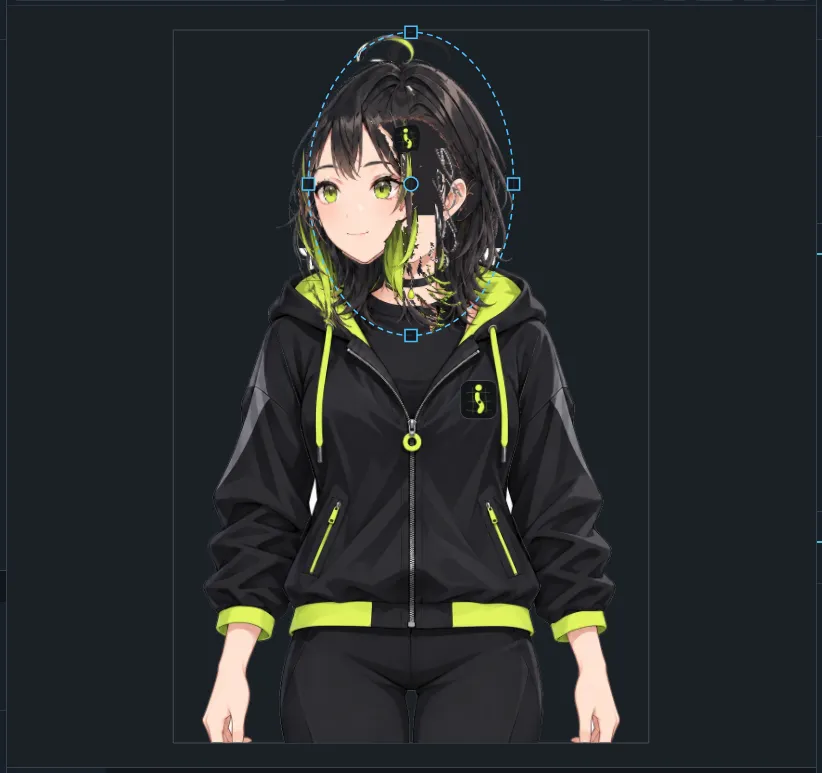
See Tutorial: rig a head turn.
Sway
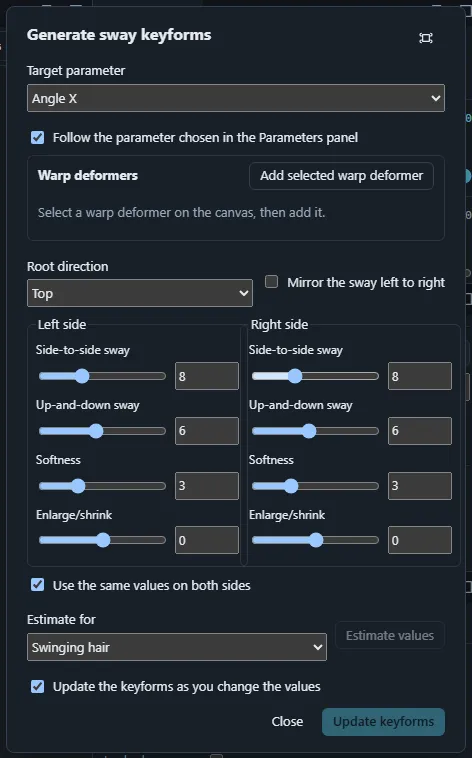
Generate sway keyforms… (Parameter menu) creates swaying keyforms for warp deformers such as hair or clothes: add the warps, choose the target parameter, the root direction and the sway, softness and size on each side (optionally the same on both sides), or estimate the values for Swinging hair or Droop with head tilt (angle Z). Every change of the settings updates the keyforms (one undo step each); the settings are kept with each warp.