Animation
Animations live in scenes inside the project. A scene has a frame rate, a duration and
tracks; a model track animates the rig by keying its parameters (and part opacities) over
time. Scenes export as motion3.json motions that runtime apps play. Use the Animate
stage.
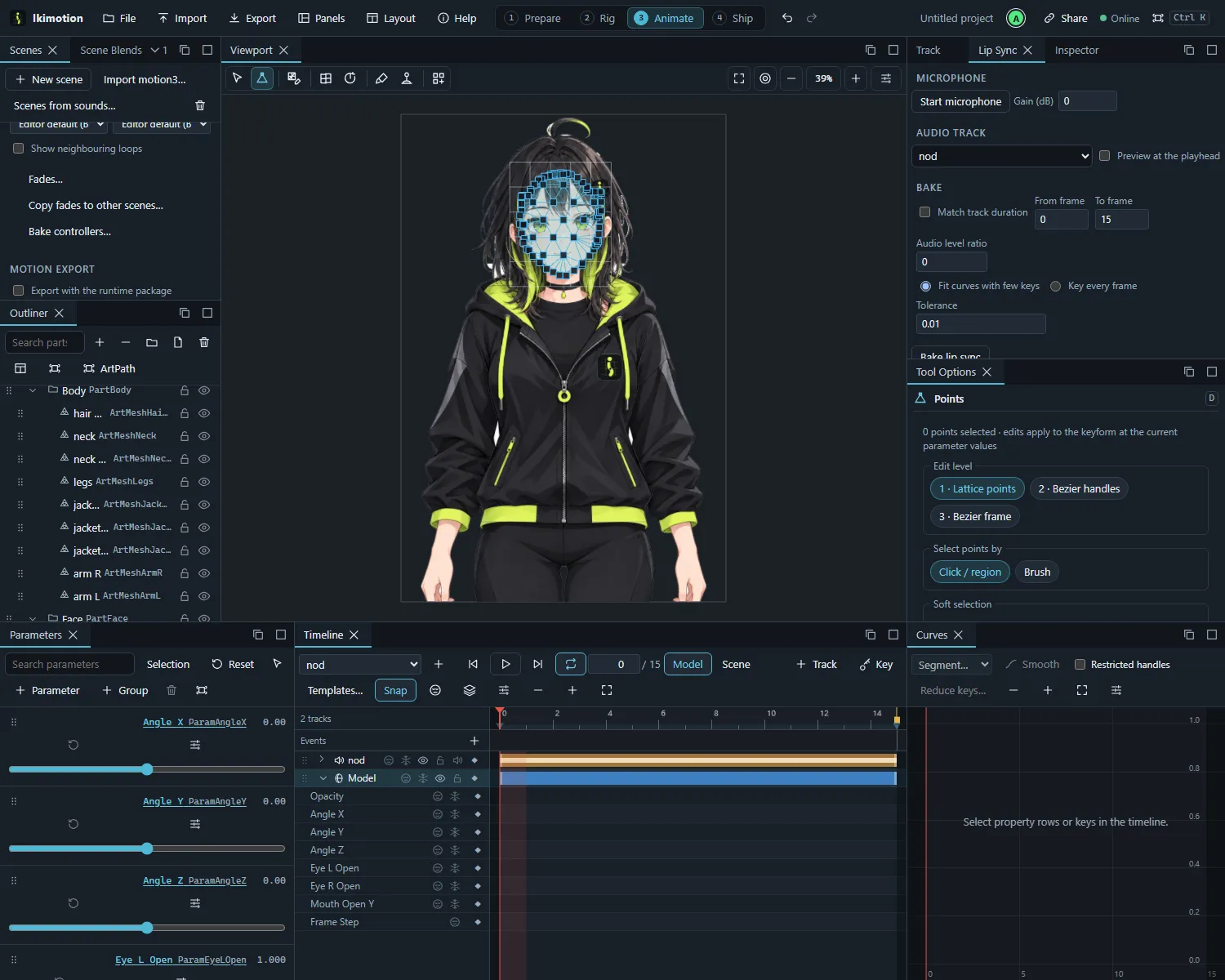
Scenes
The Scenes panel lists the project’s scenes:
- New scene, pick a scene to animate it, Delete scene.
- Import motion3… turns a motion3.json file into a new scene; Import Cubism animation project (.can3)… imports Cubism scenes (see Getting started).
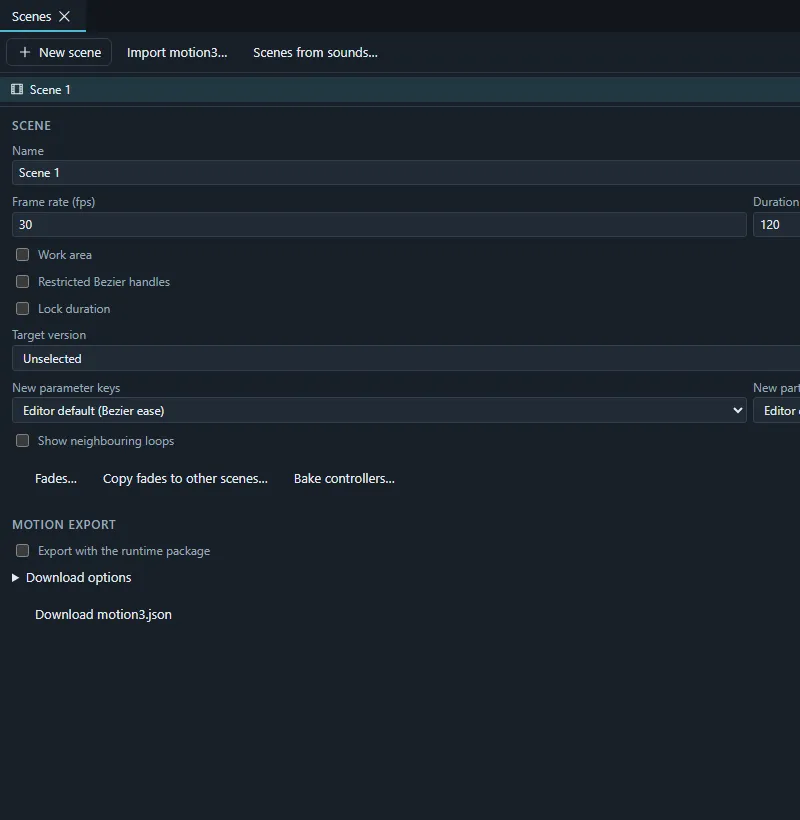
- Scene settings: name, frame rate, duration, the work area (the range that plays and loops while you work), and Restricted Bezier handles (handles fixed at thirds of their segment, as the motion3 format’s AreBeziersRestricted option).
- Scene options: Lock duration (the scene end can’t be dragged in the ruler), Target version (Video, Unity SDK (this also restricts Bezier handles), other SDKs, AE plug-in), the default curve types of new parameter and part keys, and Show neighbouring loops (see Curves).
- Motion export: whether the scene goes into the runtime package, its motion group and file name, the model track, the range (whole scene or work area), loop, fade-in and fade-out times and a sound. Download motion3.json saves it alone; Download options choose which curves are written (all parameters, changed ones, keyed ones), part and model opacity, markers as events, and whether effects are baked.
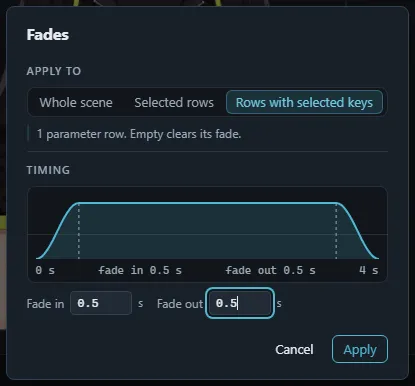
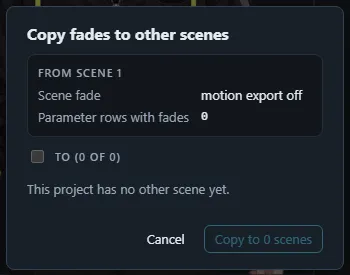
- Fades… (Scenes panel and the palette) is one form: apply to the whole scene, the selected rows or the rows with selected keys, then type the fade-in and fade-out in seconds (empty = none). A curve under the fields shows the motion’s weight over the scene as you type. Parameter fades are written per curve in motion3. Copy fades to other scenes… opens Copy fades to other scenes: a card sums up what the current scene has (its own fade, how many rows carry fades); tick the destinations and copy in one undo step.
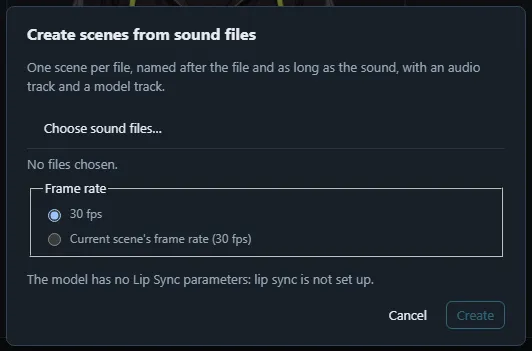
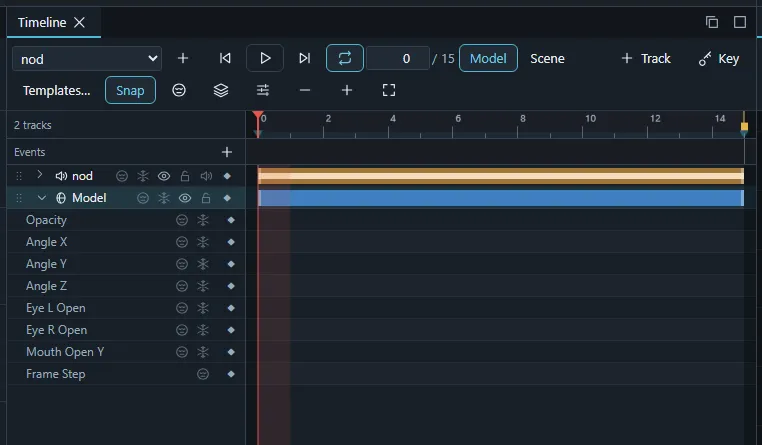
- Scenes from sounds… makes one scene per audio file, as long as the sound, with an audio track and a model track (lip sync is wired up when the rig has Lip Sync parameters).
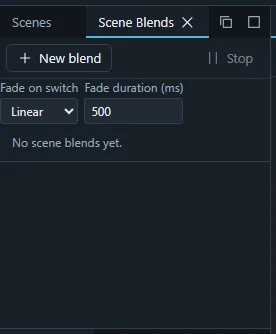
The Scene Blends panel stacks scenes (overwrite or additive, with a weight) and plays the blend in the view; switching blends while playing fades between them (none, linear or smooth, with a duration).
Choosing No scene (modeling) in the timeline returns to modeling: the model shows its parameter values instead of the animation.
The timeline
The Timeline panel shows the scene’s tracks over time:
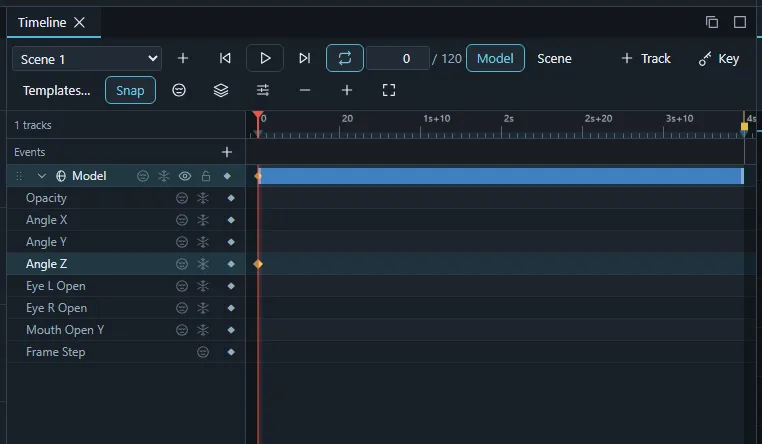
- Transport: previous / next frame (← / →), play / pause (Space), loop the work area, first and last frame (Home / End). Snap keeps keys and the playhead on whole frames.
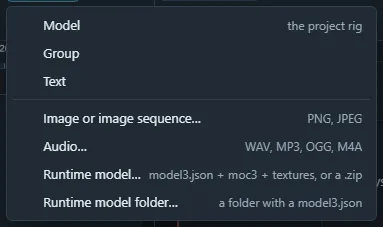
- Add track: a model track, a group, text, a nested scene, or image, image-sequence and audio tracks from files (pictures and sounds dropped on the timeline become tracks too). Audio may be WAV, MP3, OGG, M4A, AAC or FLAC.
- Track rows: rename, show / lock / mute, drag to reorder or move into a group (touch too).
- Property rows (a model track’s parameters and parts) with a key button: Key at the playhead. Key parameters at the playhead (timeline toolbar; its key is in the shortcuts reference) keys every parameter you moved at the playhead and every parameter that already has a curve.
- The key area: drag keys to move them, drag a rectangle to select, Ctrl+C / Ctrl+V copy and paste keys; zoom in / out, Fit scene, Reset zoom and Zoom to fit the work area.
- The event marker row above the tracks holds motion3 user-data events: add one at the playhead, rename, delete, and drag it along the time axis.
- Navigation: jump to the next / previous key (K / J), on the selected track (Shift+K / Shift+J), to the next / previous marker (Alt+K / Alt+J) and onion marker (Alt+Shift+K / Alt+Shift+J), to the start / end of the work area (Shift+Home / Shift+End). All keys can be changed in the shortcuts editor.
- At the playhead: start or end the work area there, set the track start (Shift+B) or end (Shift+N), move the track to the playhead (Shift+M). Unfold every track opens every row.
- Shy rows hide from the timeline (per row, Shy all / Unshy all, Hide shy rows). Freeze holds rows at a frame: Freeze all, Toggle scene freeze at the playhead, freeze only the selected rows or every row except the selected, Unfreeze all; while the scene is frozen the timeline toolbar shows Scene frozen (click it to unfreeze). A Frame Step row on visual tracks plays the track in steps of whole frames (0 holds).
- The ruler menu adds, removes and locks onion markers and holds Lock duration.
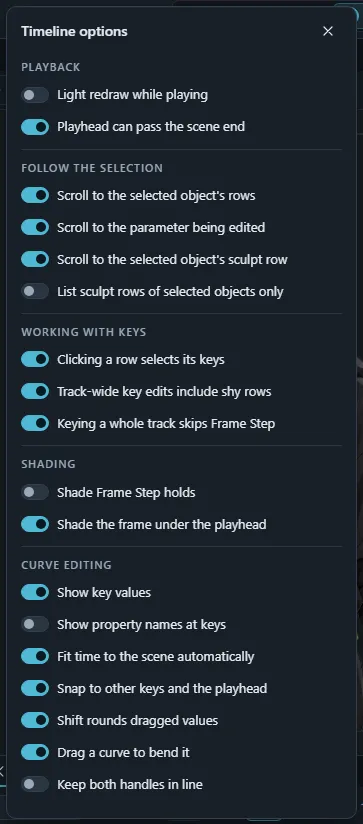
- Timeline options (sliders button in the toolbar) opens a popover of switches grouped by task: Playback (light redraw while playing, playhead can pass the scene end), Follow the selection (scroll to the selected object’s rows, to the parameter being edited, to the sculpt row; list sculpt rows of selected objects only), Working with keys (clicking a row selects its keys, track-wide key edits include shy rows, keying a whole track skips Frame Step), Shading (Frame Step holds, the frame under the playhead) and Curve editing (the Curves panel options below). Hover a switch for what it does; Escape or a click elsewhere closes it.
- Onion skin (ghost button in the toolbar) opens the onion skin popover; see the scene canvas.
- Animation preview settings…: playback speed (−500 % to 500 %, negative plays backwards; sound plays only at 100 %), precompute playback (controllers solved once per frame), and whether onion skin and trajectory show while playing.
The Track panel
The Track panel edits the selected track: name, start and end frame, visibility, lock and mute, its placement on the scene canvas (position, rotation, scale, opacity, anchor) and the settings of its kind, audio gain, image-sequence rate, text and size, nested-scene range and repeat. Tilt shears the track (keyable). Image tracks can be marked Guide: shown while editing, left out of rendered media. Swap source… swaps a track’s image, image sequence, sound or runtime model (this scene or all scenes) keeping its keys; Duplicate track copies a track with its keys.
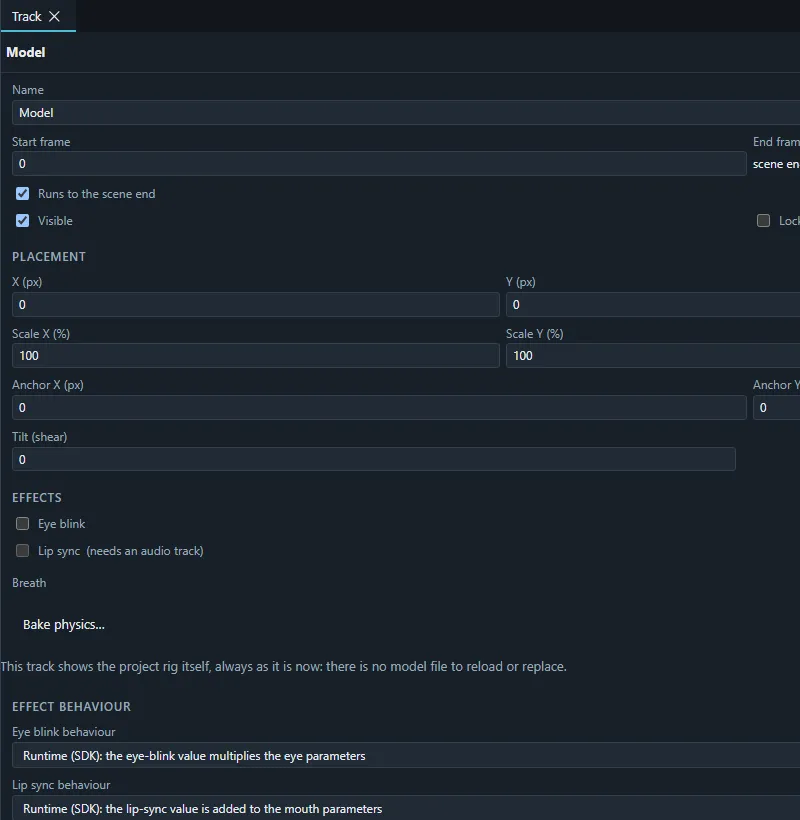
On model tracks it also holds the effects that runtime apps add on their own, previewed live:
- Eye blink: the eye parameters, interval, closing / closed / opening times and a random seed.
- Lip sync: the audio track and mouth parameters, gain and smoothing.
- Breath: parameters with offset, peak, cycle and weight.
Eye blink and lip sync can also work like Cubism Editor’s effects: relative or absolute, inverted, a (keyable) level, and for lip sync a base and scale. Use the model’s Eye Blink / Lip Sync group takes the parameters from the rig’s tags.
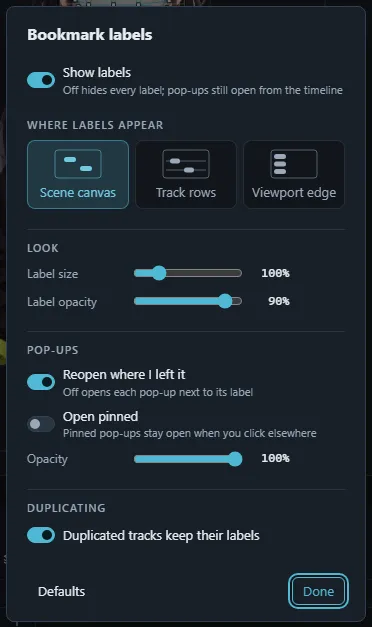
Parameter bookmarks are labels on a model track that open a pop-up with chosen parameters (sliders, key buttons, freeze at the playhead, shy, scroll to the row). New label shows the label as a chip while you name it, pick one of six colours (or a custom one) and the parameters, and choose whether to pin it to the scene canvas. Label display… (bookmark menu) sets where labels appear (scene canvas, track rows or a viewport edge, picked from small drawings), label size and label opacity, pop-up opacity and behaviour (reopen where you left them, open pinned), and whether duplicated tracks keep their labels; Show labels there (or Hide bookmark labels in the menu) hides them all. Copy all labels to tracks of the same model… and Copy labels from a track… copy labels between tracks; Remove all labels from the selected tracks clears them. Open a pop-up for the selected parameters, Open a pop-up for the object under the cursor and Pick an object under the cursor… open a pop-up for the selected rows or for what is under the pointer.
Runtime model tracks (Add track › Runtime model…) bring other characters into a scene from a model3.json folder, loose files, a .zip or a .moc3 with textures: their parameters and parts are keyed like the rig’s, their physics run while playing, and a scene exported with such a track writes that model’s ids.
The scene canvas
On the scene canvas, click a track’s picture to select it (Shift adds), drag to move it (arrow keys nudge), drag the box corners to scale (Shift: uniform), the round handle or just outside a corner to rotate (Shift: 15° steps), and the anchor (or Alt+drag) to move the pivot. Channels that already have keys are keyed at the playhead.
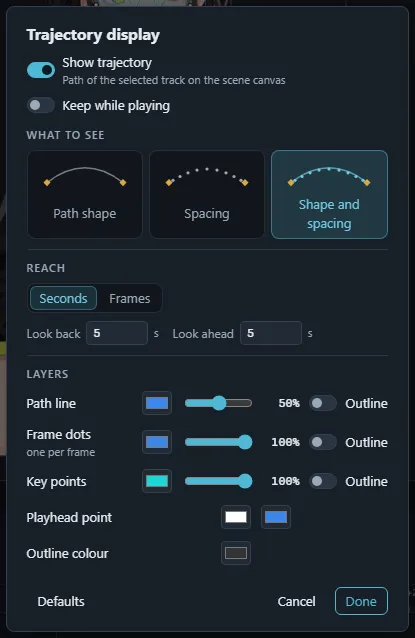
- Show › Track trajectory draws the selected track’s path around the playhead. Trajectory display… opens Trajectory display: pick what to see (Path shape: the line and its keys; Spacing: one dot per frame, so wide gaps mean fast motion; or both), how far it reaches back and ahead in seconds or frames, and per layer (path line, frame dots, key points) a colour, opacity and outline, plus the playhead point’s fill and ring. Drag a key point to move it; double-click makes it a corner; Spatial path turns X and Y into one path.
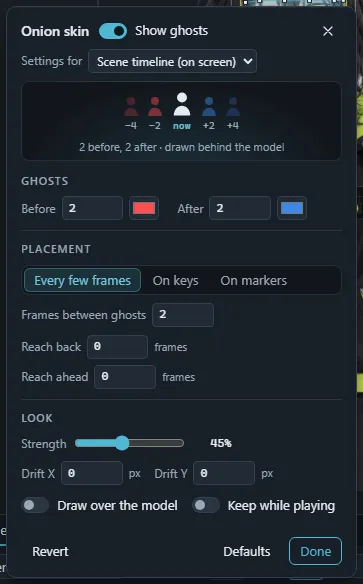
- Show › Onion skin (animation and modeling views) shows ghosts of other frames, or, while modeling, of the neighbouring key values of the parameter you last moved, tinted and faded. The ghost button in the timeline toolbar (or Onion skin settings…) opens a popover that stays open while you work: a strip at the top previews the ghosts before and after now with their tint and fade; below are the ghost counts and tints on each side, placement (every few frames, on keys, on markers; in-betweens; how far back and ahead), strength, drift per ghost, drawing over the model and keeping ghosts while playing. Each context (scene timeline, rig parameters, sculpt mode) keeps its own settings; Revert goes back to how the popover opened, Defaults to the context’s defaults.
Curves
The Curves panel draws the curves of the selected property rows (or of the selected keys). Change the segment type of selected keys (linear, Bezier, stepped…), turn on automatic Smooth handles, Restricted handles, and Reduce keys… removes keys the curve does not need within a tolerance. Zoom the values in and out and fit the curves.
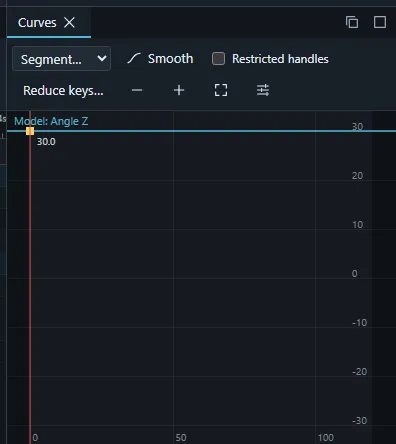
Curve editing options (sliders button in the Curves toolbar; also in the timeline options):
- Show key values and Show property names at keys.
- Fit time to the scene automatically refits the time axis when the shown curves or the panel size change; off keeps your zoom.
- Snap to other keys and the playhead: dragged keys snap to other curves’ keys and to the playhead.
- Shift rounds dragged values: holding Shift while dragging keys or handles rounds frames to whole frames and values to a round step that suits the current zoom.
- Drag a curve to bend it: dragging the curve between two keys turns that segment into a Bezier through the pointer (works with touch).
- Keep both handles in line: dragging a handle always turns the opposite handle to stay in line (off: only handles that are already in line move together). Hold Alt while dragging to move one handle alone.
With Show neighbouring loops (a scene option) the curves repeat dashed before and after the scene; curves whose first and last values differ show a red seam with buttons to make the ends match.
Timeline sculpting
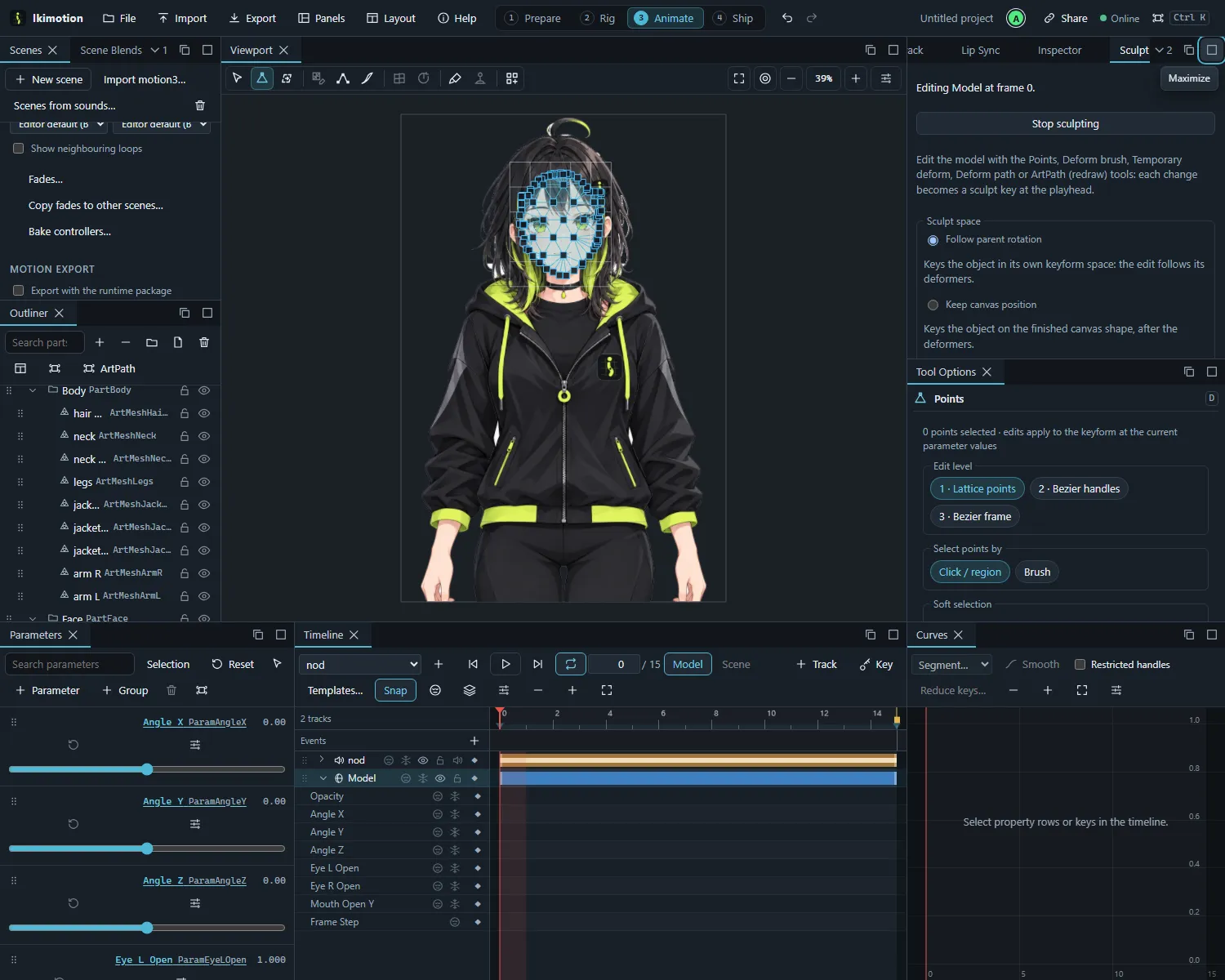
Sculpt mode reshapes a scene’s model track frame by frame with the editing tools, without changing the rig. Start sculpting (command palette, or Panels › Sculpt) shows the Sculpt panel in the Animate stage, switching there when needed; sculpt mode stays on while the panel is in the layout. Edit the model with the Points, Deform brush, Temporary deform, Deform path or ArtPath (redraw) tools: each change becomes a sculpt key at the playhead, shown on the track’s Sculpt rows in the timeline; Add sculpt key at the playhead bakes the current shape of the selected objects. Pause playback first, and choose the sculpt space in the panel: Follow parent rotation (the sculpted shape turns and moves with its deformers) or Keep canvas position (the shape stays where you put it on the canvas, still deforming). Use sculpted shapes switches the track’s sculpting on or off. Stop sculpting (or closing the panel, or going to another stage) returns to the normal view.
Controllers
Parameter controllers (from imported Cubism animation projects) drive parameters from a controller’s motion; they are evaluated while the scene plays. Bake controllers… in the Scenes panel solves them per frame into ordinary parameter keys.
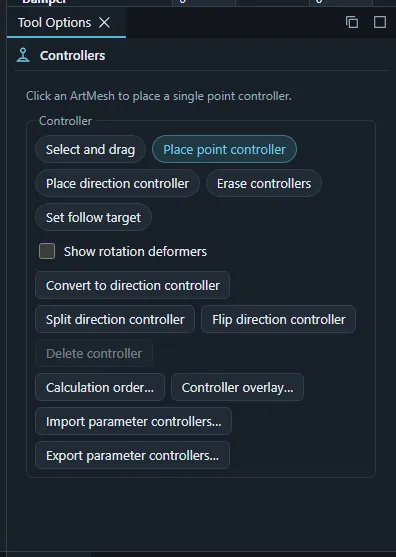
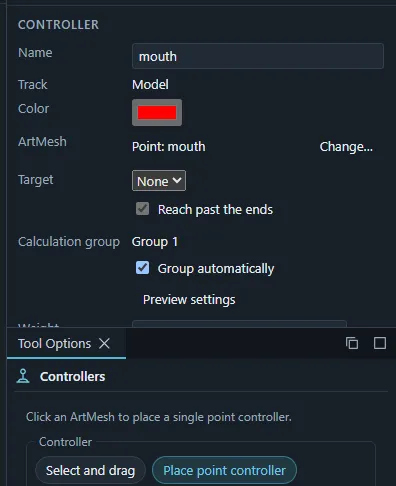
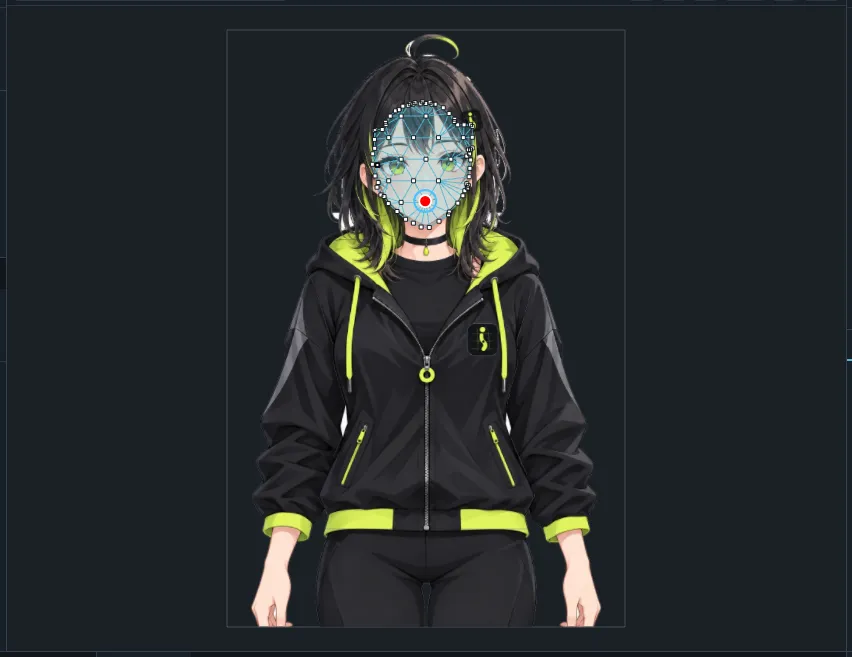
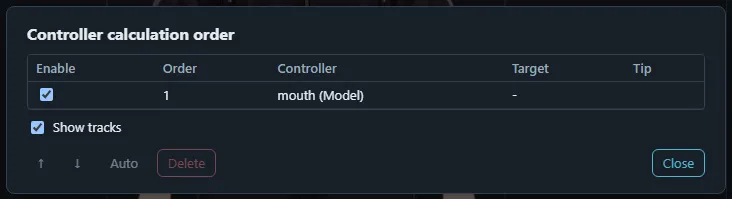
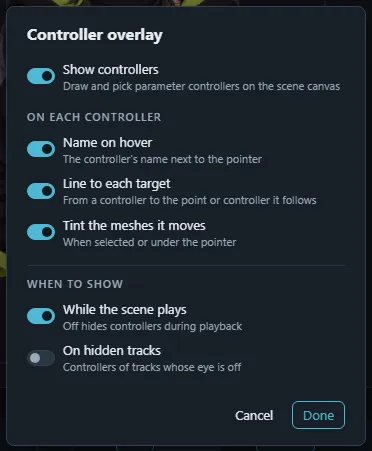
Controller overlay… (Show menu) opens Controller overlay: a master Show controllers switch, then what each controller shows (name on hover, a line to its target, a tint on the meshes it moves) and when controllers show (while the scene plays, on hidden tracks). Changes apply at once; Cancel restores them.
Bakes
Baking turns something computed into keys you can edit and export:
- Bake physics… (Track panel, model tracks): simulates the project physics over a frame range and keys its outputs, every frame or a reduced curve, at the project’s physics rate, one step per frame or a custom rate, starting from rest, settled, or after playing the range once.
- Bake controllers… (Scenes panel): see above.
- Bake lip sync (Lip Sync panel): see below.
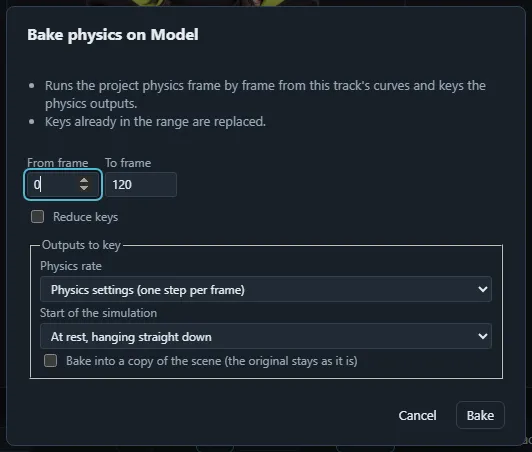
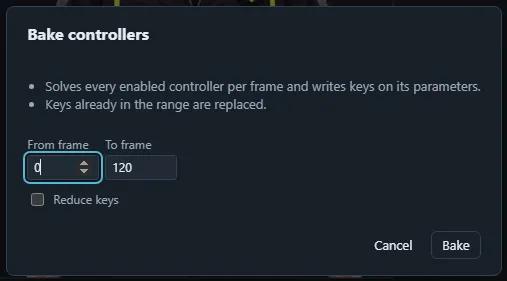
Each bake asks for the frame range and optional key reduction and is one undoable change.
Lip sync from audio
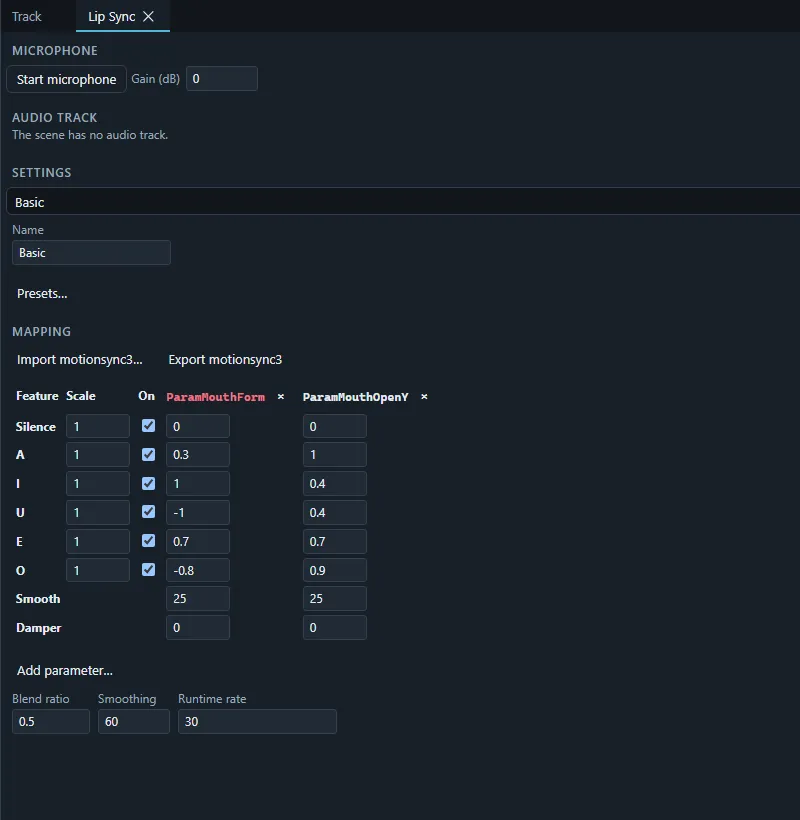
The Lip Sync panel analyses speech and drives the mouth:
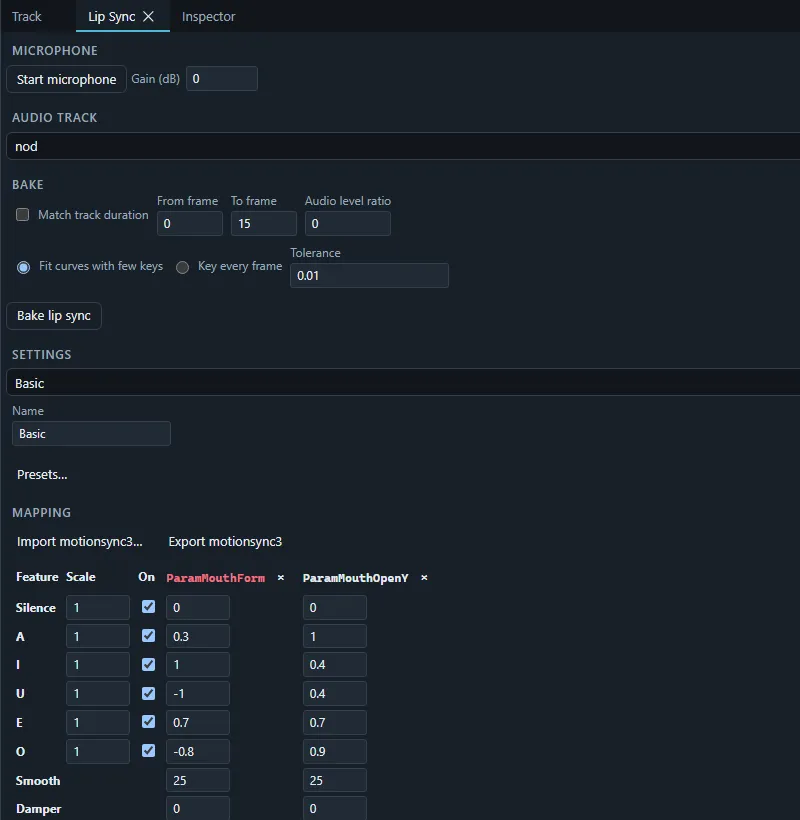
- The mapping setting: start from a preset, import or export Cubism
motionsync3.json, choose the model’s mouth parameters and the target value of each vowel, and tune scale, smoothing and damping. The setting is exported with the runtime package when enabled there. - Start microphone lip sync previews it live from your microphone with a level and vowel meter.
- With a scene that has an audio track, the preview follows the playhead; Bake lip sync writes the result into curves over a frame range: Fit curves with few keys (within a tolerance) or Key every frame.
Animation templates
Animation templates… (Templates panel) applies saved keyframe rows to the selected model track at the playhead: see Templates.
Exporting animations
- The runtime package includes the scenes marked for export as motions in their groups.
- Download motion3.json saves one motion.
- Media export renders scenes to video, GIF or image sequences: see Images and video.
- Export › Cubism animation (.can3)… writes a Cubism animation project.