The interface
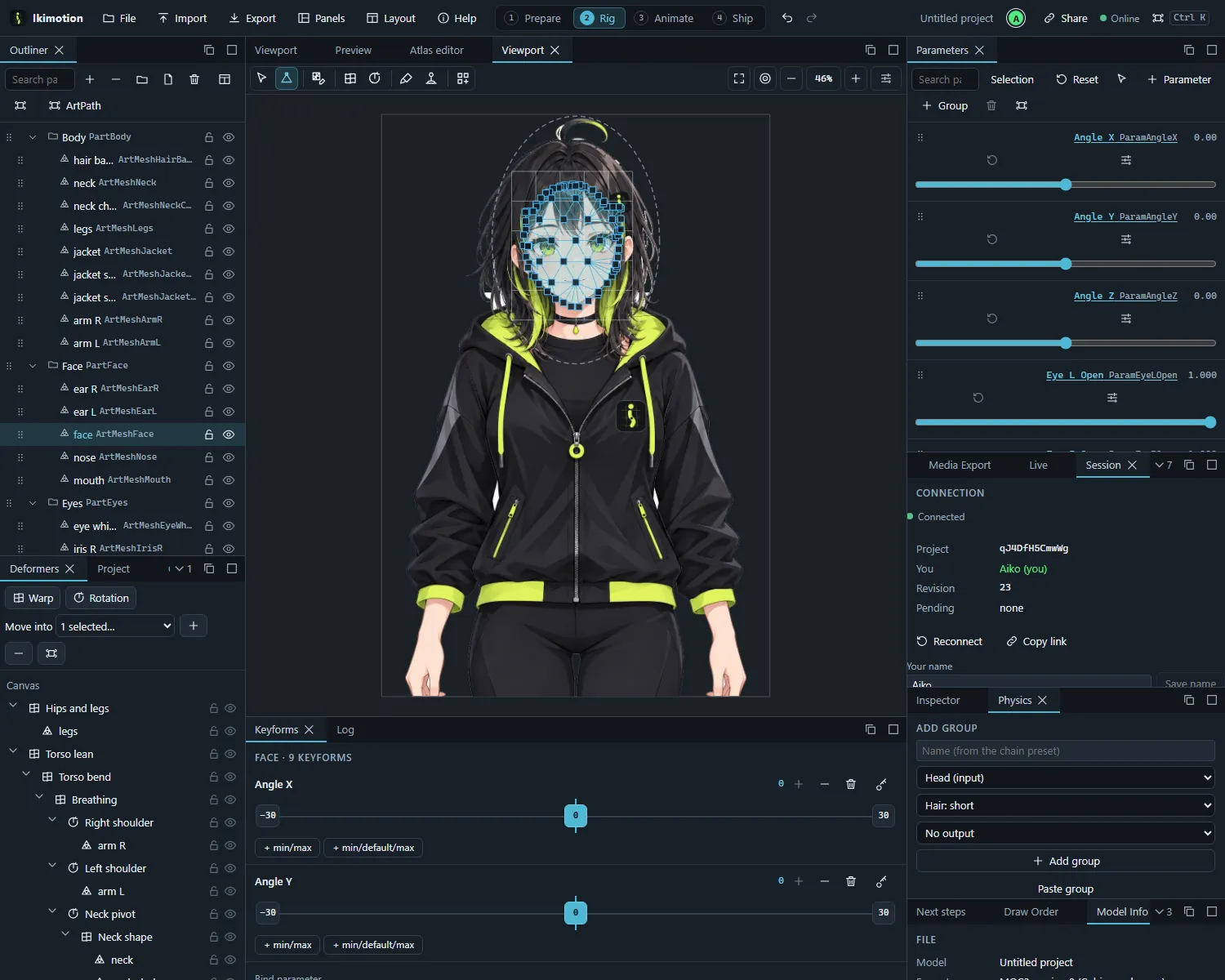
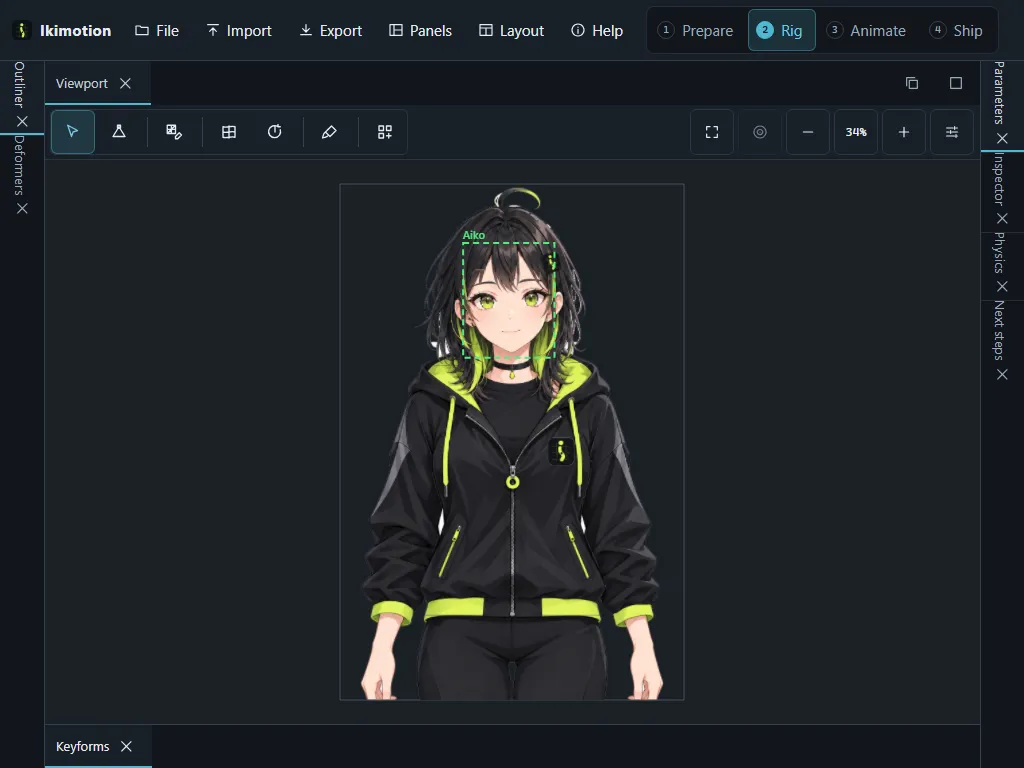
The top bar
From left to right:
- Ikimotion (the logo and name; the logo alone on a phone): closes the project and returns to the start page.
- File: project-level commands: save as / duplicate, canvas settings, resize model, preferences.
- Import: every file the editor takes: PSD, Cubism model and animation projects, runtime models, images, motions, expressions and poses, parts and templates, project backups (see Opening and importing files).
- Export: the runtime package, video and images, Cubism project files, the project backup, the viewer tab and the reviewers’ preview link (see Exporting).
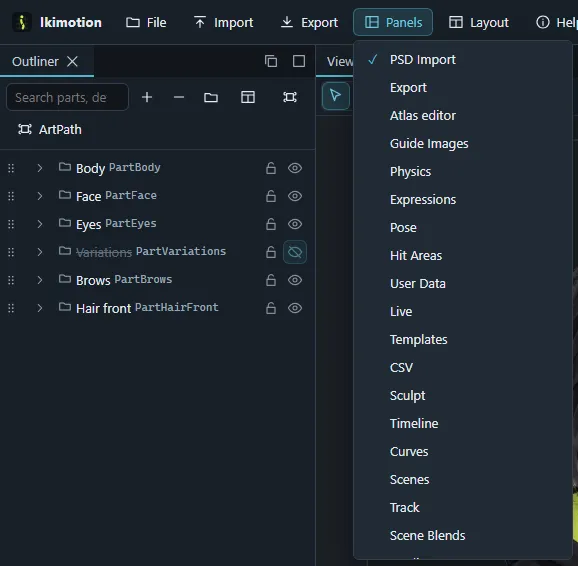
- Panels: every panel with a check mark when it is open; choosing one opens or closes it. Panels that can be opened several times (Viewport, Parameters) also have a New … entry.
- Layout: the stages and custom workspaces, workspace management, layout undo and the device layout.
- Help: this manual, the tutorials, the keyboard shortcuts reference, release notes, About, keyboard shortcut customization and the input overlay.
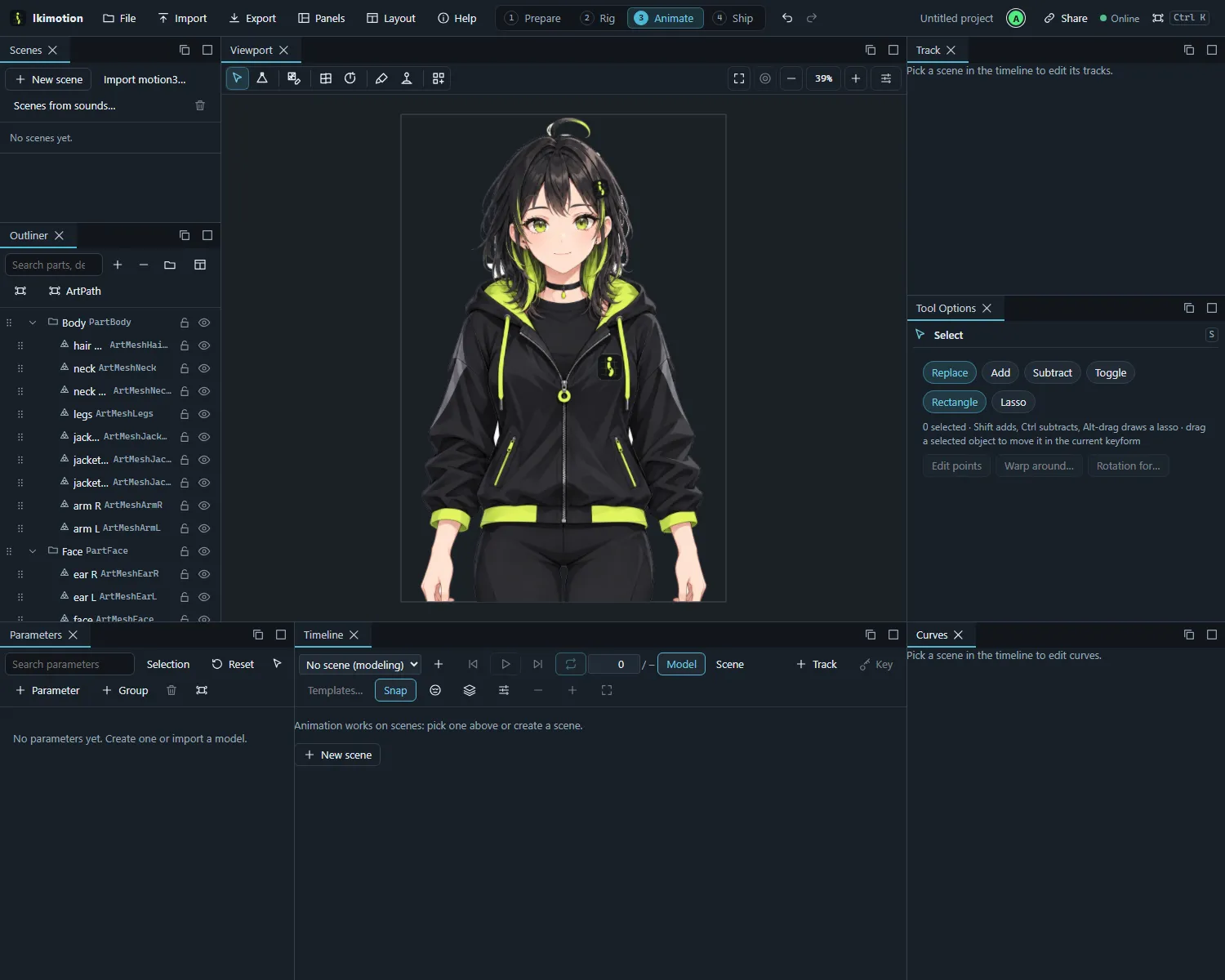
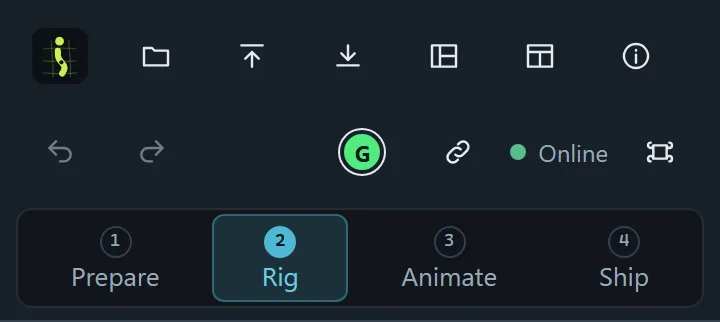
- The stage bar: Prepare, Rig, Animate, Ship and your custom workspaces (see below).
- Undo / Redo of your own changes, with the name of the change in the tooltip.
- The model’s name, the connection badge and the command palette button (Ctrl+K).


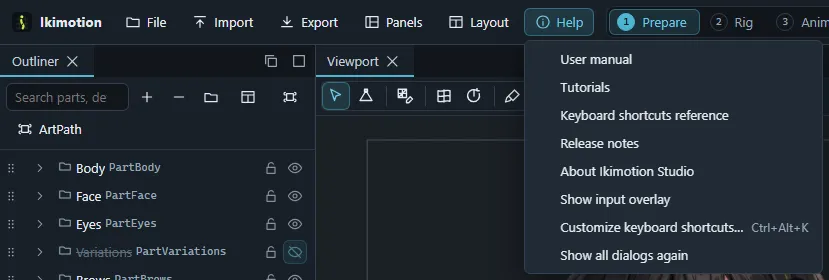
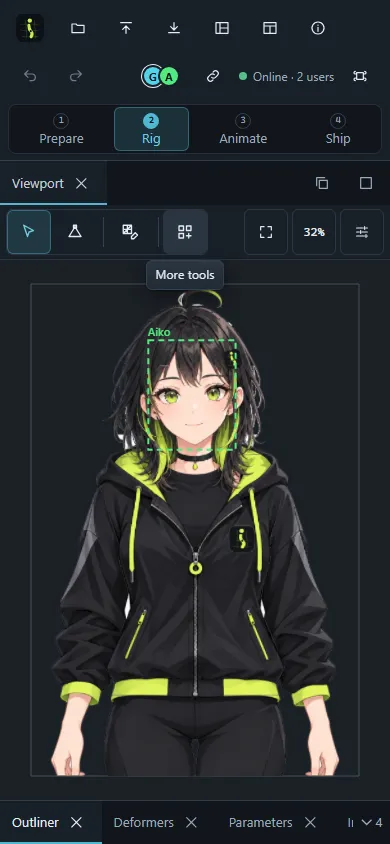
On phones the menus show icons only.
Hover help
Point at a control and a tooltip explains it after a moment: what it does, its keyboard shortcut and, on a disabled control, why it is disabled (for example Nothing to redo). Moving straight on to the next control shows its tooltip at once. Reaching a control with the Tab key shows its tooltip too; Esc, clicking or scrolling closes it. Tooltips are drawn in the app’s own style, follow the UI scale and also appear in floating and pop-out panels. Touch input shows none.
Stages and workspaces
The panels are arranged in four stages, one per kind of work. The stage bar in the top bar numbers them in order and switches with one click; hovering a stage says what it is for.
| Stage | For | Panels |
|---|---|---|
| 1 Prepare | Bringing the art in, organizing it and getting the meshes right | Outliner and Draw Order beside the viewport; PSD Import and Model Info, the Inspector and Next steps on the right |
| 2 Rig | Deformers, parameters and keyforms | Outliner over Deformers; the viewport over Keyforms; Parameters (all of them; Selection in its toolbar narrows the list to what the selected objects use), the Inspector with Physics, Next steps |
| 3 Animate | Scenes, keys and curves | Scenes over the Outliner, the viewport, Track over Tool Options; Parameters, Timeline and Curves side by side along the bottom |
| 4 Ship | The runtime preview, runtime effects and export | Expressions and Pose, Hit Areas and User Data; Preview with the Viewport one tab away; Export and Session |
A fresh browser starts in Rig. The start page’s ways in pick their stage: a PSD (dropped or
chosen), the sample character and a blank project open Prepare, a .cmo3 opens Rig and
a .can3 Animate. After that each device comes back to the stage (or workspace) it showed
last, whichever project you open. Every panel stays available from the Panels menu in every stage,
and sculpt mode opens its Sculpt panel inside Animate (see
Timeline sculpting).
While no Tool Options panel is open, the Inspector shows the active tool’s options at its top.
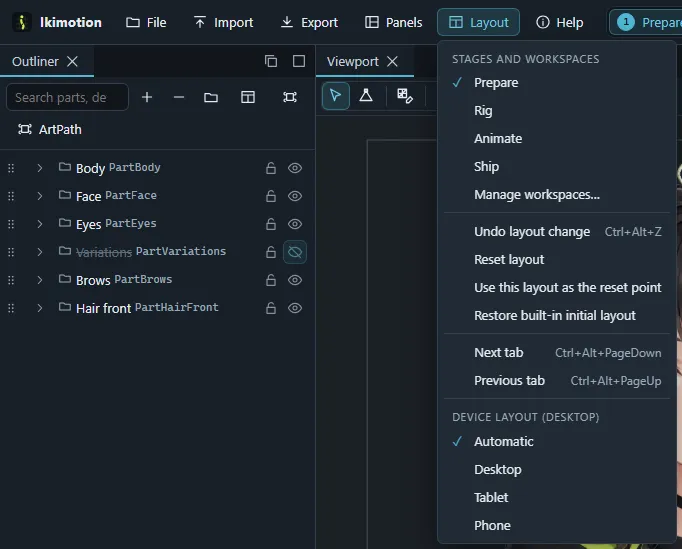
Each stage remembers its own arrangement in this browser. From the Layout menu you can:
- Reset the current stage or workspace to its initial layout, and Undo layout change (Ctrl+Alt+Z) after an accidental drag or close.
- Use this layout as the reset point: make the current arrangement what a reset returns to, and restore the stage’s built-in initial layout again.
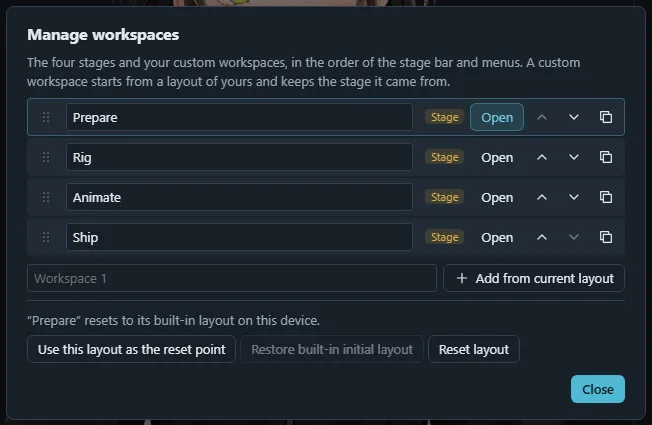
- Open Manage workspaces… to rename and reorder the stages (drag or Move up / Move down), and to add, duplicate and delete custom workspaces. A custom workspace starts from the current layout and keeps the stage it came from; it appears in the stage bar after the stages, marked with a diamond instead of a number.
- Pick the device layout: Automatic follows the screen, or force Desktop, Tablet or Phone. On tablets and phones the side panels live in edge groups that fold away as soon as you work in the viewport; on phones panels open in a sheet at the bottom and the stage bar takes a row of its own.
Layouts saved by versions before 0.5 (the Classic and Flow presets) are moved over on the first start: custom workspaces stay, each attached to the closest stage, and the built-in arrangements start fresh.
Panels
Every panel is a tab in a dock group. Drag a tab to another group or to an edge of the window to rearrange; drag it onto another tab strip to merge groups. The buttons at the right of each group and the tab’s context menu float a group over the dock, pop it out into its own browser window, maximize it (and restore it), or close tabs. A floating group has a button to dock it back.
A panel opened from the Panels menu or the palette joins a group on its side of the window, but never as a tab on top of Parameters, the Outliner, the Inspector, Tool Options or the Timeline: those stay in sight, and the new panel takes another group (or a new group below them). In the palette, Show panel opens a panel or brings it to the front when it waits behind another tab, and Close panel closes it.
| Panel | Purpose |
|---|---|
| Viewport | The model; several viewports can be open at once. |
| Outliner | Parts, deformers and art meshes as a tree. |
| Deformers | The deformation hierarchy. |
| Parameters | Parameter sliders, groups and the Parameter menu. |
| Keyforms | The keyform grid of the selected object. |
| Inspector | Properties of the selection. |
| Draw Order | Front-to-back order of the art meshes. |
| Tool Options | Settings of the active tool. |
| Model Info | File, format, contents, compatibility diagnostics and frame cost. |
| Session | Connection, people, objects being edited, import warnings. |
| PSD Import, Guide Images, Templates, CSV | Bringing artwork and data in. |
| Physics, Auto Angle | Physics groups; automatic head-turn keyforms. |
| Expressions, Pose, Hit Areas, User Data | Runtime extras. |
| Scenes, Timeline, Curves, Track, Lip Sync | Animation. |
| Export, Media Export, Preview | Output. |
| Live | Webcam, VTube Studio and Live API input. |
| Log, Project | The running message log; a tree of everything in the project. |
| Help | This manual. |
The command palette
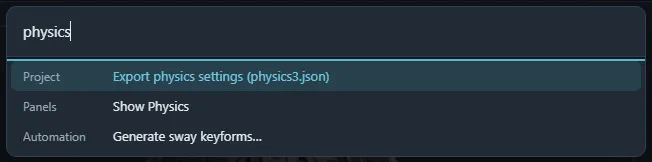
Press Ctrl+K (⌘K on a Mac) or the palette button in the top bar. Type any words, every word must appear in the command’s title, section or keywords, and press Enter to run the highlighted command. Every feature of the editor is a command, including ones that are only in panel menus, and the palette shows each command’s keyboard shortcut. Commands that need a value (for example a name) ask for it after you choose them.
Keyboard shortcuts
Shortcuts are actions bound to keys. Two shortcut sets ship, chosen in Preferences › Keyboard (or at the top of the shortcut editor) independently of the layout:
- Ikimotion keys (the default) put the tools on single letters.
- Cubism-compatible keys follow Cubism Editor’s default shortcuts for the commands both apps share, for muscle memory brought over from it. Whoever used the Classic preset of an earlier version keeps this set.
Help › Customize keyboard shortcuts… (Ctrl+Alt+K) changes the active set: an action may have several bindings, conflicts are highlighted, and each set keeps its own changes in this browser. Preferences › Keyboard exports and imports the active set as a file, ours or Cubism’s shortcut XML. The keyboard shortcuts reference always lists the keys currently in effect.
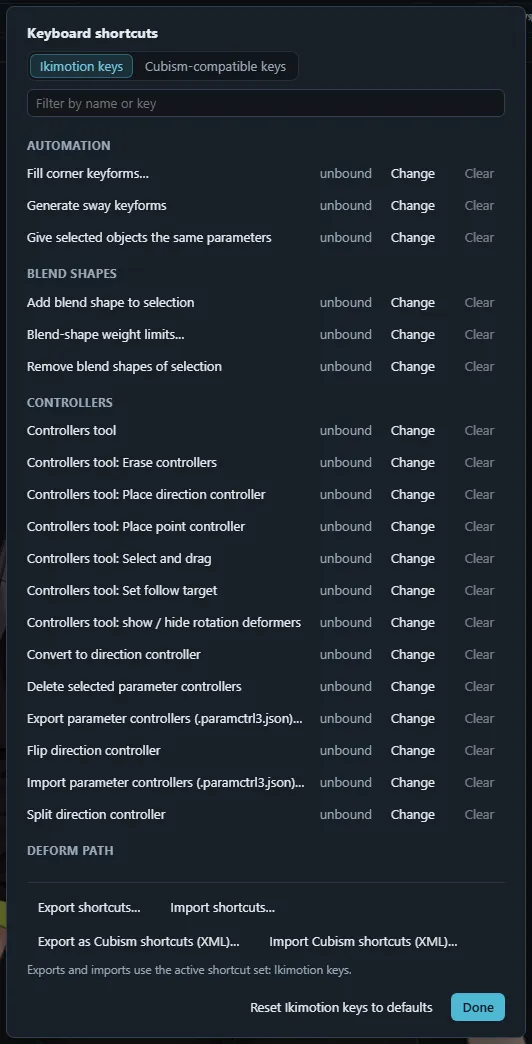
Default tool keys:
| Tool | Ikimotion keys | Cubism-compatible keys |
|---|---|---|
| Select | S | V |
| Points | D | A |
| Edit mesh | E | Ctrl+E |
| Warp deformer | W | W |
| Rotation deformer | R | R |
| Deform brush | B | B |
| Pick clipping masks | M | - |
| Attach | Shift+A | - |
| Last used tool | Q | Q |
Some commands have keys only in the Cubism-compatible set (lock and show / hide: Ctrl+2, Ctrl+3; copy, paste and mix keyforms: Ctrl+Shift+C / V / B; Lock art meshes on the canvas: Shift+A); bind them in the Ikimotion keys from the shortcut editor if you want them there.
Common editing keys: Ctrl+Z undo, Ctrl+Y or Ctrl+Shift+Z redo, Ctrl+A select all, Ctrl+F find and replace, Ctrl+C / Ctrl+X / Ctrl+V copy, cut and paste objects, O soft selection, [ and ] shrink and grow the soft-selection radius, 1 / 2 / 3 edit level.
Keys typed into a text field stay in the field.
Navigating the viewport
| Gesture | Mouse and keyboard | Touch and pen |
|---|---|---|
| Pan | Space+drag, middle or right drag, trackpad two-finger scroll, arrow keys | Two-finger drag |
| Zoom | Mouse wheel, Ctrl+wheel or trackpad pinch, + and −, Ctrl+Space+drag (or Alt+Space+drag) | Pinch |
| Rotate the view | R+drag (Shift: 15° steps), View menu rotate left / right / reset | Two-finger twist |
| Fit | 0, double-click, the Fit button | Fit button |
| Frame the selection | F (fits the canvas when nothing is selected) | Frame selection button |
| Layer-depth view | W+drag spreads the layers by draw order, E+drag orbits | Drag inside the depth view |
| Deselect | Escape (also leaves the depth view) | - |
A key held for a drag (R, W, E) still runs its normal shortcut when you press and release it without dragging. The zoom percentage button sets 100 %; a rotation badge appears while the view is rotated or mirrored (click it to reset).
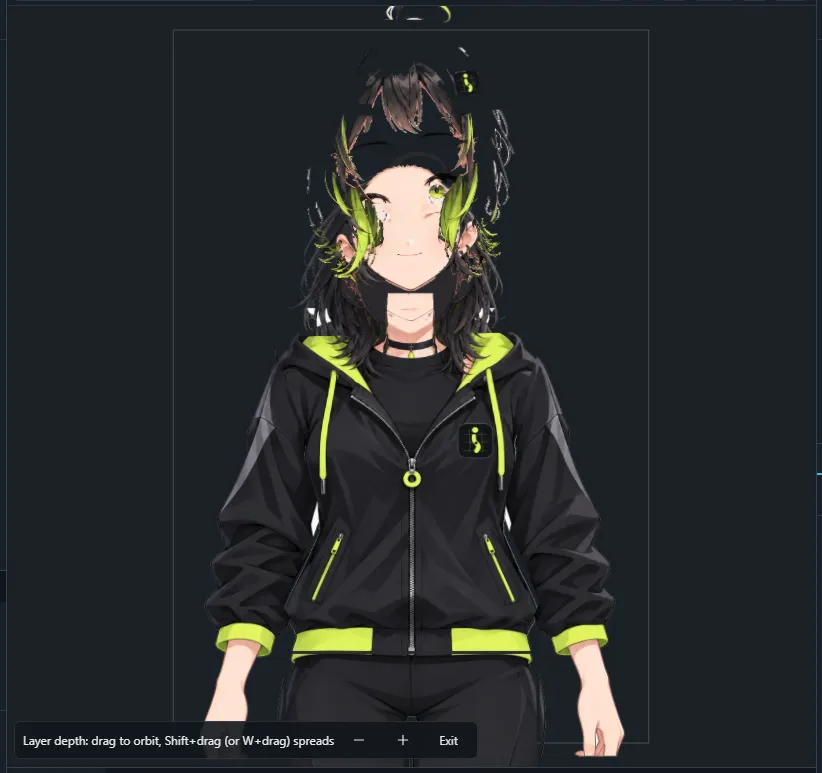
The viewport toolbar
- The tool strip: the core tools, the tools of the current context and More tools for the rest (see The tool strip). On a narrow viewport the view toggles fold into More view options first, then the tools that still do not fit move into More tools. On a phone, Frame selection and the zoom buttons live in More view options too (pinch to zoom), leaving the room to the tools.
- Fit, Frame selection, zoom out / zoom percentage / zoom in.
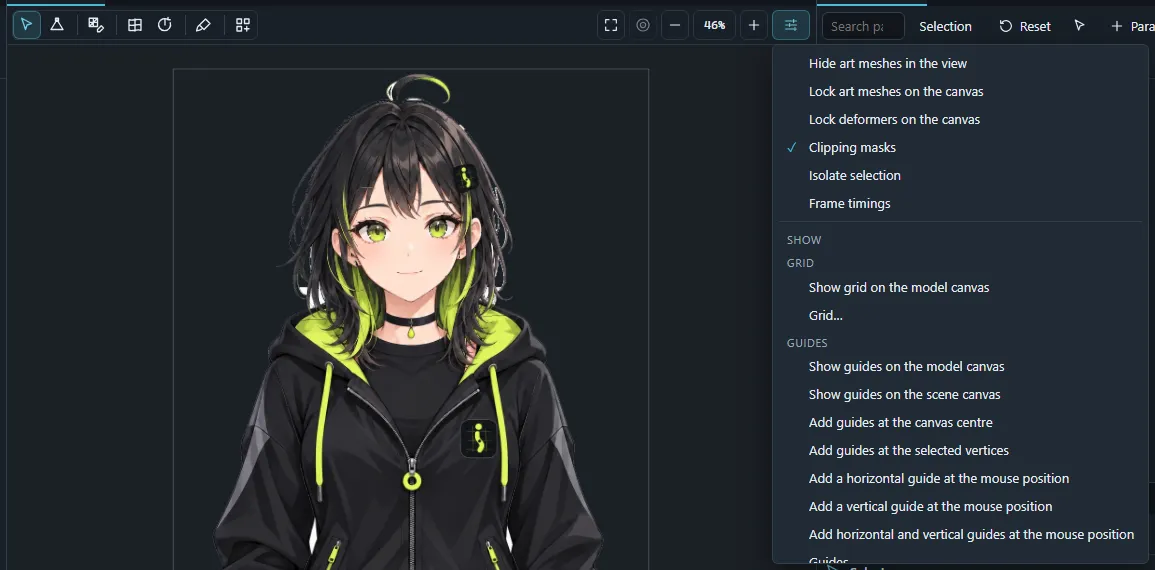
- Canvas filters: Hide art meshes in the view (view only; the document is unchanged), Lock art meshes on the canvas (Shift+A with the Cubism-compatible keys) and Lock deformers on the canvas (Shift+D): locked kinds cannot be picked or edited in the viewport.
- Masks (apply clipping masks), Isolate (show only the selection, without changing the document’s visibility), Frame timings.
- The Show menu: grid, guides and the guides window, vertices, vertex numbers, folded triangles, vertices the parent deformer cannot reach, the bounding box, the selection highlight, children while resizing warps, the object name under the pointer, snapshots and quick snapshots (compare a pose against a stored one), background colour.
- The View menu: render resolution (1/1 to 1/8 texture resolution for speed), model image or texture atlas, isolate colour and opacity options, view rotation and mirroring, layer-depth view, and Set all views to the same display position.
- Renderer: WebGL 2 or WebGPU (where the browser supports it).

Open a second viewport with Panels › New Viewport to see the model from two zoom levels or compare poses side by side. It opens as a tab next to the first; drag its tab to an edge of the window to see both at once.
Touch and pen
- On tablets and phones every control grows to at least 44 px.
- Tools that use modifier keys on a desktop (add to the selection, subtract, invert) show the same choices as buttons in their tool options.
- The pen draws and edits like a mouse; brushes can map pen pressure to strength and/or radius.
- Two fingers always navigate the viewport, even with a tool active; a second finger cancels the tool gesture the first one started.
- Panels at the edges collapse while you work in the viewport and open again from their tab.
Messages, the log and the input overlay
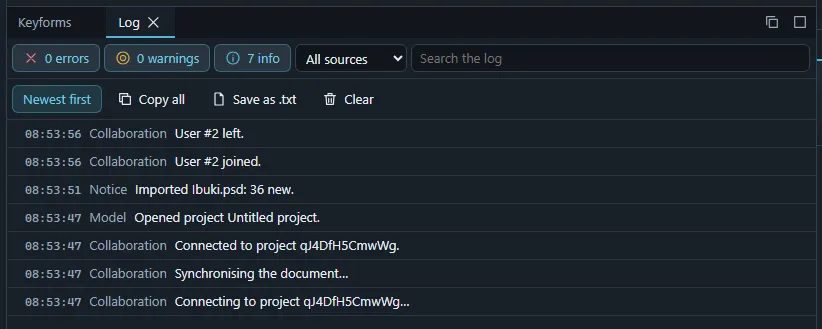
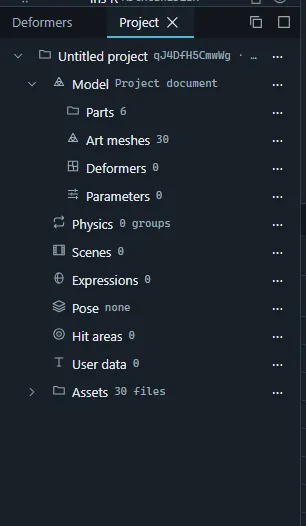
Short notices appear in the corner of the window. The Log panel (Show Log) keeps every notice, import warning, load diagnostic, connection change and unexpected error with time, severity and source; filter it, search it, copy entries (Copy the whole log), Save the log as text… or Clear the log. While the panel is hidden its tab shows how many new errors arrived. The Project panel (Show Project) shows a tree of everything in the project, model, scenes, expressions, pose, hit areas, user data and assets, opens the matching panel when you click an entry, and offers that area’s commands in each entry’s ⋯ / right-click menu.
Help › Show input overlay shows the keys, mouse buttons, wheel, touches and pen strokes you use in a strip at the bottom of the window, handy for screen recordings and teaching. Choose it again to hide it.