Tutorial: make an idle animation
You will animate a gentle, looping idle motion, head sway, breathing and blinking, and export it as a motion that apps play when nothing else happens.
You need a rig with at least Angle X (see Rig a head turn); body angle, breath and eye parameters make it livelier.
1. Create the scene
- Switch to the Animate stage in the stage bar.
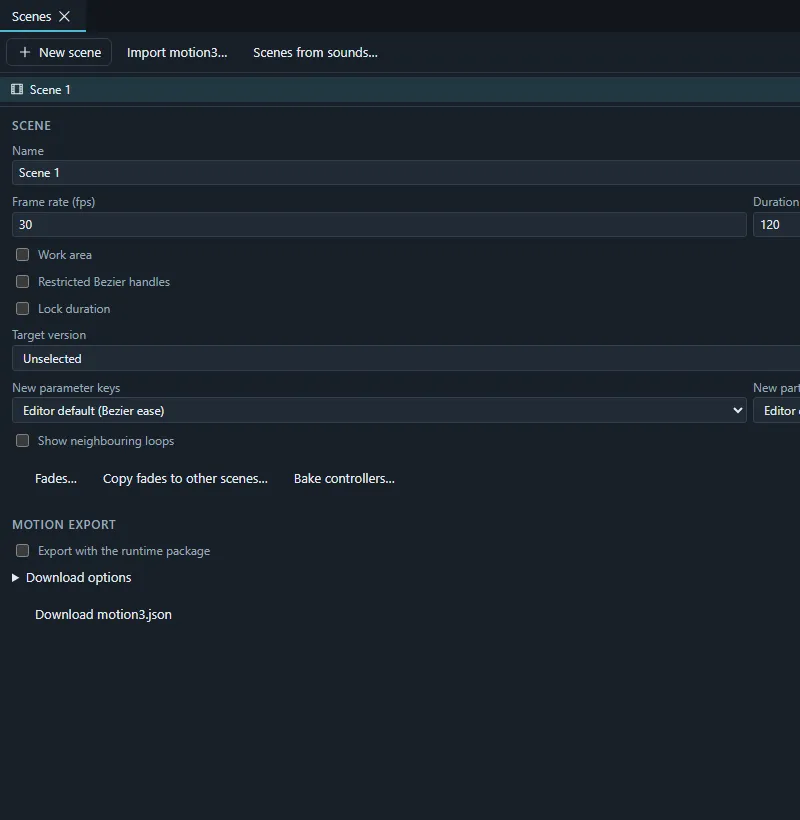
- In the Scenes panel press New scene. Name it Idle, keep 30 fps and set the duration to 120 frames (4 seconds).
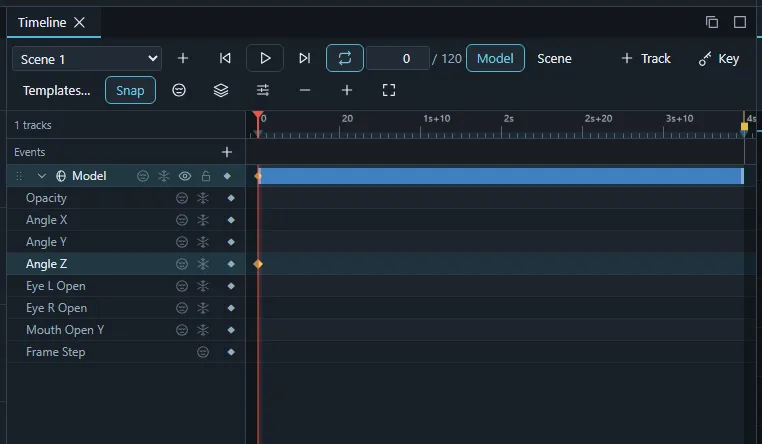
- In the Timeline, open Add track and choose the model track. A model track animates the project’s rig; its parameters appear as property rows.
2. Key the start pose
- Make sure the playhead is at frame 0 (Home).
- Set Angle X to −5 with its slider (and Body angle X if you have it).
- Press Key parameters at the playhead in the timeline toolbar: the parameters you moved get a key at frame 0.
3. Key the middle and the end
- Move the playhead to frame 60 (click the ruler or press → repeatedly), set Angle X to 5 and key again.
- Move to frame 120 and set Angle X back to −5, then key. Equal first and last values make the loop seamless.
- Press Loop the work area and play (Space). The head sways back and forth.
4. Shape the motion in the Curves panel
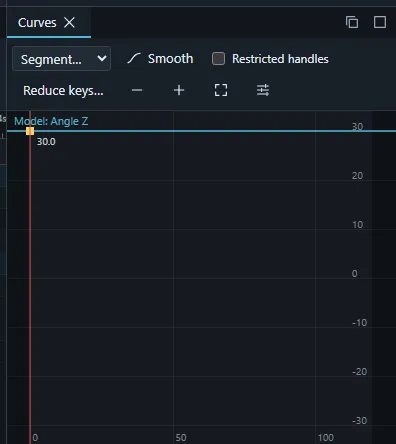
- Select the Angle X row in the timeline; the Curves panel draws its curve.
- Select all its keys and press Smooth for automatic smooth handles, so the head eases in and out instead of moving at constant speed.
- Drag a handle to make the turn linger at one side. With Restricted Bezier handles on in the scene settings, handles stay at thirds of their segment, as motion3 requires for that option.
5. Breathing and blinking
Select the model track and open the Track panel:
- Breath: press Add and choose your breath parameter (or Body angle Y); set the cycle (for example 3.5 s), offset and peak.
- Eye blink: choose the eye parameters and the interval; the preview blinks while it plays.
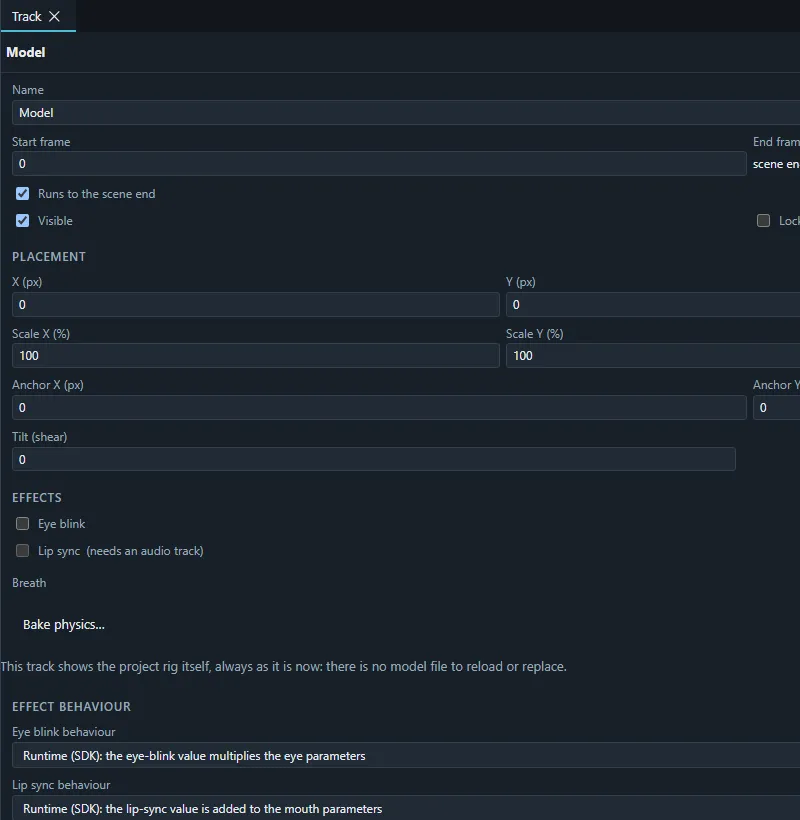
These effects play live in the editor. When the motion is exported with bake effects on (Scenes panel › Download options), they are written into the motion’s curves.
6. Bake hair physics (optional)
If the model has physics, the hair already swings while the animation plays. To store that motion in the scene, for apps that play motions without physics, press Bake physics… in the Track panel, keep the whole scene as range and bake. The outputs become keys you can edit.
7. Export the motion
In the Scenes panel, under Motion export:
- Turn on Export with the runtime package, set the group to Idle and turn on Loop.
- Download motion3.json saves the motion alone; the runtime package export includes it from now on.
To make a video of it instead, open Media export… and render the scene as MP4 or GIF.
Next: Export for VTube Studio.