Editing tools
The tools sit on the tool strip at the left of the viewport’s toolbar; the Tool Options panel (or, while it is closed, the top of the Inspector) shows the active tool’s name, its shortcut and its settings. Q switches back to the last used tool. Locked objects and kinds locked on the canvas are never picked.
The tool strip
The strip keeps to the tools you need now, each with its own icon; hover a button for its name and shortcut.
- Always there: Select, Points, Edit mesh, Warp deformer, Rotation deformer and Deform brush.
- In context: the hit-area pick while the Hit Areas panel is on screen, the guide image tool while Guide Images is, the Auto angle proxy while Auto Angle is, and the Controllers tool while you animate (a scene is open, or you are in the Animate stage). In sculpt mode the strip shows every tool that can write sculpt keys.
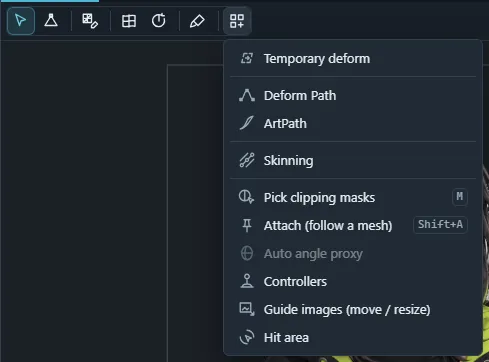
- More tools (the last button) lists every other tool with its name and shortcut: ArtPath, Deform Path, Skinning, Temporary deform, Pick clipping masks, Attach and the tools out of context.
- The active tool always stays on the strip, whichever way you picked it (strip, More tools, shortcut or command palette).
- When the viewport is too narrow for the whole strip, the tools that do not fit move into More tools, at the top of the list.
Where edits go: keyforms
Moving points, brushing, rotating a deformer or changing opacity edits the keyform at the current parameter values of each object. When the parameters sit between keyforms there is nothing to edit yet, so the editor either creates a keyform there (it starts as the interpolated shape, so nothing jumps) or snaps the parameters to the nearest keyform. Choose which in the Keyforms panel (When editing between keyforms: Ask each time, Create keyform here or Snap to nearest). See Parameters and keyforms.
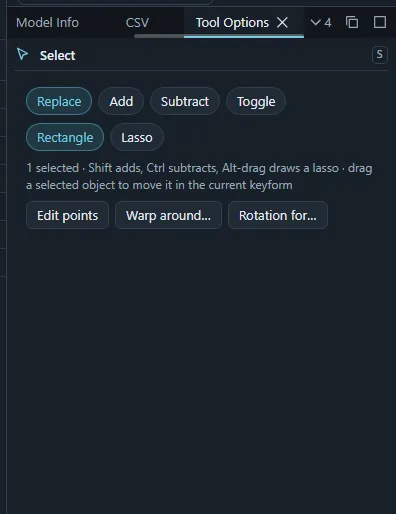
Select
Click an art mesh, a warp lattice or a rotation pivot to select it; drag on empty canvas for a rectangle (Alt-drag or the Lasso option for a free shape). Shift adds, Ctrl (⌘) subtracts, both toggle, on touch, the mode buttons in the tool options do the same. Dragging a selected object moves it in the current keyform. A selected rotation deformer shows its pivot and arm: drag the arm’s tip to turn it (Shift-drag to scale), or the pivot to move it.
Points
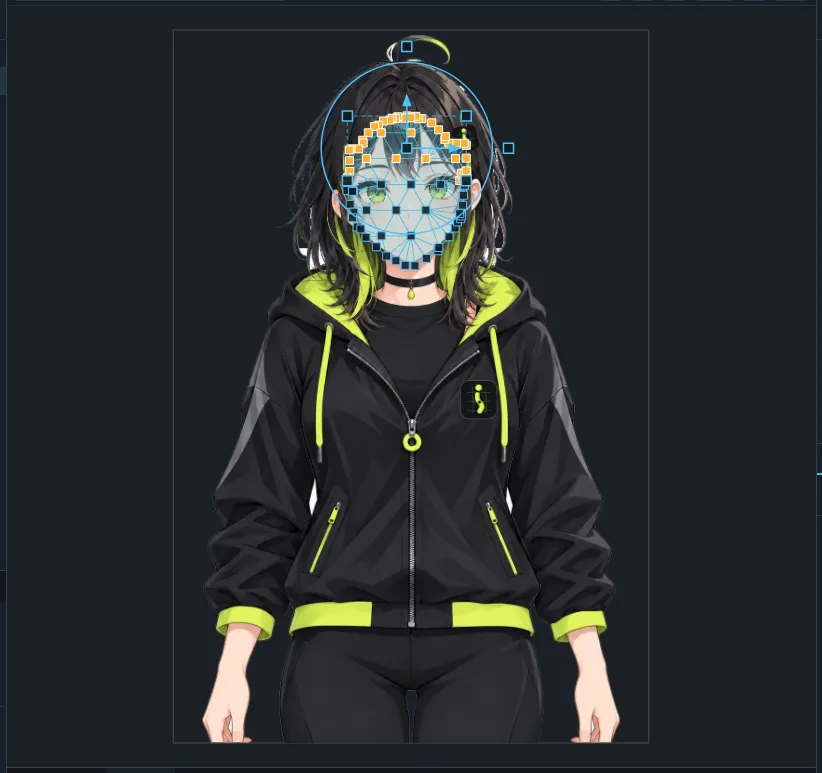
Selects vertices of the selected art meshes and lattice points of the selected warp deformers (click, rectangle, lasso), then moves them in the current keyform:
- drag them, use the arrow keys, or use the gizmo: its centre moves, its ring rotates, its squares scale;
- Point position shows the selected point’s canvas position (several: their centre) and Set position moves it to typed coordinates; Scale % scales the selection by an exact percentage;
- selected rotation deformers show their pivot (drag to move) and arm (drag to turn, Shift-drag to scale).
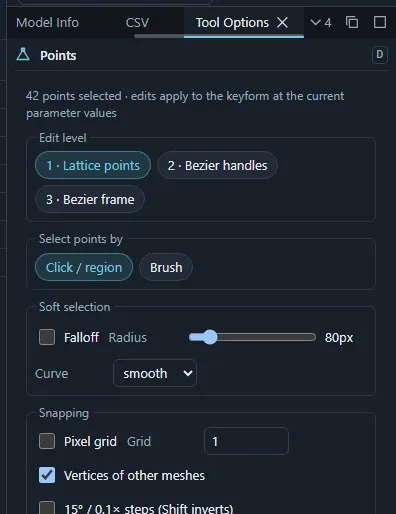
Brush selection (Alt+B) paints a weighted selection instead: Shift paints, Ctrl+Shift erases, pen pressure and hardness shape the weights, and drags then move points by their painted weight.
Soft selection and snapping
- Soft selection (O) lets points near the selection follow with a falloff; [ and ] shrink and grow its radius.
- Show › Grid… can snap moved points to the grid; Show › Snap moving vertices to guides snaps them to the nearest shown guide line.
- With Show › Show bounding box off, the transform box is hidden.
Deform brush
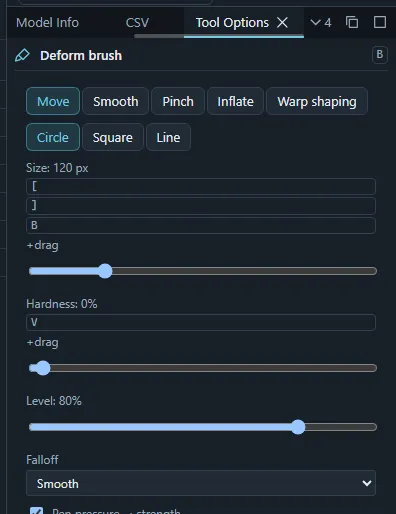
The Deform brush (B) edits the vertices of selected art meshes and the lattice points of selected warp deformers on the current keyform:
| Mode | Effect |
|---|---|
| Move | Pushes points along the stroke. |
| Smooth | Evens out the points under the brush. |
| Pinch / Inflate | Pulls points together or pushes them apart. |
| Warp shaping | Reshapes a warp deformer through its Bezier handles (edit level 2 or 3). |
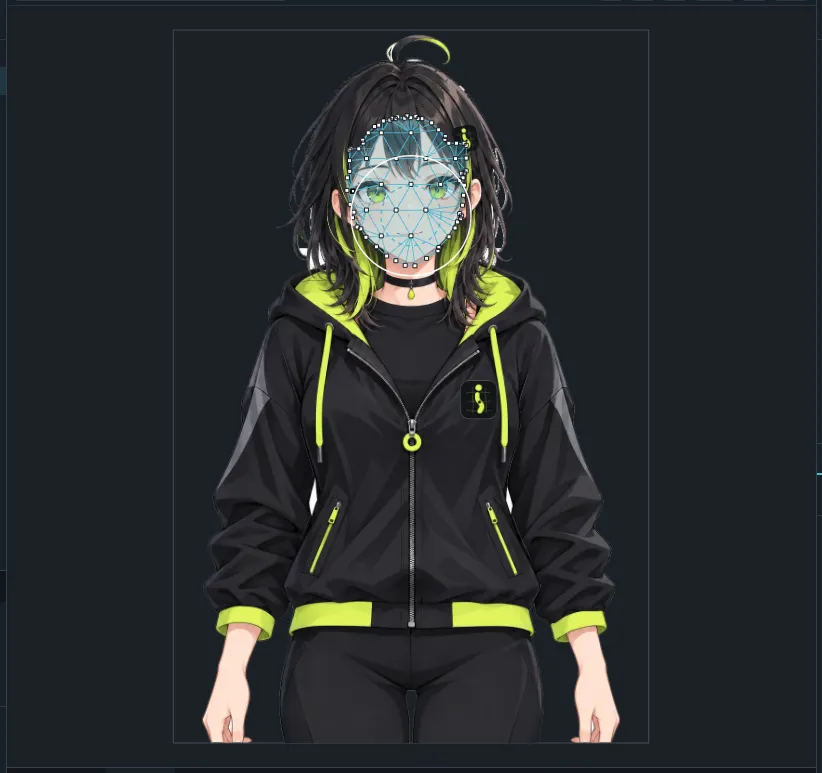
Radius, strength and falloff (smooth, linear, sharp, constant) are in the tool options; the pen can drive strength and/or radius by pressure. Every stroke is one undo step.
Temporary deform
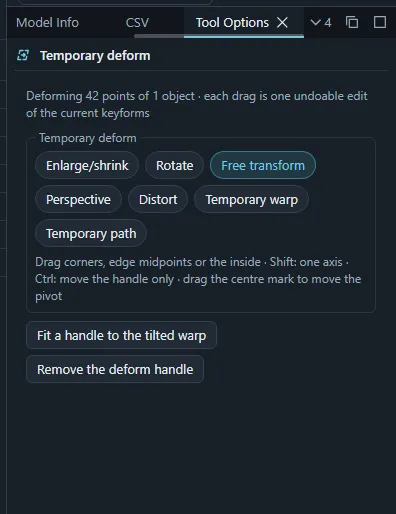
The Temporary deform tool puts a handle around the selected points (or whole meshes and warps) for a quick transformation in the current keyform:
- Enlarge/shrink, Rotate, Free transform, Perspective and Distort use a quad: drag corners, edge midpoints, the anchor or the inside. Shift locks to one axis (rotation: 15° steps), Ctrl moves the handle without deforming.
- Temporary warp places a 3×3 lattice over the targets; Add rows / columns ×2 and Remove rows / columns ÷2 change its density.
- Temporary path bends the targets along a curve: tap empty canvas to add points, tap the curve to insert one, Alt+tap or Delete point removes one, drag points to bend.
- Fit a handle to the tilted warp puts a quad on a selected warp deformer’s corners, turned to its angle.
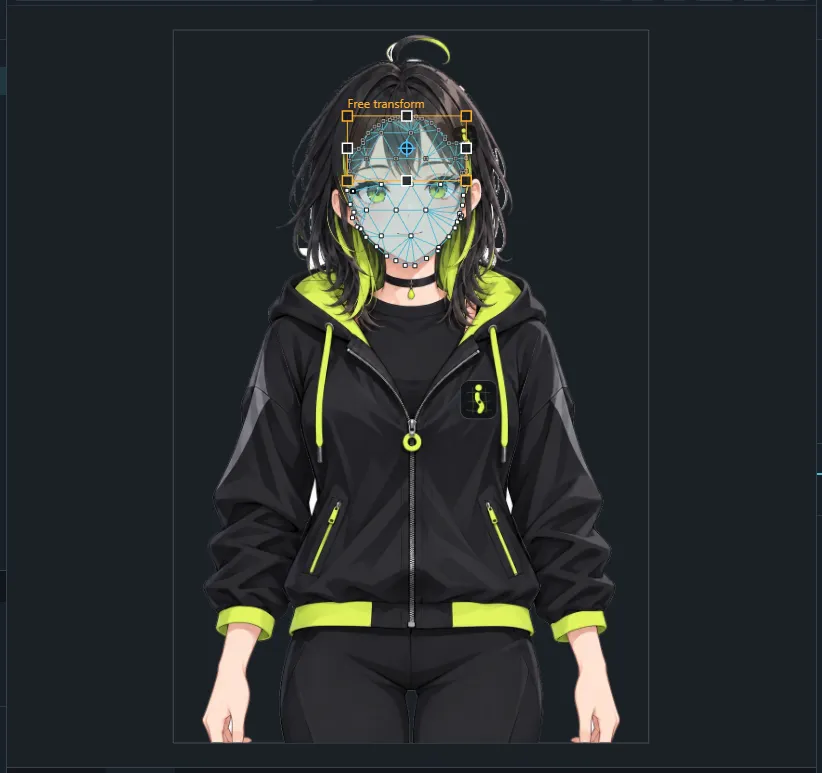
Escape removes the handle; the edits you made stay.
Other tools
- Edit mesh: see Art meshes and mesh editing.
- Warp deformer, Rotation deformer, Skinning, see Deformers.
- Pick clipping masks: see Clipping masks.
- Attach: see Attachments.
- Auto angle proxy: see Auto angle.