Deformers
Deformers move what is inside them. A warp deformer is a lattice that bends its contents smoothly; a rotation deformer turns and scales its contents about a pivot. Deformers nest: a face warp inside a head rotation inside a body warp. Each deformer has keyforms like an art mesh, so a parameter can bend a warp or turn a rotation.
Creating deformers
Select the art meshes (and/or deformers) to put inside, then:
- Warp deformer tool (W) or the Deformers panel’s Warp button: a regular lattice around the selection as drawn now. The tool options set columns × rows, the margin around the selection and whether cells are bilinear or split into two triangles (Cubism 3.2 style); Wrap selection in a warp deformer makes it.
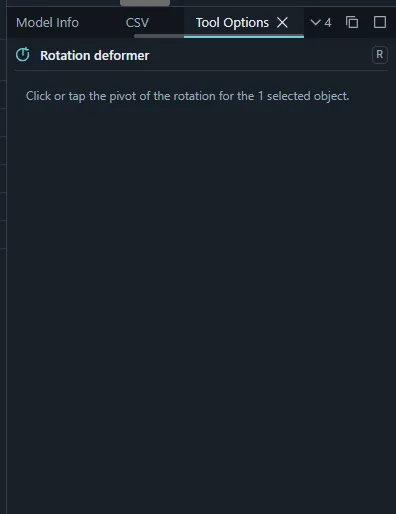
- Rotation deformer tool (R) or the Rotation button: tap or click where the pivot should be.
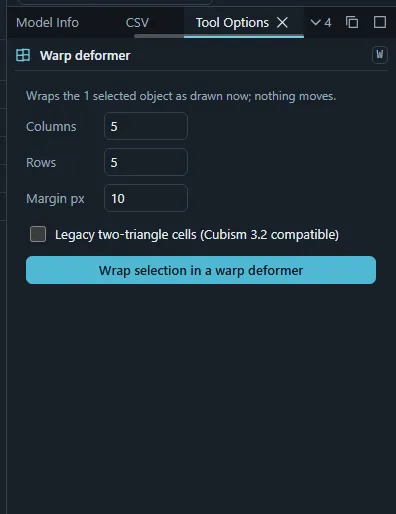
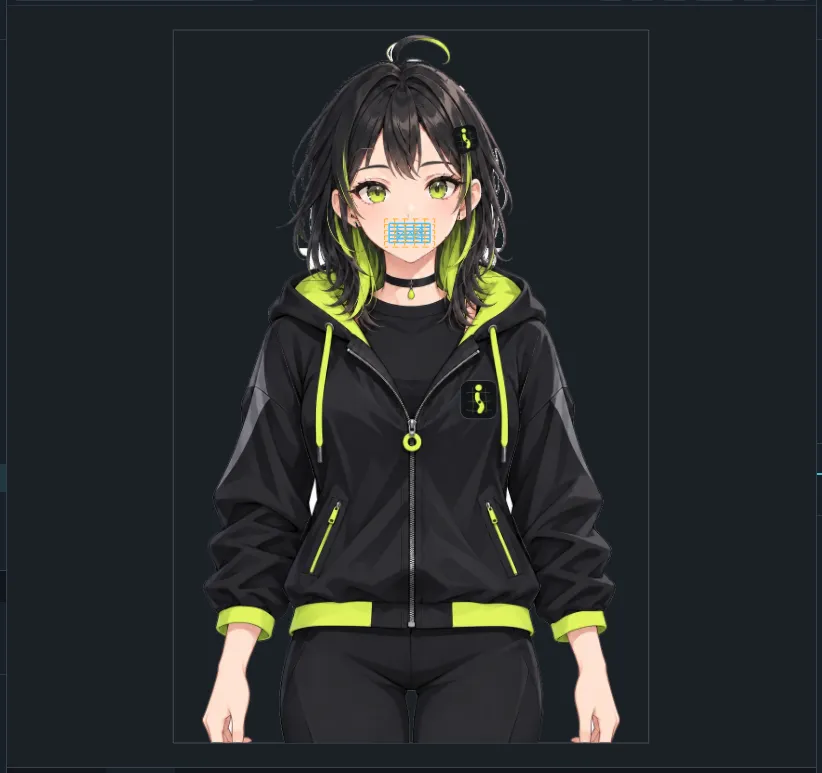
The selection moves into the new deformer and everything stays where it is drawn: keyforms are converted into the deformer’s space.
The Deformers panel
The Deformers panel shows the deformation hierarchy: deformers and the art meshes they deform.
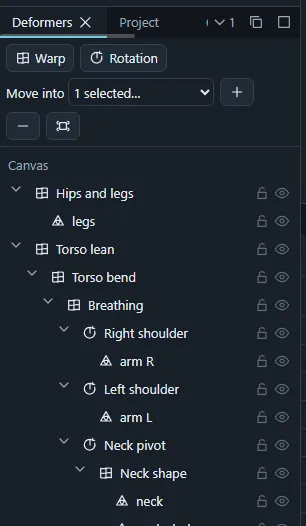
- Drag rows onto a deformer (or the canvas row) to move them; Move into does the same without dragging. Keyforms are converted, so nothing jumps. Restrict drag and drop turns dragging off.
- Eye and lock toggles per row; locked deformers cannot be picked or edited on the canvas.
- The menu selects the parent deformer (Ctrl+D), the child objects (Ctrl+Alt+D), everything below, or removable deformers; shows, hides, locks and unlocks all deformers; collapses the tree below the selection; deletes the selected deformers keeping what they deform (it moves up a level and stays where it is drawn); and deletes empty deformers.
- Above the tree, the selected warp’s settings: lattice divisions (the lattice is resampled so the shape is kept), Bezier divisions, and compatibility switches.
Edit levels and Bezier warps
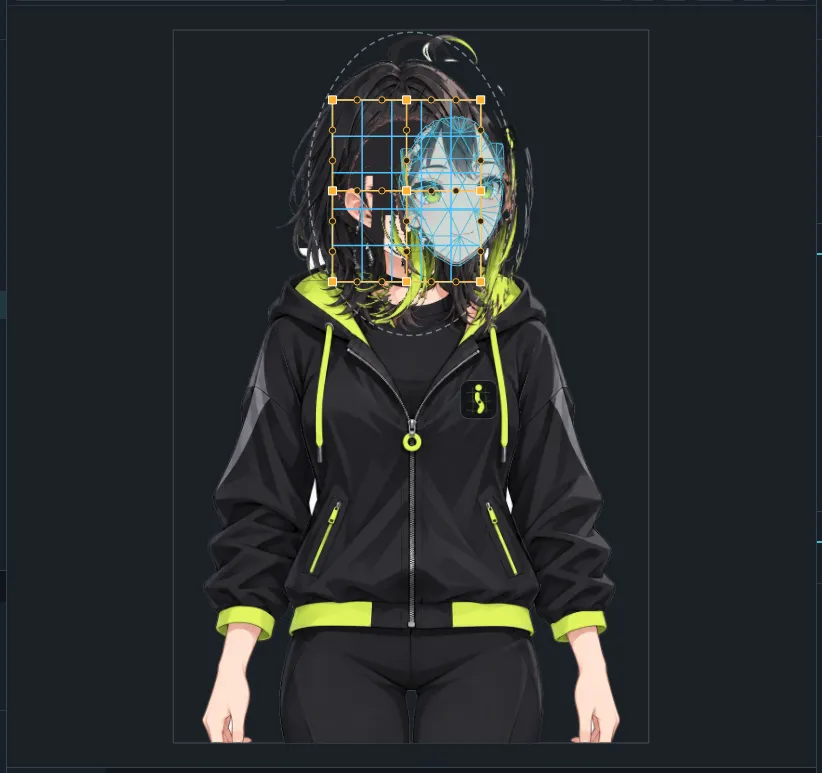
Warp lattices can be edited at three edit levels (keys 1, 2, 3, or the Points tool options):
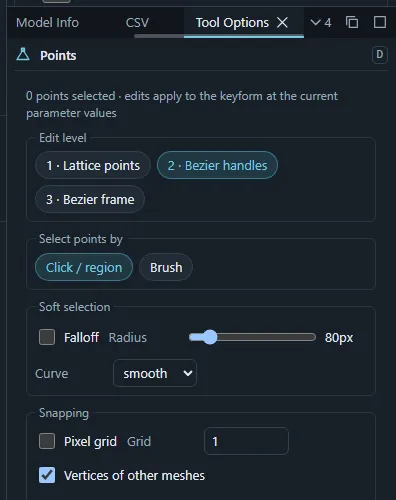
- every lattice point;
- a Bezier net fitted to the warp, move anchors and handles and the lattice follows smoothly;
- a coarser Bezier net for large, rough changes.
The Bezier columns and rows of levels 2 and 3 are set per warp. Shape warp along Bezier handles makes the current keyform’s lattice exactly follow the Bezier surface. The Deform brush’s Warp shaping mode brushes the Bezier net.
Deformer operations
In the Deformers panel menu and the command palette:
- Bake deformer into its children bakes a deformer’s motion into each of its children and removes it.
- Expand warp to fit children grows a warp so every child point is inside its range.
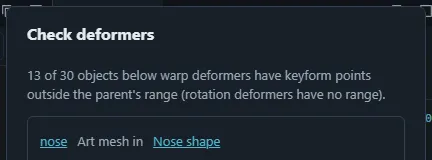
- Check deformers… lists objects whose points stick out of their parent warp (refreshed after every change), with an Expand button.
- Store current shape as original stores the selected deformers’ current shape; Back to original shape in the Keyforms panel sets a keyform back to it; Forget all stored original shapes… forgets them.
Automatic deformers
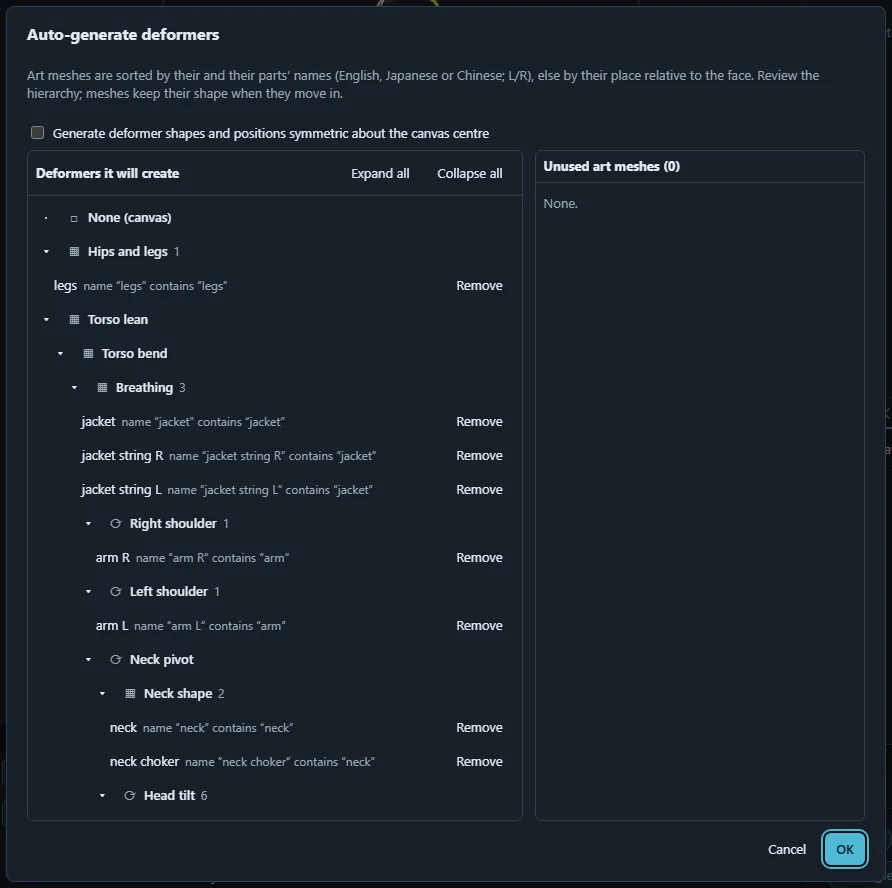
Auto-generate deformers… proposes a standard hierarchy (face, eyes, brows, mouth, hair, body…) for the visible art meshes. It sorts the meshes by their names and their parts’ names (English, Japanese and Chinese keywords, left / right sides) and by their place relative to the face. You review the proposal as a tree, move meshes between deformers or leave them out, choose horizontal symmetry, and OK creates everything as one undoable change.
Skinning
The Skinning tool turns one long art mesh (a strand of hair, a tail, a ribbon) into a chain of rotation deformers:
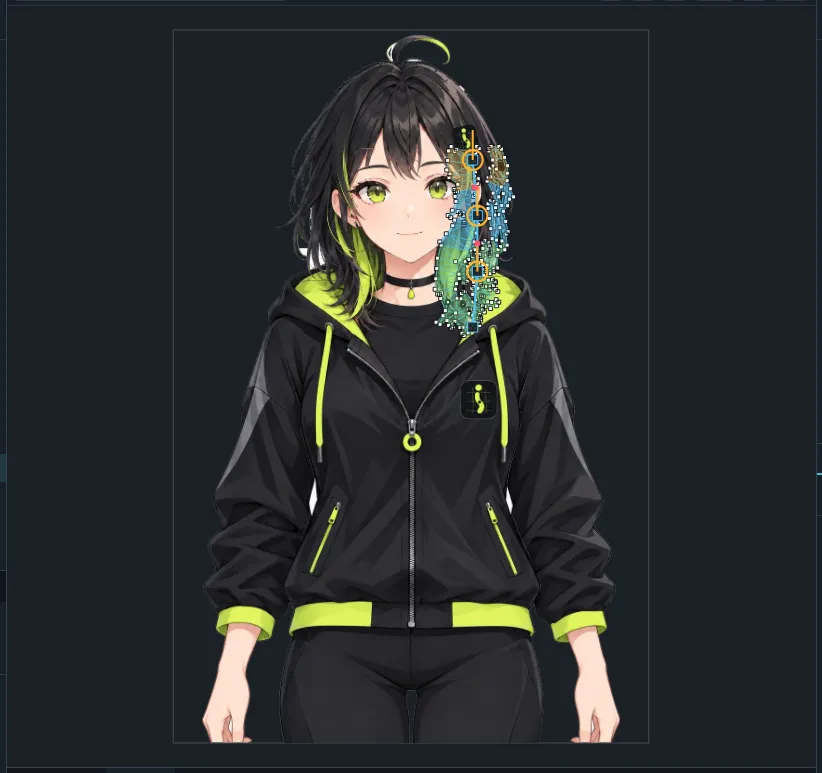
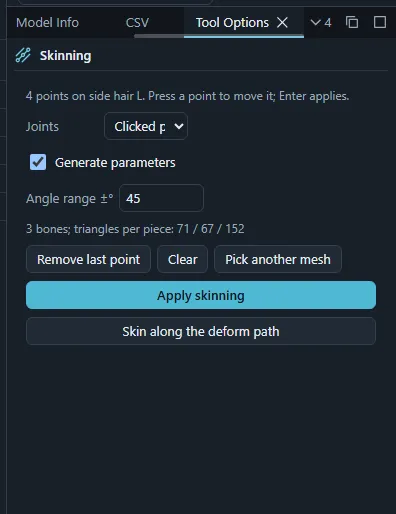
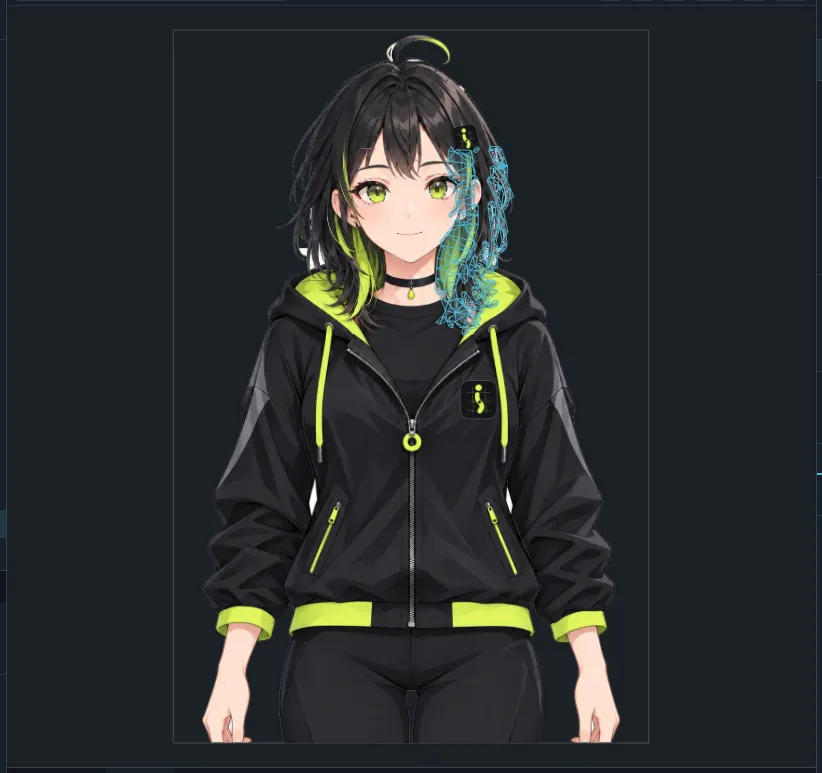
- Select one art mesh and choose Skinning (Deformers menu or the palette).
- Click, tap or draw the points of a line from the root to the tip; press a point to move it, Backspace removes the last one, Escape clears. Joints are the clicked points (or a number of evenly spaced joints).
- Enter or Apply. The mesh is split into one piece per bone, the seams are held together by attachments, and, with Generate parameters on, one parameter per bone (±45°) is created.
Generate parameters for rotation deformers… creates such parameters for existing rotation deformers later.
Next
Bind the deformers to parameters in Parameters and keyforms, or follow Tutorial: rig a head turn.