Tutorial: from PSD to a first rig
You will create a project, bring in layered artwork, check the meshes and make the eyes blink.
You need a PSD of a character with the parts that move on their own layers, at least each eye white, iris, upper eyelid and lash separately. Give the layers clear names (eye white L, iris L, eyelash L…): Ikimotion Studio keeps them as object names, and automatic tools read them.
1. Create a project
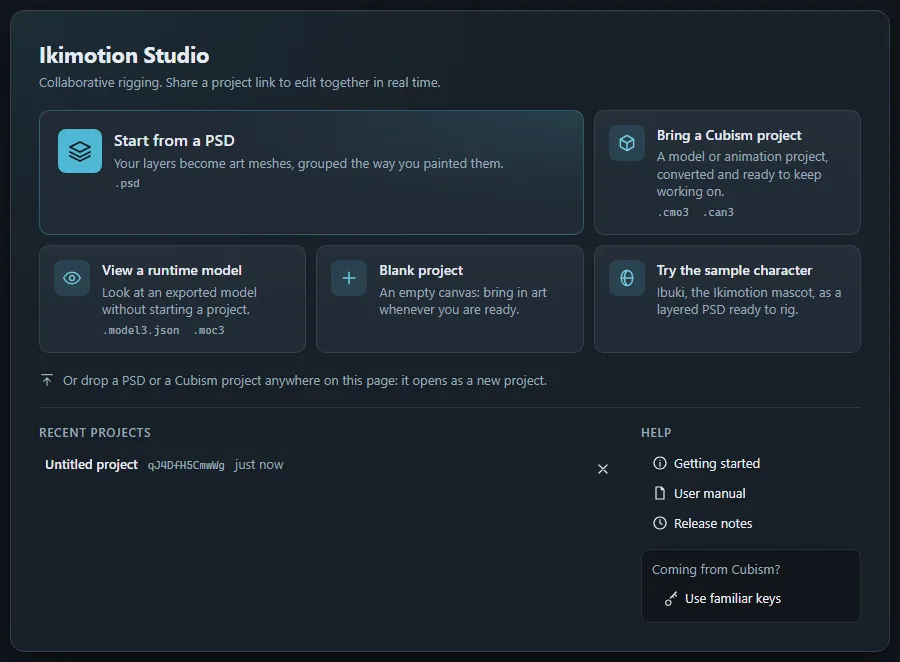
The quickest start: on the start page, choose Start from a PSD and pick your file (or drag the PSD from the desktop onto the start page). A new project opens, named after the file, with the PSD already imported: continue with step 2 of the next section. No artwork at hand? Try the sample character does the same with Ibuki, the Ikimotion mascot, as a layered PSD.
To start from an empty project instead:
- Open Ikimotion Studio and choose Blank project on the start page. The editor opens with an empty project; its address in the browser is the project’s link.
- The stage bar at the top leads through the work: Prepare for the art and meshes, Rig for deformers and parameters, Animate, then Ship. This tutorial names the stage for each step. If your fingers know Cubism Editor’s shortcuts, pick Cubism-compatible keys in Preferences › Keyboard; the keys below are the default Ikimotion keys.
2. Import the PSD
- Choose Start from a PSD in the empty project’s viewport, use Import › PSD…, or drop your PSD anywhere on the editor window. The PSD Import panel opens and shows the progress.
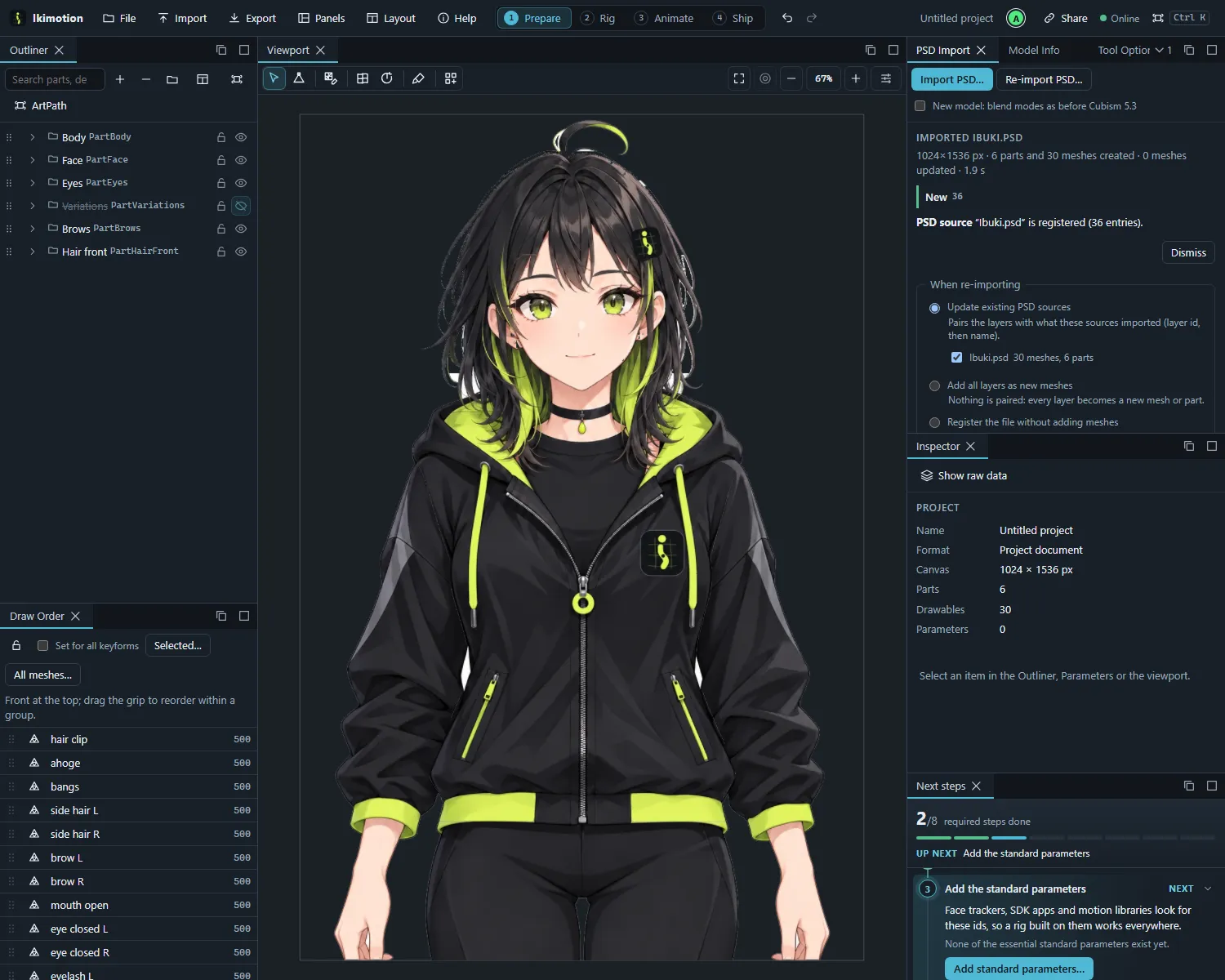
- Wait for the import to finish. Every layer is now an art mesh with an automatic mesh, every group a part. Open the Outliner to see the tree and the Draw Order panel to check that the order front to back is right.
- Any import warnings are listed in the PSD Import panel and the Session panel.
3. Check the meshes
The automatic mesh follows each layer’s outline. Parts that will bend a lot, eyelids, mouth, hair, need enough vertices inside.
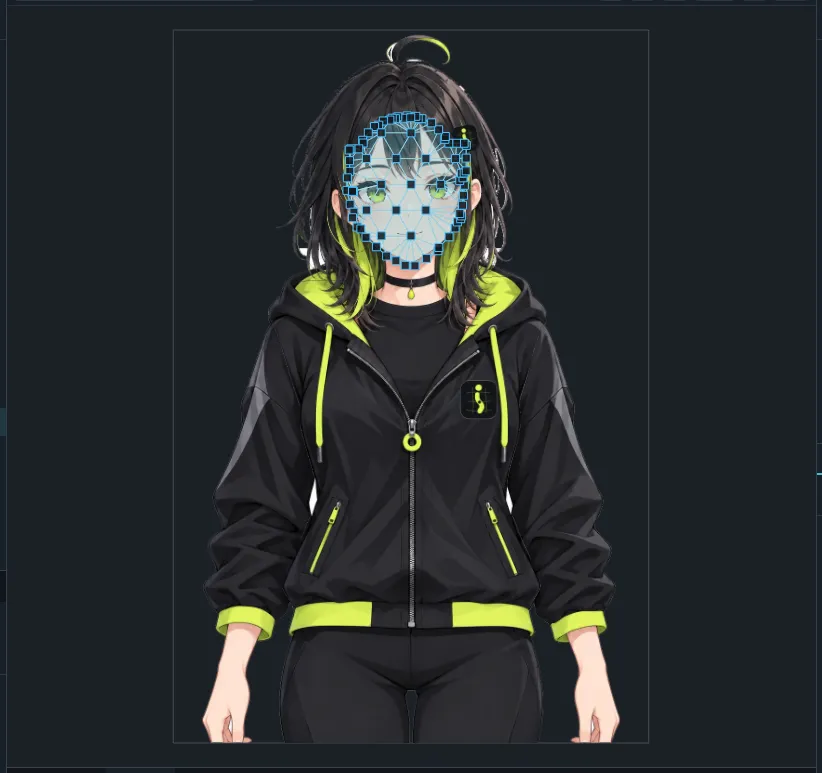
- Select an eyelid art mesh (click it in the viewport or the Outliner).
- Choose Edit mesh (E).
- In the tool options, lower interior spacing of the automatic mesh generator and re-mesh, or click inside the mesh to add vertices by hand.
- Apply. Repeat for the other meshes that need it. Automatic mesh for the selected art meshes (Ctrl+Shift+A) re-meshes several at once.
4. Create the eye parameters
- In the Parameters panel press + Parameter.
- Name Eye L open, ID
ParamEyeLOpen, minimum 0, default 1, maximum 1. Create it. - Do the same for Eye R open (
ParamEyeROpen).
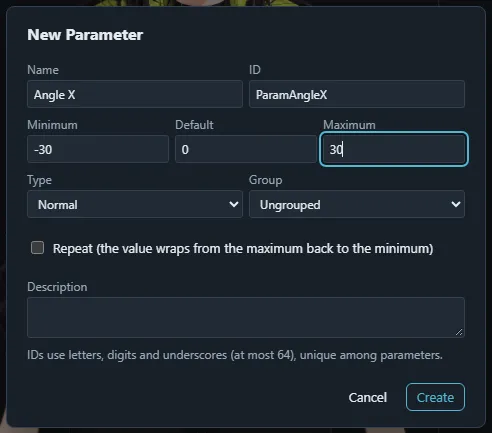
Using Cubism’s standard IDs (ParamEyeLOpen, ParamAngleX, …) lets apps such as VTube Studio
map their tracking automatically.
5. Bind and pose the left eye
- Select the left eye’s meshes: eyelid and lashes, iris and white (Ctrl+click in the Outliner; on Ibuki eyelash L, iris L and eye white L).
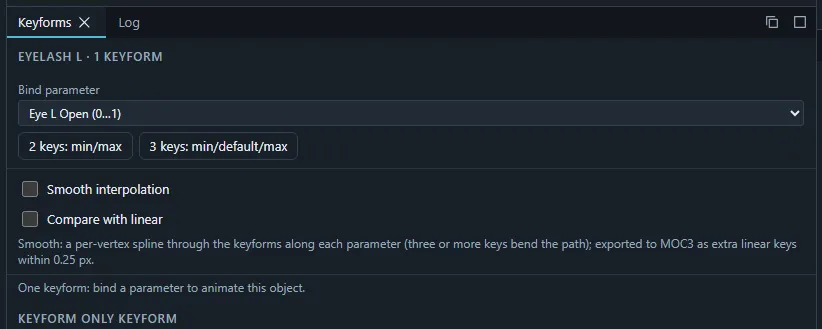
- In the Keyforms panel, choose Eye L open under Bind parameter and press 2 keys: min/max. All selected meshes now have a keyform at 0 and at 1.
- Set Eye L open to 0 with its slider. The Keyforms panel shows you are on the keyform at 0.
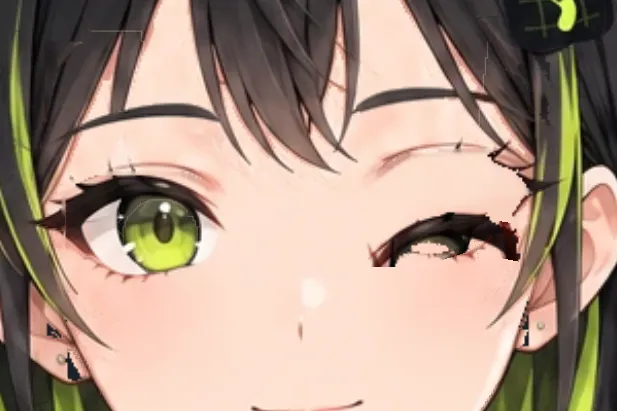
- Choose the Points tool (D), select the upper eyelid’s vertices and drag them down onto the lower lid. Use the Deform brush (B) for finer shaping, and press O for soft selection so neighbouring vertices follow.
- Shrink the iris and white so they disappear behind the closed lid, or lower their opacity in the Inspector at this keyform.
- Move the slider between 0 and 1 to check the in-between shapes.
Repeat for the right eye, or select both eyes’ meshes and use Flip keyform… in the Keyforms panel to mirror work from one side to the other.
6. Make it blink in apps
- In the Parameters panel press the Edit parameter button (sliders icon) on the Eye L open row and turn on Eye blink; do the same for Eye R open.
- Run Play random pose from the command palette to watch the model move through random parameter values; run Stop random pose to stop.
You now have a rig that blinks. Continue with Rig a head turn.